1. Applying to Use GitHub Copilot Chat
Application link https://github.com/github-copilot/chat_waitlist_signup/join
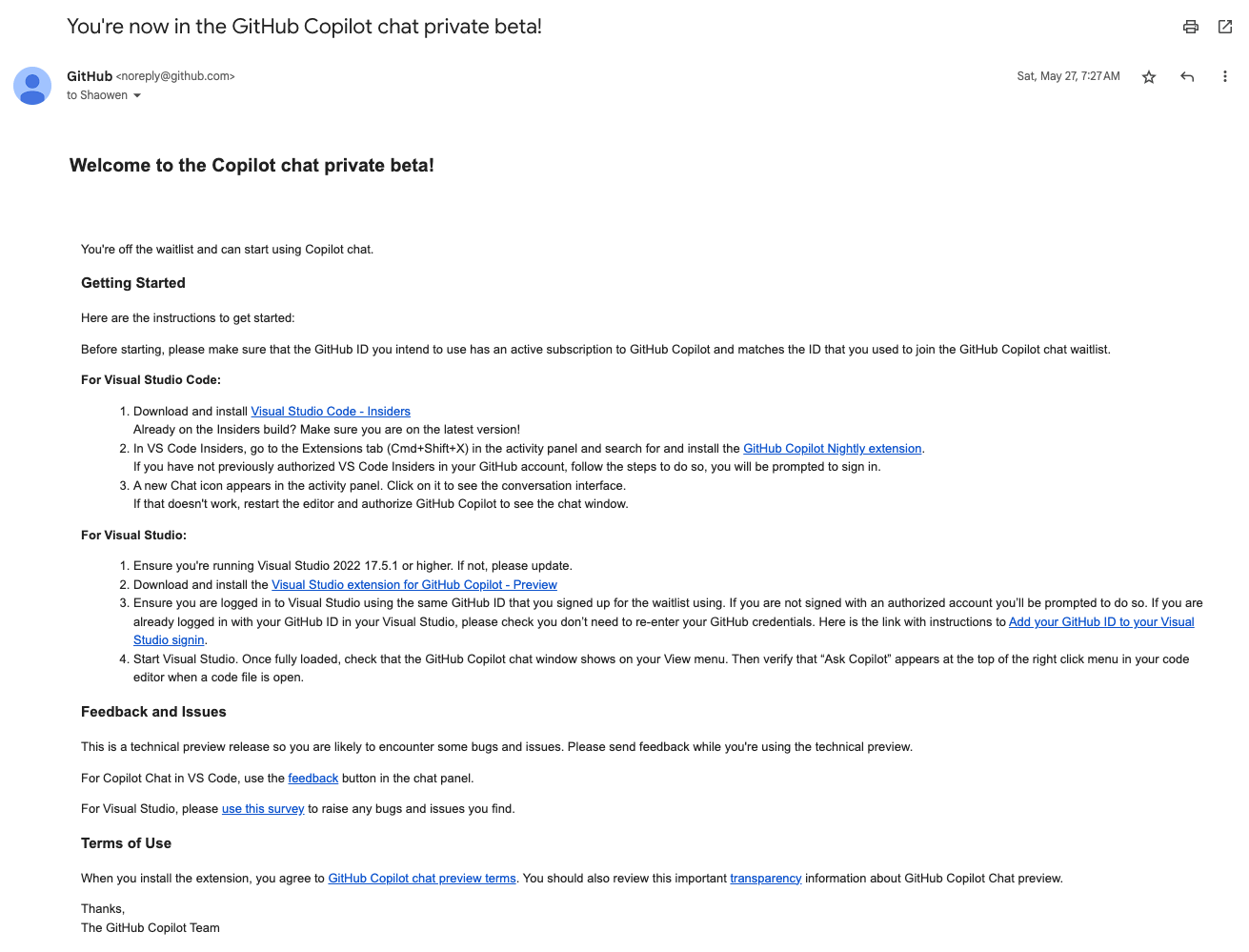
Once the application is approved, you will receive an email:
2. What Is VS Code Insiders
- What is VS Code insiders
VS Code insiders is the preview version of VS Code, offering some of the latest features and improvements, with very frequent updates. If you have update OCD, use it with caution, because there is an update almost every day.
- The difference between VS Code and VS Code insiders
The VS Code command line is code , and the logo looks like this

The VS Code insiders command line is code-insiders , and the logo looks like this

- Can VS Code and VS Code insiders coexist
They can coexist. Their command lines are different, and the configuration synced by Settings Sync can also be different.
3. Installing VS Code insiders
Go to https://code.visualstudio.com/insiders/ to download the latest code-insiders
- Check the code-insiders command path
| |
- [Optional] Create a symlink to replace the VS Code command
| |
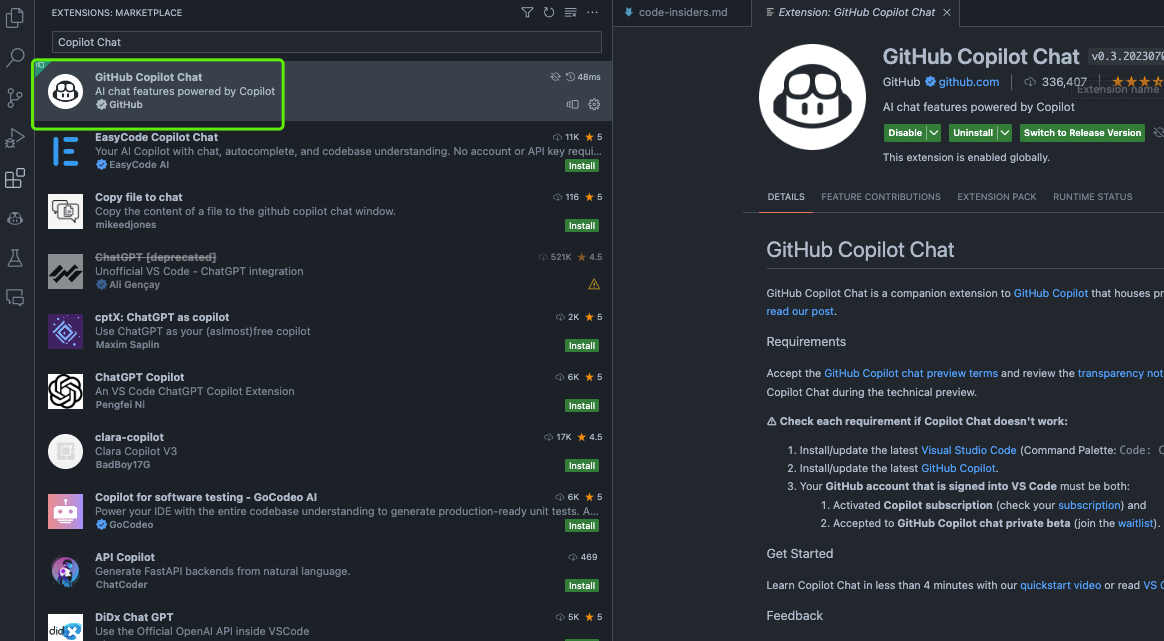
- Install GitHub Copilot Chat
GitHub Copilot Nightly is already deprecated and no longer maintained. Search for Copilot Chat in Extensions and install the plugin, as shown below:
4. Using Copilot Chat
4.1 Chatting Directly in the Chat Panel
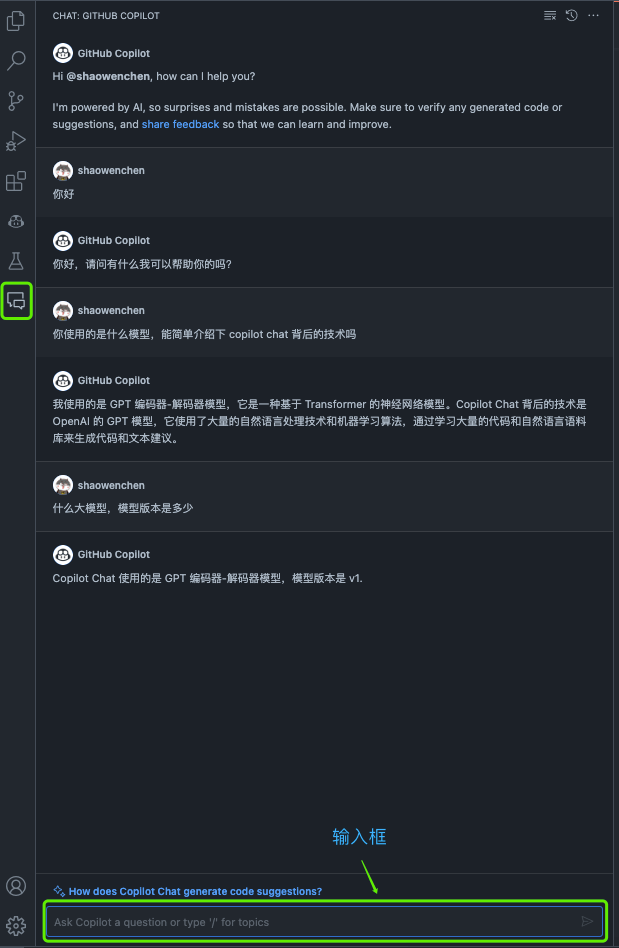
Similar to ChatGPT, but Copilot Chat is built into VS Code, so you do not need to switch to a browser.
4.2 Providing Context and Invoking Copilot Commands
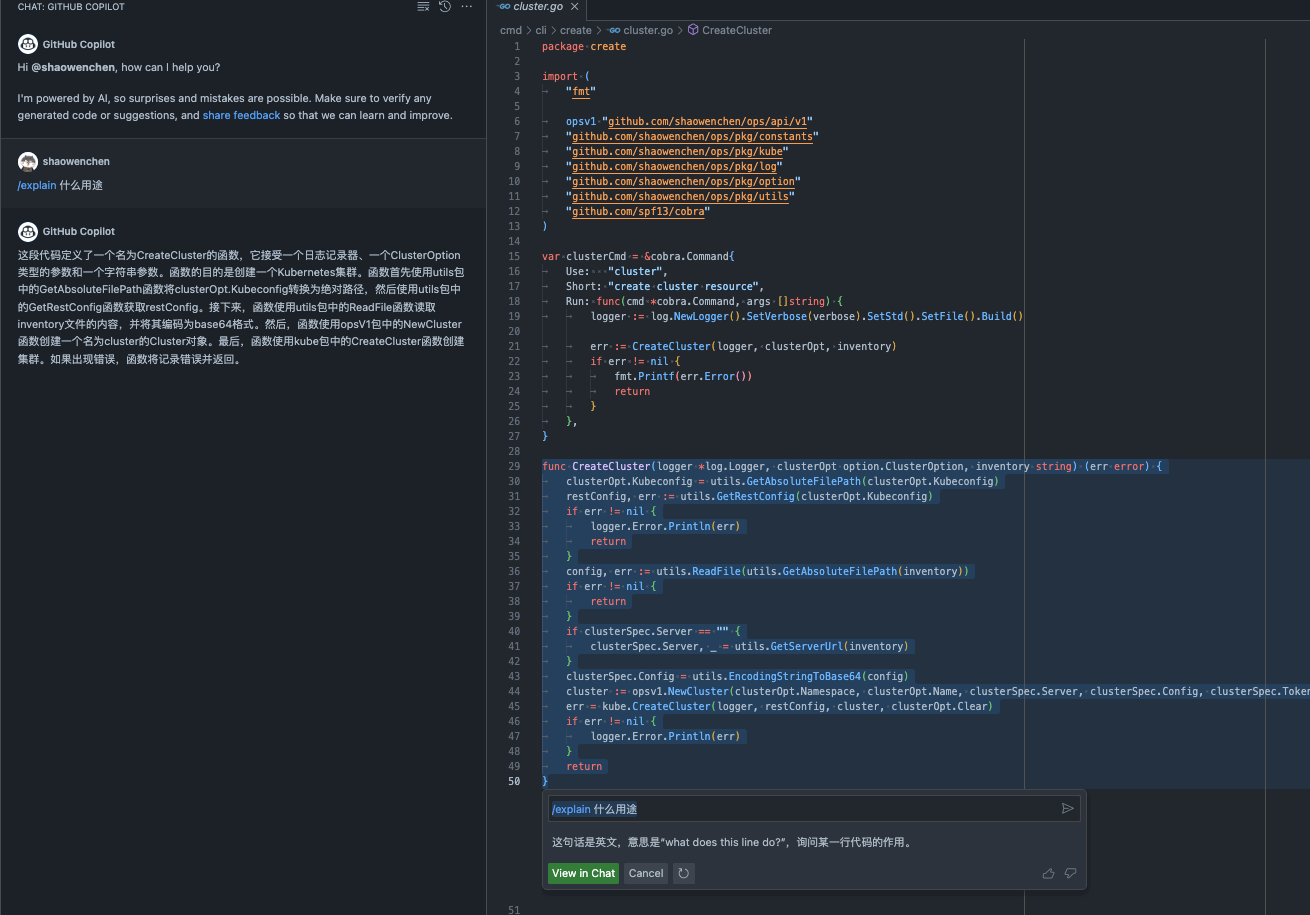
Select a piece of code in the editor as context, and typing / in the dialog box will show command hints.
| |
The image below is an example of generating unit tests:
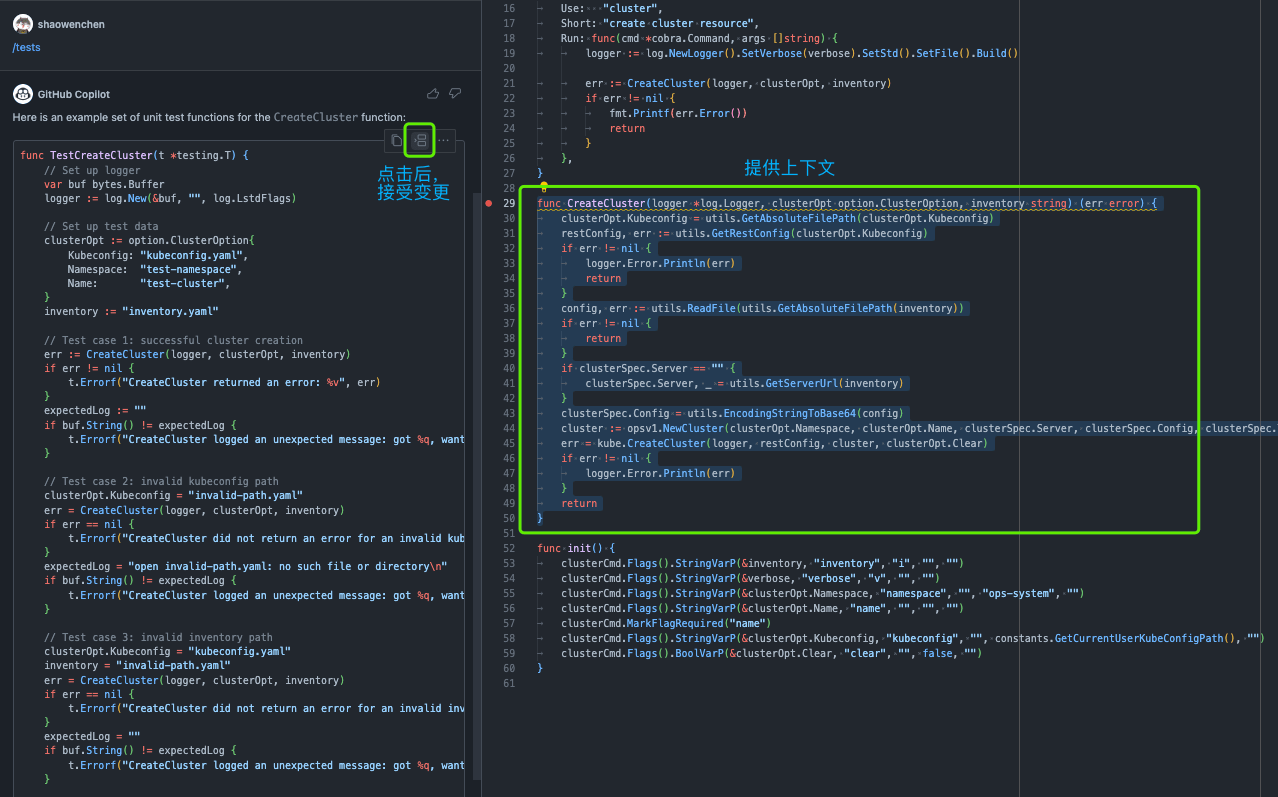
Click the icon button in the dialog box to apply the code generated by Copilot directly to the project.
4.3 Providing Context and Invoking Copilot Commands from the Context Menu
In the editor, select a piece of code, and the right-click menu will show Copilot commands.
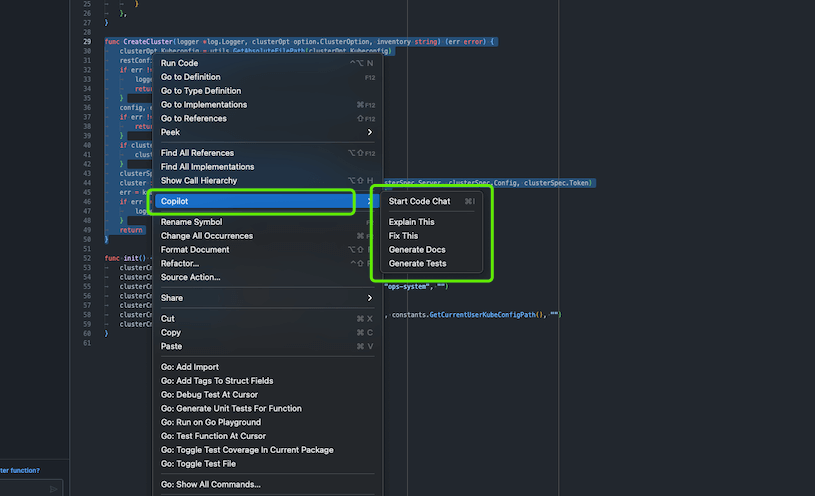
At this point the effect is the same as typing a Copilot command.
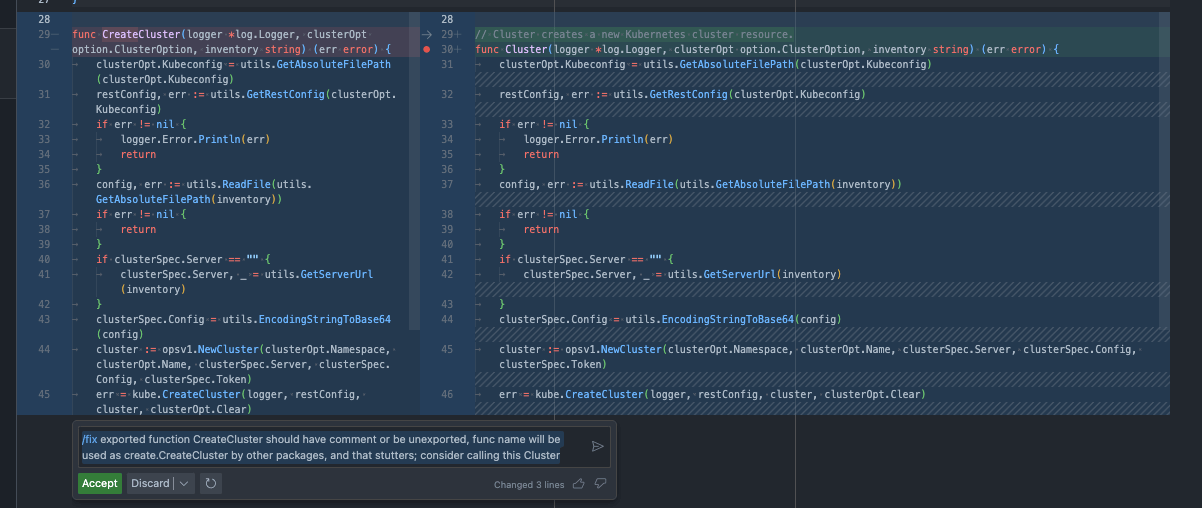
After Copilot produces changes, a code merge dialog appears, where you can choose whether to apply the changes.
5. Summary
This post mainly introduced how to use Copilot Chat in VS Code.
This form of Copilot is disrupting the previous product paradigm. Previous products and tools could often only provide information or execute actions; using Copilot’s way of integrating information and execution, you can genuinely feel the improvement in efficiency.
Copilot Chat should only count as a front-end application of Copilot; the back end actually needs a lot of data and functional support.
