Settings Table
The settings table in Robot Framework mainly serves two purposes. For a detailed explanation, see here.
- Import test, resource, and variable files.
- Define metadata.
In the Setting table:
1
2
3
4
5
| Library 引入库
Resource 引入资源文件
Variables 引入变量文件
Test Setup 指定缺省的 test setup
Test Teardown 指定缺省的 test teardown
|
In a test case:
1
2
3
4
5
6
| [Documentation] 测试用例描述
[Tags] 测试用例的 Tag
[Setup] 指定开始之前的操作
[Teardown] 指定结束之后的操作
[Template] 指定测试目标
[Timeout] 指定测试用例的超时时间
|
In a keyword table:
1
2
3
4
5
6
| [Documentation] 关键字的描述
[Tags] 关键字的 Tag
[Arguments] 定义关键字的参数
[Return] 指定关键字的返回值
[Teardown] 指定关键字执行结束之后的操作
[Timeout] 指定关键字的超时时间
|
Running Robot Framework in PyCharm
- Install the IntelliBot plugin. Go to Setting > Plugins > Install JetBrains Plugins, search for IntelliBot and install it.
- Add a .txt format file. Go to Setting > Editor > File Types, select Robot feature and add .txt.
- Add External tools commands. Go to Setting > Tools > External tools and add the following two commands:
Run a test suite
1
2
3
4
| Name: Robot Run TestSuite
Program: path\Scripts\pybot.bat
Arguments: -d results $FileName$
Working directory: $FileDir$
|
Run a test case
1
2
3
4
| Name: Robot Run SingleTestCase
Program: path\Scripts\pybot.bat
Arguments: -d results -t "$SelectedText$" ./
Working directory: $FileDir$
|
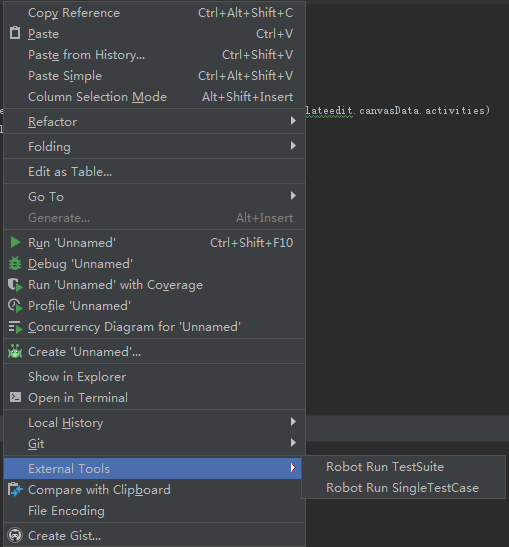
To use them, right-click in the editor area; the External Tools menu will show the commands for running Robot Framework:
File Upload
File upload uses the Choose File keyword from Selenium2library.
For compatibility across different systems, use ${/} instead of / in file paths. Robot Framework adapts the path separator to the operating system.
 1
 2
 3
 4
 5
 6
 7
 8
 9
10
11
12
13
14
| *** Settings ***
Library Selenium2Library
*** Test Cases ***
文件上传
[Documentation] 测试上传文件的写法
[Timeout] 20
Open Browser https://image.baidu.com/ Chrome
Wait Until Element Is Visible css=.st_camera_off
Click Element css=.st_camera_off
${file_path} Set Variable ${CURDIR}${/}mysql.png
Choose File id=stfile ${file_path}
Sleep 3
Close Browser
|

File Download
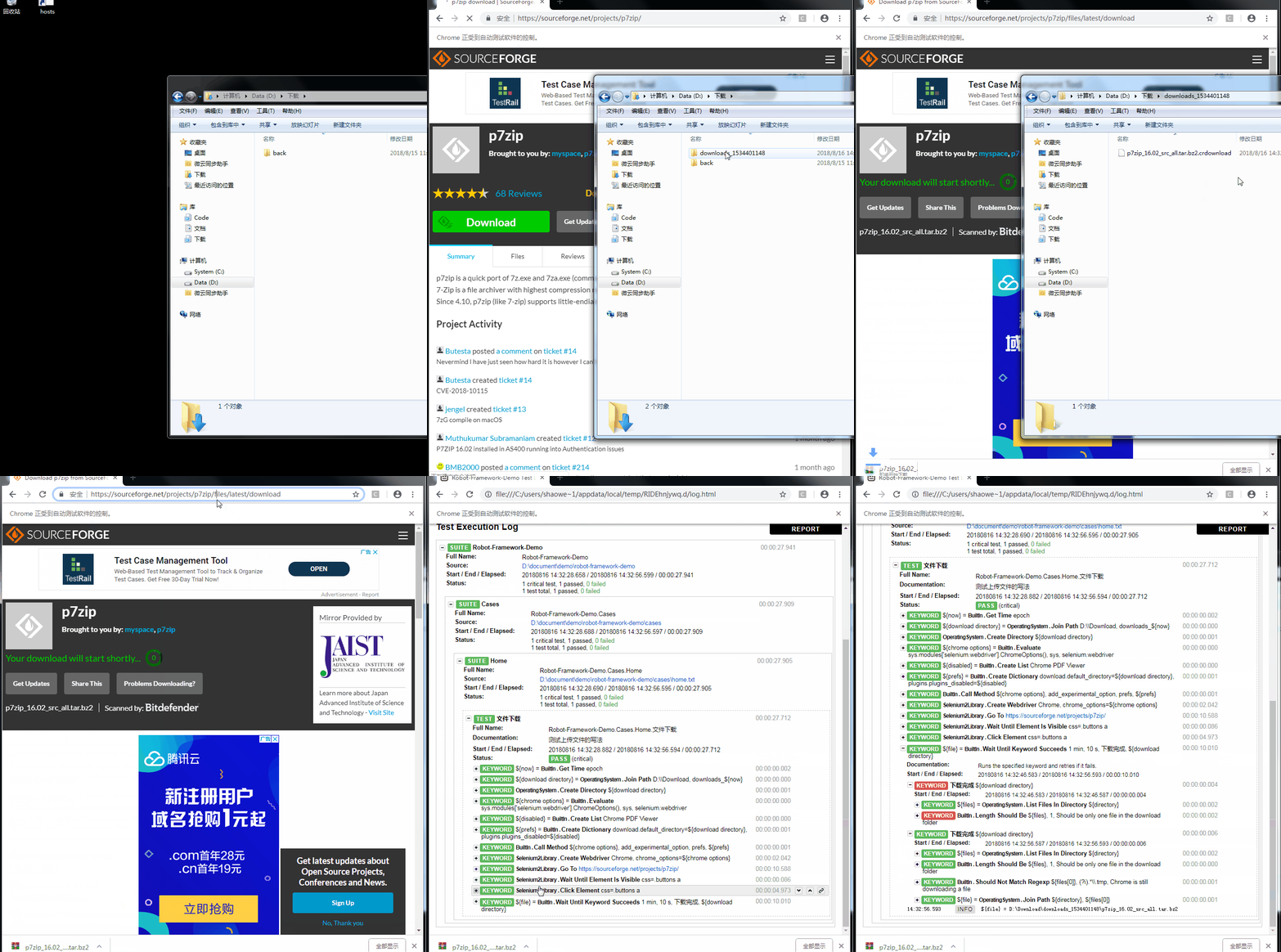
The approach for downloading a file and deciding whether it succeeded is:
- Based on the current time, create a unique directory to hold the downloaded file.
- Download the file into that directory.
- Use the
Wait Until Keyword Succeeds keyword to poll whether a non-temporary file exists in the directory. - If it times out, the download failed. If a non-temporary file exists, the download succeeded.
 1
 2
 3
 4
 5
 6
 7
 8
 9
10
11
12
13
14
15
16
17
18
19
20
21
22
23
24
25
26
27
28
29
30
| *** Settings ***
Library Selenium2Library
Library OperatingSystem
*** Test Cases ***
文件下载
[Documentation] 测试上传文件的写法
${now} Get Time epoch
${download directory} Join Path D:\\Download downloads_${now}
Create Directory ${download directory}
${chrome options}= Evaluate sys.modules['selenium.webdriver'].ChromeOptions() sys, selenium.webdriver
${disabled} Create List Chrome PDF Viewer
${prefs} Create Dictionary download.default_directory=${download directory} plugins.plugins_disabled=${disabled}
Call Method ${chrome options} add_experimental_option prefs ${prefs}
Create Webdriver Chrome chrome_options=${chrome options}
Goto https://sourceforge.net/projects/p7zip/
Maximize Browser Window
Wait Until Element Is Visible css=.buttons a
Click Element css=.buttons a
${file} Wait Until Keyword Succeeds 1 min 20 s 下载完成 ${download directory}
[Teardown] Close Browser
*** Keywords ***
下载完成
[Arguments] ${directory}
${files} List Files In Directory ${directory}
Length Should Be ${files} 1 Should be only one file in the download folder
Should Not Match Regexp ${files[0]} (?i).*\\.tmp Chrome is still downloading a file
${file} Join Path ${directory} ${files[0]}
[Return] ${file}
|
The two arguments after the Wait Until Keyword Succeeds keyword, 1 min 20 s, mean the total time allowed for retrying the keyword is 1 min, with a 20 s interval between attempts.
Running JavaScript
1
2
3
4
5
6
7
8
| *** Settings ***
Library Selenium2Library
*** Test Cases ***
异步执行 JavaScript
Open Browser https://www.baidu.com/ Chrome
Sleep 3
Execute Async Javascript a = window.document.createElement('script');a.src='https://code.jquery.com/jquery-3.3.1.min.js';window.document.body.appendChild(a);
|
 1
 2
 3
 4
 5
 6
 7
 8
 9
10
| *** Settings ***
Library Selenium2Library
*** Test Cases ***
同步执行 JavaScript
Open Browser https://www.baidu.com/ Chrome
Sleep 3
${sum}= Execute JavaScript window.sumjs = 1+1; return window.sumjs;
Log ${sum} warn
Execute JavaScript alert(window.sumjs);
|
