1. Introduction to Atom
Atom is a code editor that supports the three major desktop platforms Windows, Mac, and Linux, is completely free, and is open source on GitHub. Go now
1.1 Pros and Cons
Main advantages
- A strong development and maintenance team, an open source project, fast Bug fixes, and a fast-growing ecosystem.
- Excellent keyboard shortcut support; once you are familiar with the various shortcuts, your productivity can multiply.
- Fairly stable, with crashes being rare.
- Plugin management is well done, and it can accurately pinpoint the problematic plugin.
- The plugin ecosystem grows especially fast, with many useful plugins.
Main disadvantages
- Performance problems; startup is very slow.
- Opening large files causes excessively high CPU usage.
- Compared with Sublime, it is not yet mature enough at the technical level, and has quite a few Bugs.
2. Basic Usage and Configuration
2.1 Changing the Source
The first time you use Atom’s plugin system, APM needs to do some initialization work, such as installing some related dependency packages. Because of domestic network issues, the installation may fail or be very slow, so you need to switch to a domestic mirror source:
- Copy
C:\Users\Yourname\.atom\.apm\.apmrcinto theC:\Users\Yourname\.atom\directory - Edit
C:\Users\Yourname\.atom\.apmrcand add the following content:
| |
2.2 Technical Principles
Atom is based on Electron, and Electron is an integration of Chromium and Node.js; it can access the local user interface, including local dialogs, menus and window controls.
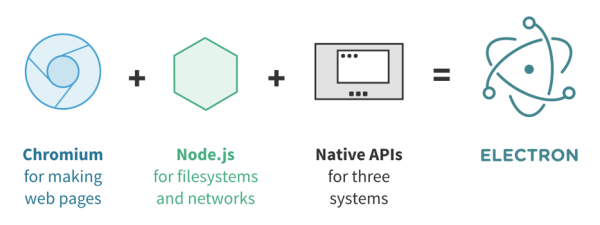
When using Chromium to browse the web, every tab and plugin corresponds to a process in the operating system. This architecture is carried over in Electron: the entry point of an Electron program is a JavaScript file, and this file will be run in a main thread that has only the Node.js environment.
At present, there are already a large number of applications based on Electron:
- VS Code is a text editor from Microsoft.
- Slack is an instant messaging application.
- Postman is an HTTP API debugging tool.
- Hyper is a terminal emulator.
- Nylas N1 is an email client.
- GitKraken is a GUI client for Git.
- Medis is a GUI client for Redis.
- Mongotron is a GUI client for MongoDB.
The Atom core only provides APIs; all functionality is implemented by plugins, and Atom bundles 77 plugins by default.
2.3 How to Install Plugins
- GUI installation
Open Atom » Packages » Settings View » Install Packages/Themes, then enter the plugin you want in “Search packages”, for example: simplified-chinese-menu, and click “Install”.
- Download and install
Search for the plugin name on github.com and download the corresponding source code archive. After extracting it, move it to C:\Users\Yourname\.atom\packages
- Command line installation
| |
3. Plugins
3.1 General Plugins
- sync-settings: a configuration backup plugin, convenient for later migration and quick and practical together with gists.
- simplified-chinese-menu: Atom’s Chinese localization plugin.
- atom-beautify: code formatting.
- autocomplete-modules: module name autocompletion.
- autocomplete-paths: file path hints.
- hyperclick: jump to a variable’s or function’s declaration or definition.
- markdown-format, markdown-writer: writing Markdown on Atom.
- markdown-preview-plus: Markdown preview.
- project-manager: managing projects on Atom.
- vim-mode: add Vim mode to Atom.
- atom-terminal-panel: a command line tool built into Atom.
- platformio-ide-terminal: a terminal tool.
- file-icons: show a different file icon for different types of files.
- script: run scripts.
- docblockr: makes writing comments easy, generating different comment formats as appropriate.
- activate-power-mode: typing effects.
- minimap: show a thumbnail of the current document.
- open-unsupported-files: use system software to open files that Atom cannot preview, such as Doc, Excel, and PPT.
- minimap-highlight-selected: highlight identical text when it is selected.
3.2 Git/SVN Plugins
- tortoise-svn: an Svn plugin.
- git-plus: run git commands inside Atom.
- git-control: a Git panel.
- git-log: a graphical Git commit history.
- atomatigit: visual Git operations.
- tree-view-git-status: Git status in the folder.
3.3 HTML Plugins
- atom-html-preview: a tool for real-time HTML preview inside the Atom editor.
- autoclose-html: automatically close HTML tags.
- emmet: html completion, speeding up Web development, providing Snippets.
3.4 CSS Plugins
- color-picker: a color picker.
- autoprefixer: browser compatibility.
- linter-scss-lint: SCSS coding convention checking.
- linter-less: LESS coding convention checking.
- linter-csslint: CSS coding convention checking.
3.5 JavaScript Plugins
- jquery-snippets: Jquery autocompletion Snippets.
- linter-jshint: jshint code checking.
- javascript-snippets: JavaScript autocompletion Snippets.
- atom-ternjs: JavaScript code intelligence and completion.
3.6 Python Plugins
- atom-python-run: run Python code in the terminal.
- autocomplete-python: Python code autocompletion.
- linter-pep8: PEP8 coding convention checking.
- linter-flake8: Flake8 coding convention checking.
- python-tools: provides powerful completion for variable names, functions and the standard library.
- python-debugger: a Python debugging tool.
- atom-django: Atom’s support for the Django framework.
- django-templates: Atom’s support for Django templates.
- language-mako: Atom’s support for Mako templates.
4. Keyboard Shortcuts
| English | Chinese | Shortcut | Function |
|---|---|---|---|
| New Window | New window in the UI | Ctrl + Shift + N | As the name says |
| New File | Create a new file | Ctrl + N | As the name says |
| Open File | Open a file | Ctrl + O | As the name says |
| Open Folder | Open a folder | Ctrl + Shift + O | As the name says |
| Add Project Folder | Load a project directory | Ctrl + Alt + O | As the name says |
| Reopen Last Item | Reload the last project | Ctrl + Shift + T | As the name says |
| Save | Save the file | Ctrl + S | As the name says |
| Save As | Save as | Ctrl + Shift +S | As the name says |
| Close Tab | Close the current editing document | Ctrl + W | As the name says |
| Close Window | Close the editor | Ctrl + Shift + W | As the name says |
| Undo | Undo | Ctrl + Z | As the name says |
| Redo | Redo | Ctrl + Y | As the name says |
| Cut | Cut | Shift + Delete | As the name says |
| Copy | Copy | Ctrl + Insert | As the name says |
| Copy Path | Copy the document path | Ctrl + Shift + C | As the name says |
| Paste | Paste | Shift + Insert | As the name says |
| Select All | Select all | Ctrl + A | As the name says |
| Select Encoding | Choose the encoding | Ctrl + Shift +U | Sets the file encoding |
| Go to Line | Jump to a line | Ctrl + G | Supports row/column search, Row:Column |
| Slect Grammar | Grammar selection | Ctrl + Shift + L | Same function as Sublime’s Syntax setting |
| Reload | Reload | Ctrl+ Alt +R | Reload the document currently being edited |
| Toggle Full Screen | Full screen | F11 | As the name says |
| Increase Font Size | Increase the font size | Ctrl + Shift + “+” | Sublime’s Ctrl + works too |
| Decrease Font Size | Decrease the font size | Ctrl + Shift + “-“ | Sublime’s Ctrl - works too |
| Toggle Tree View | Show/hide the directory tree | Ctrl +| (vertical bar) | Ctrl+b can hide but not show it |
| Toggle Commadn palette | Global search panel | Ctrl + Shift + P | Roughly the same as Sublime’s |
| Select Line | Select a line | Ctrl + L | As the name says |
| Select First Character of Line | Select from the cursor to the start of the line | Shift + Home | As the name says |
| End of Line | Select from the cursor to the end of the line | Shift + End | As the name says |
| Select to Top | Select from the cursor to the first line of the document | Ctrl + Shift + Home | Uses the cursor as the dividing line and takes the upper part of the document |
| Select to Bottom | Select from the cursor to the last line of the document | Ctrl + Shfit + End | Uses the cursor as the dividing line and takes the lower part of the document |
| Find in Buffer | Search from the buffer | Ctrl + F | Consistent with Sublime |
| Replace in Buffer | Advanced replace | Ctrl + Shift + F | Consistent with Sublime |
| Select Next | Match and select the next | Ctrl + D | Exactly the same as Sublime, isn’t it |
| Select All | Match and select all | Alt + F3 | Exactly the same as Sublime, isn’t it |
| File | Query a file; select to open | Ctrl + P | Different from Sublime |
| Delte End of Word | Delete from the cursor to the end of the word | Ctrl + Del | As the name says |
| Duplicate Line | Duplicate a line | Ctrl + Shift + D | Duplicates the line at the cursor and adds a line break automatically |
| Delete Line | Delete a line | Ctrl + Shift + K | As the name says |
| Toggle Comment | Toggle comments | Ctrl + / | Consistent with Sublime |
| Toggle developer tools | Open the Chrome debugger | Ctrl + Alt + I | Quite amazing |
| Indent | Increase indentation | Ctrl + [ | Indent to the right |
| Outdent | Decrease indentation | Ctrl + ] | Indent to the left |
| Move Line Up | Move the line up | Ctrl + up | As the literal name says |
| Move Line Down | Move the line down | Ctrl + Down | As the literal name says |
| Join Lines | Join lines | Ctrl + J | Append |
| newline-below | Add a line below the cursor | Ctrl + Enter | Consistent with sublime |
| editor:newline-above | Add a line above the cursor | Ctrl + Shift + Enter | Consistent with sublime |
| pane:show-next-item | Switch the editing tab | Ctrl + Tab | As the name says |
| Fuzzy Finder | File jump panel | Ctrl + T | As the literal name says |
| Select Line Move above | Move the selected line up | Ctrl + up | As the name says |
| Select Line Move below | Move the selected line down | Ctrl + down | As the name says |
| Symbol-view | Enter the variable/function jump panel | Ctrl + R | As the name says |
5. Best Practices
5.1 Syncing Plugins and Configuration
Here we mainly use the sync-setting plugin and the Gist code snippet service provided by Github.
- 1.Create a Gist project; once it succeeds, get the Gist id from the project’s URL. Go now
- 2.Apply for Access Tokens. Go now
- 3.Configure sync-settings. Add the following content to Atom’s configuration file config.cson:
C:\Users\Yourname\.atom\config.cson
| |
