1. What Is kubectl
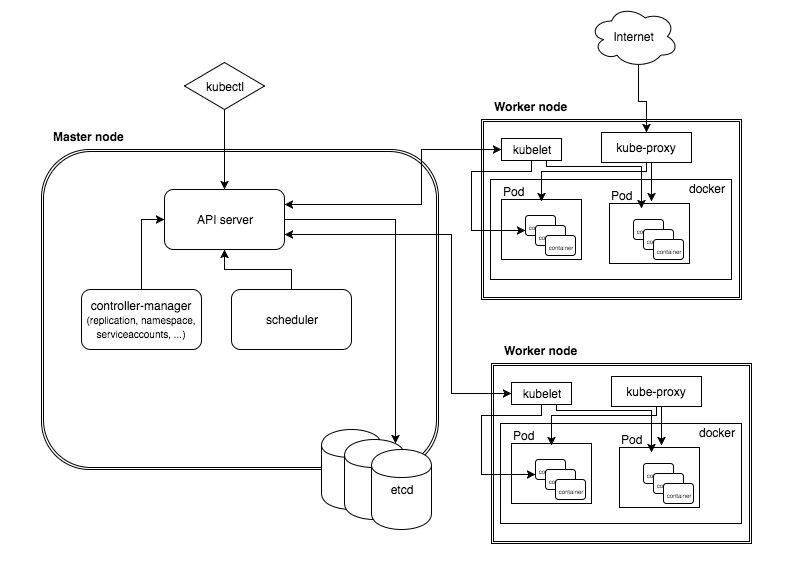
kubectl is the command-line tool for Kubernetes. It interacts with the cluster through the API server.
2. Configuring kubectl
kubectl can be configured through ~/.kube/config to connect to one or more clusters.
For details on how to configure it, see: Configure Access to Multiple Clusters. If you need to configure a remote cluster, see: Building a Remote Kubernetes Development Environment.
View the configured clusters:
1
2
3
| kubectl config get-contexts
CURRENT NAME CLUSTER AUTHINFO NAMESPACE
* minikube minikube minikube
|
Select a cluster:
1
2
| kubectl config set-context minikube
Context "minikube" modified.
|
3. kubectl Commands
 1
 2
 3
 4
 5
 6
 7
 8
 9
10
11
12
13
14
15
16
17
18
19
20
21
22
23
24
25
26
27
28
29
30
31
32
33
34
35
36
37
38
39
40
41
42
43
44
45
46
47
48
49
50
51
52
53
54
55
56
57
58
59
60
61
62
63
64
65
66
| kubectl
kubectl controls the Kubernetes cluster manager.
Find more information at: https://kubernetes.io/docs/reference/kubectl/overview/
Basic Commands (Beginner):
create Create a resource from a file or from stdin.
expose Take a replication controller, service, deployment or pod and expose it as a new Kubernetes Service
run Run a particular image on the cluster
set Set specific features on objects
run-container Run a particular image on the cluster. This command is deprecated, use "run" instead
Basic Commands (Intermediate):
get Display one or many resources
explain Documentation of resources
edit Edit a resource on the server
delete Delete resources by filenames, stdin, resources and names, or by resources and label selector
Deploy Commands:
rollout Manage the rollout of a resource
rolling-update Perform a rolling update of the given ReplicationController
scale Set a new size for a Deployment, ReplicaSet, Replication Controller, or Job
autoscale Auto-scale a Deployment, ReplicaSet, or ReplicationController
Cluster Management Commands:
certificate Modify certificate resources.
cluster-info Display cluster info
top Display Resource (CPU/Memory/Storage) usage.
cordon Mark node as unschedulable
uncordon Mark node as schedulable
drain Drain node in preparation for maintenance
taint Update the taints on one or more nodes
Troubleshooting and Debugging Commands:
describe Show details of a specific resource or group of resources
logs Print the logs for a container in a pod
attach Attach to a running container
exec Execute a command in a container
port-forward Forward one or more local ports to a pod
proxy Run a proxy to the Kubernetes API server
cp Copy files and directories to and from containers.
auth Inspect authorization
Advanced Commands:
apply Apply a configuration to a resource by filename or stdin
patch Update field(s) of a resource using strategic merge patch
replace Replace a resource by filename or stdin
convert Convert config files between different API versions
Settings Commands:
label Update the labels on a resource
annotate Update the annotations on a resource
completion Output shell completion code for the specified shell (bash or zsh)
Other Commands:
api-versions Print the supported API versions on the server, in the form of "group/version"
config Modify kubeconfig files
help Help about any command
plugin Runs a command-line plugin
version Print the client and server version information
Usage:
kubectl [flags] [options]
Use "kubectl <command> --help" for more information about a given command.
Use "kubectl options" for a list of global command-line options (applies to all commands).
|
Usage syntax:
1
| kubectl [command] [TYPE] [NAME] [flags]
|
- command, specifies the operation to perform on one or more resources, such as
create, get, describe, delete. - TYPE, specifies the resource type. Resource types are case-insensitive and can be given in singular, plural, or abbreviated form. For example:
kubectl get pod pod_name. - NAME, specifies the name of the resource. Names are case-sensitive. If the name is omitted, detailed information for all resources is displayed. For example:
kubectl get pods. - flags, specifies optional parameters. For example, you can use the -s or -server parameter to specify the address and port of the Kubernetes API server.
4. Deploying Jenkins with kubectl
- Create a Namespace to isolate the service
1
| kubectl create namespace jenkins
|
- Deploy Jenkins using a Deployment
Add a jenkins-deployment.yaml file.
 1
 2
 3
 4
 5
 6
 7
 8
 9
10
11
12
13
14
15
16
17
18
19
20
| cat jenkins-deployment.yaml
apiVersion: extensions/v1beta1
kind: Deployment
metadata:
name: jenkins-deployment
spec:
replicas: 1
selector:
matchLabels:
app: jenkins
template:
metadata:
labels:
app: jenkins
spec:
containers:
- name: jenkins
image: jenkins:2.60.3
ports:
- containerPort: 8080
|
Run the command to deploy the Deployment.
1
2
| kubectl create -f jenkins-deployment.yaml --namespace=jenkins
deployment.extensions/jenkins-deployment created
|
- View related information
1
| kubectl describe deployments --namespace=jenkins
|
- Create a service to expose the service
Add a jenkins-service.yaml file.
 1
 2
 3
 4
 5
 6
 7
 8
 9
10
11
12
13
| cat jenkins-service.yaml
apiVersion: v1
kind: Service
metadata:
name: jenkins
spec:
type: NodePort
ports:
- port: 8080
targetPort: 8080
nodePort: 30000
selector:
app: jenkins
|
Run the command to deploy the service; the nodePort parameter specifies the external service port.
1
| kubectl create -f jenkins-service.yaml --namespace=jenkins
|
- Access the service
Open the link in a browser: http://your_node_host_ip:30000, and you will find that an initial password is required.
- Get the initial access password from the logs
View the Pod name:
1
2
3
| kubectl get pods --namespace=jenkins
NAME READY STATUS RESTARTS AGE
jenkins-deployment-868cc579df-42lpn 1/1 Running 0 21m
|
Get the password:
1
| kubectl log jenkins-deployment-868cc579df-42lpn --namespace=jenkins
|
In the logs, you can find the initialization password.
5. Restarting a Job in Kubernetes
Taking CentOS 7 as an example:
1
2
| yum install -y https://dl.fedoraproject.org/pub/epel/epel-release-latest-7.noarch.rpm
yum install -y jq
|
1
2
3
| kubectl get job
job_name
|
1
| kubectl get job job_name -o json | jq 'del(.spec.selector)' | jq 'del(.spec.template.metadata.labels)' | kubectl replace --force -f -
|
6. References
