1. Basic Concepts
- master
master is where Jenkins is installed and runs; it is responsible for parsing job scripts, handling tasks, and scheduling compute resources.
- agent
agent is responsible for handling tasks dispatched from master; the actual operations are executed through an executor.
- executor
An executor is the compute resource that executes tasks; it can run on master or on an agent. Multiple executors can also cooperate to execute some tasks.
- step
The smallest unit in a job within Jenkins; it can be thought of as a script invocation and a plugin invocation.
- node
node can be given parameters to select an agent; the steps inside node will run on the agent that node selects.
- stage
stage is a virtual concept introduced by Groovy in the pipeline; it is a collection of steps. Through stage, all the steps of a job can be divided into different stages, making the whole job as easy to maintain as a pipeline.
2. Groovy
Groovy is a dynamic language that supports Java programming on the Java platform, and it is used in basically the same way as Java code. Compiling Groovy code with groovyc produces standard Java bytecode, which can then be run with the java command. Groovy is Java, just lacking many of the syntax rules used in the past. Groovy is Java without types, without modifiers, without return, without Iterator, and without needing to import collections. In short, Groovy is Java with a lot of baggage thrown away.
As for Grails, just as Rails is very tightly tied to the Ruby programming language, Grails is an open-source framework for rapid web application development.
2.1 Local Development Environment
Configuring a Groovy development environment is similar to Java. First go to http://groovy-lang.org and download the SDK package. After extracting it, configure the environment variables.
| |
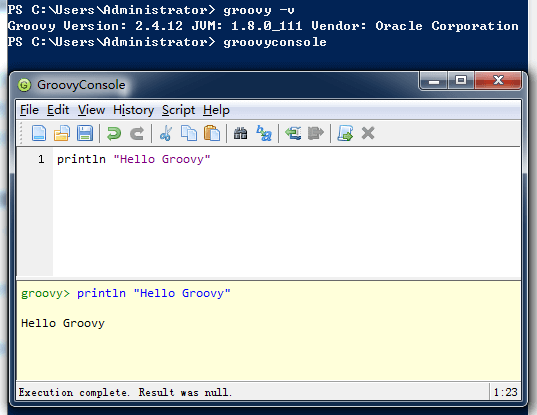
In a command prompt, type: groovy -v. If the version information is displayed, the configuration succeeded. The Groovy SDK provides a simple editor; type groovyconsole to open it, and press Ctrl + Enter to execute code.
2.2 Remotely Invoking Jenkins to Execute a Pipeline
If you want to use a remote Jenkins server from Atom to execute Groovy pipeline scripts, the following configuration is required:
- Install the NPM package - jenkins-pipeline
| |
jenkins-pipeline is used to execute a Pipeline via commands; build is the script execution plugin provided by Atom, which supports configuring execution parameters through the .atom-build.yml file.
- Disable Jenkins CSRF
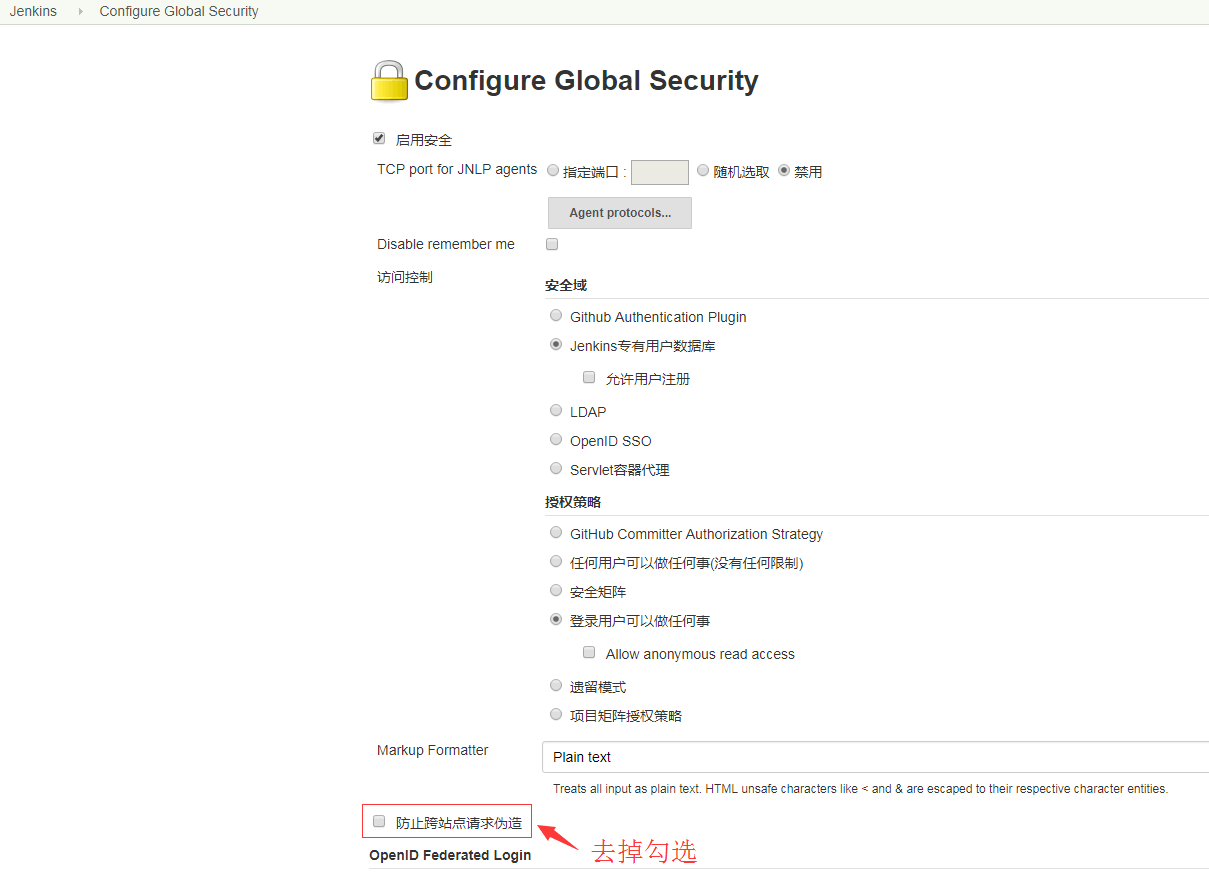
If CSRF cross-site verification is not disabled, invoking Jenkins from the command line will report: [No valid crumb was included in request for /job/MyTest//config.xml. Returning 403]
Open the [Manage Jenkins] - [Configure Global Security] page in Jenkins, uncheck the [CSRF, Prevent Cross Site Request Forgery] option, and then save.
- Console invocation
Invoking from the command line in shell form:
| |
In the example below, the command used is:
| |
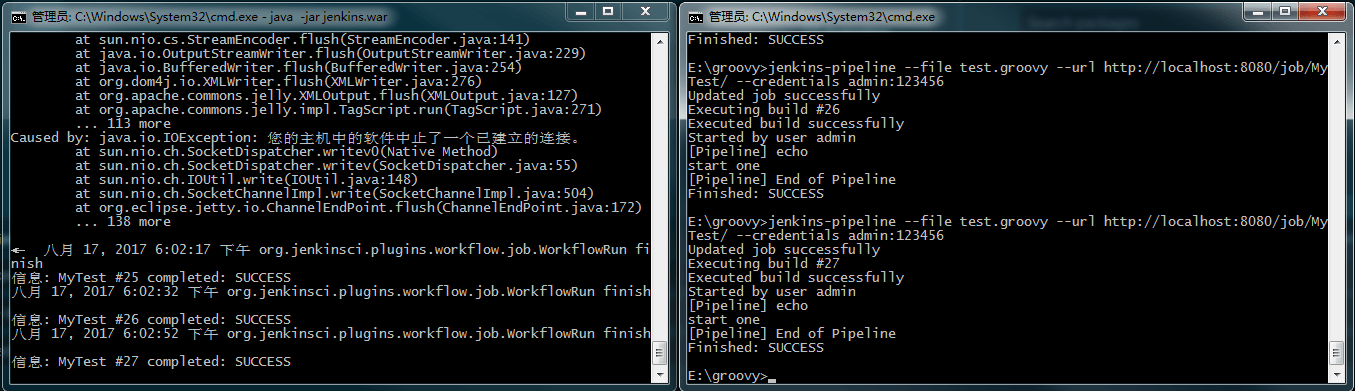
You can see that the script test.groovy is executed, and at the same time, in Jenkins’s backend interface, you can also see the details of the build execution; the pipeline script content in the MyTest project has been updated to the content of test.groovy.
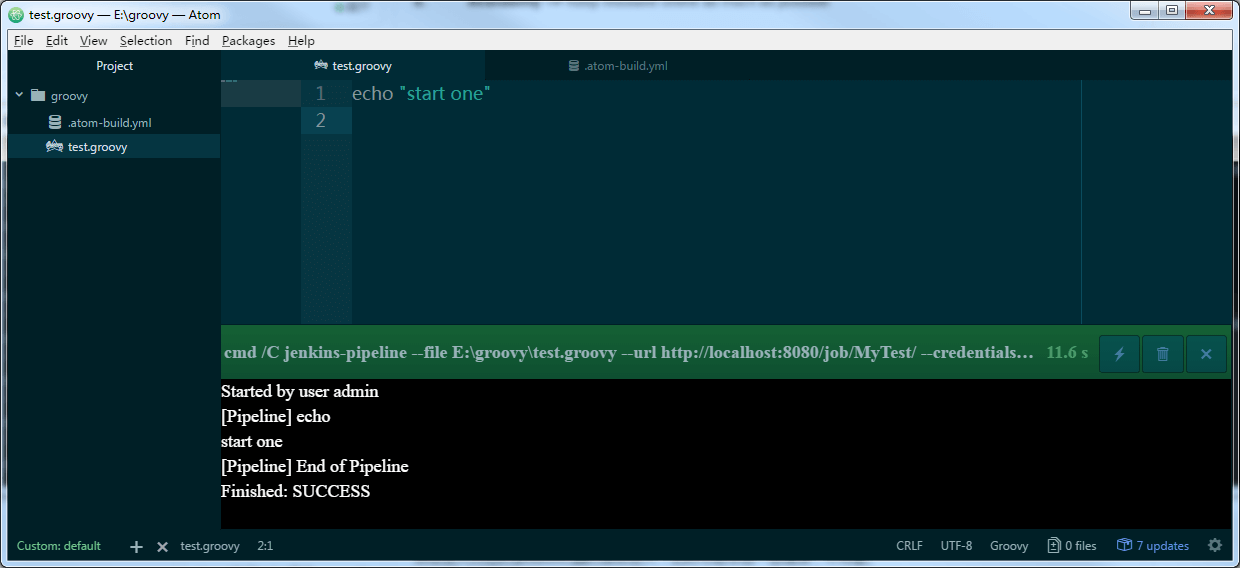
- After installing the Build plugin in Atom, configure .atom-build.yml by adding the following content:
| |
Shortcut: F9, to execute the Groovy pipeline script. Here your-project-pipeline is the project name.
2.3 Basic Syntax
- Comments
Just like Java, Groovy uses // for single-line comments and /* */ for block comments.
- Defining variables
groovy has no fixed types; it is somewhat similar to a weakly typed language, and variables can be referenced through the def keyword.
| |
Single quotes mean the string is just a plain string; double quotes, on the other hand, allow variables to be referenced within the string, performing interpolation.
- Defining methods
Groovy’s methods are also defined through the def keyword. If no return value is specified, the value of the last line of code is returned by default.
def square(def num){
    num*num
}
- Closures
A closure is a data type; it represents a piece of executable code, and it is a very important data type, or concept, in Groovy. It looks like this:
| |
Calling a closure: closure-object.call(parameters), or, more like a function call: closure-object(parameters).
If the closure defines no parameters, then there is an implicit parameter whose name is it, playing a role similar to this. it represents the closure’s parameter.
For example:
| |
3. Using Pipeline in Jenkins
The essence of Jenkins 2.0 is pipeline, an important role that helps Jenkins achieve the transition from CI to CD. Jenkins defines many built-in environment variables; see: yourdomain.com:8080/pipeline-syntax/globals#env.
3.1 Pipeline Characteristics
The design philosophy of pipeline in Jenkins is to implement flexible, extensible workflows based on groovy scripts. It has the following characteristics:
- Durability: After both planned and unplanned restarts of the Jenkins master, the pipeline job can still work and is unaffected.
- Pausability: Based on groovy, pipeline can pause a job and wait for user input or approval before continuing execution.
- Flexible parallel execution and stronger dependency control: Through groovy scripts, parallel execution between steps and stages, and more complex interdependencies, can be achieved.
- Extensibility: It is easier to extend plugins through groovy programming.
3.2 Installing Pipeline
Go to the [Manage Jenkins] - [Manage Plugins] page in Jenkins, and under the [Available] tab, search for pipeline. Check it to install; it takes effect after a restart.
3.3 Creating a Pipeline
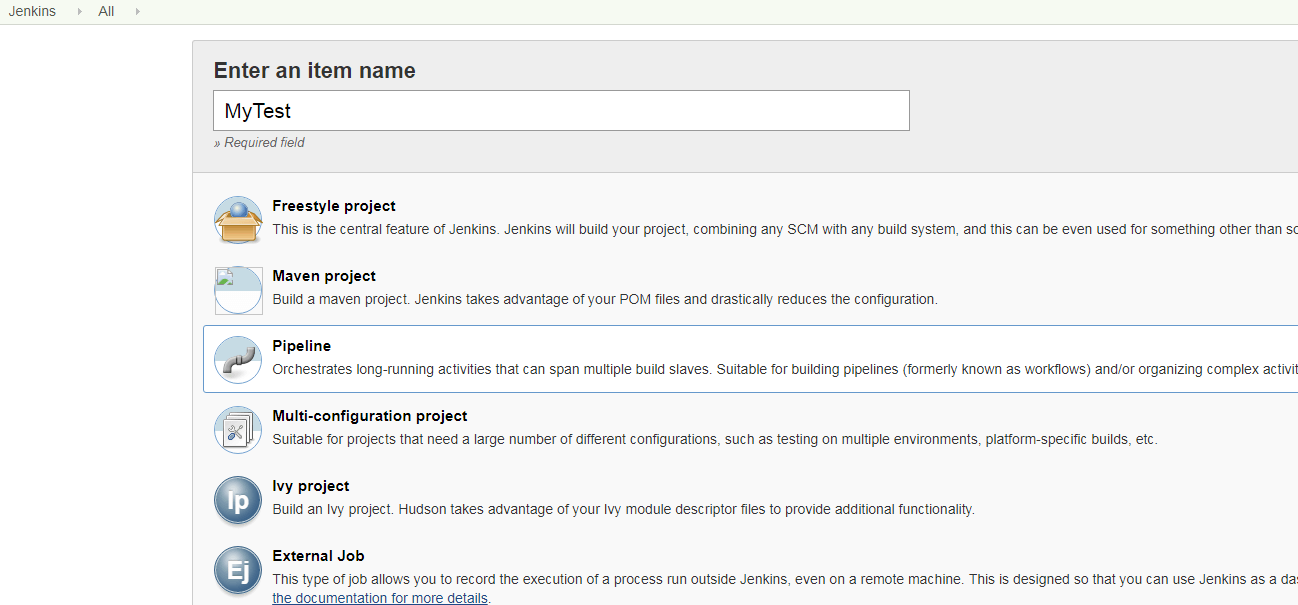
On the Jenkins operation page, create a new Pipeline project
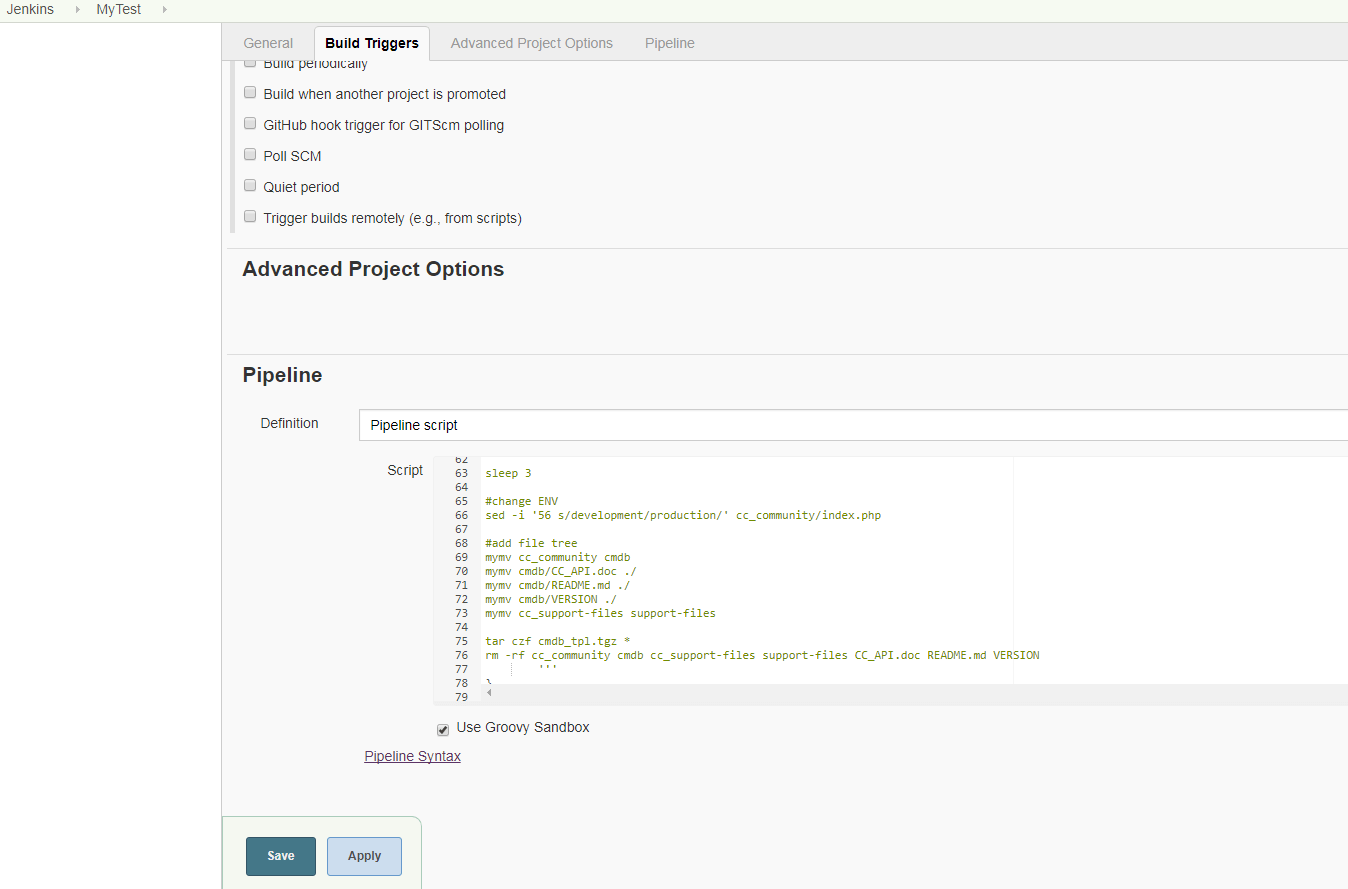
Enter the script in the Pipeline, then save.
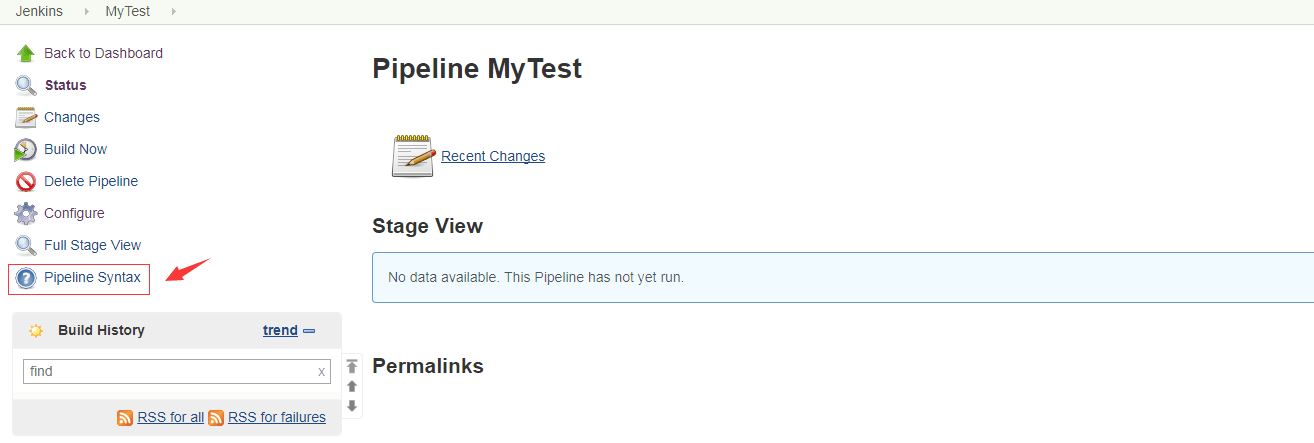
Here Jenkins provides a very friendly feature, [Pipeline Syntax], used to generate pipeline script snippets that meet the requirements. Click the [Pipeline Syntax] button on the left side of the project page.
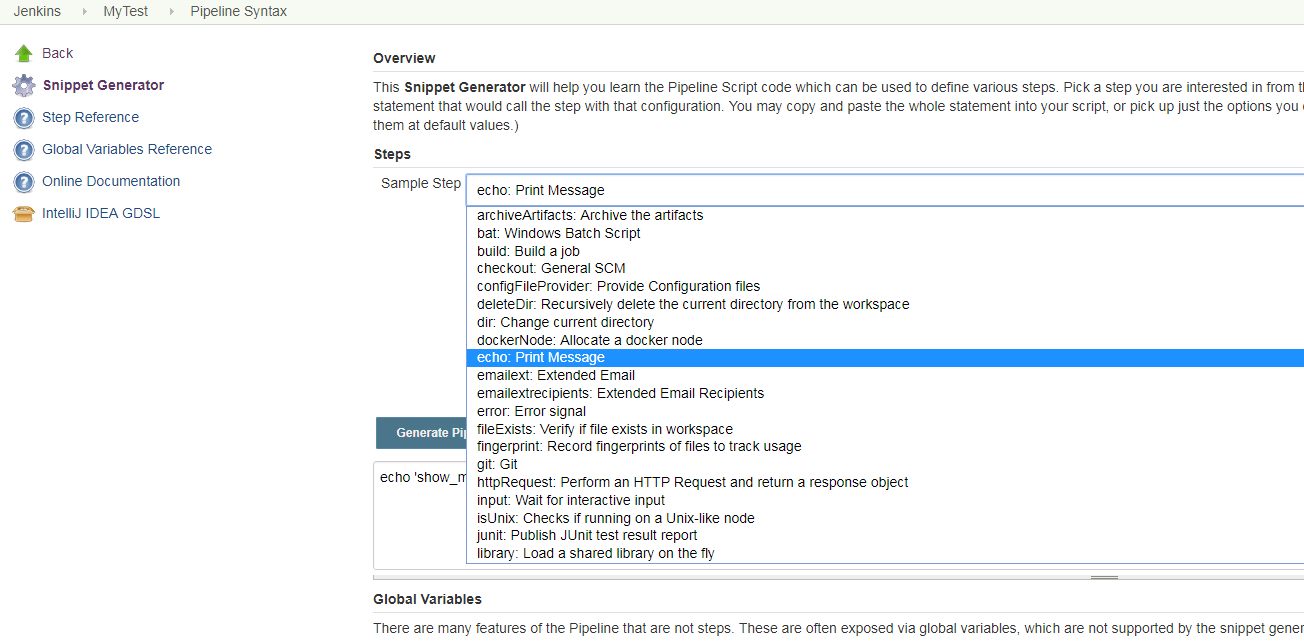
In [Steps], select a step and enter the relevant information as prompted; Jenkins will automatically generate the code Snippet script for the selected step.
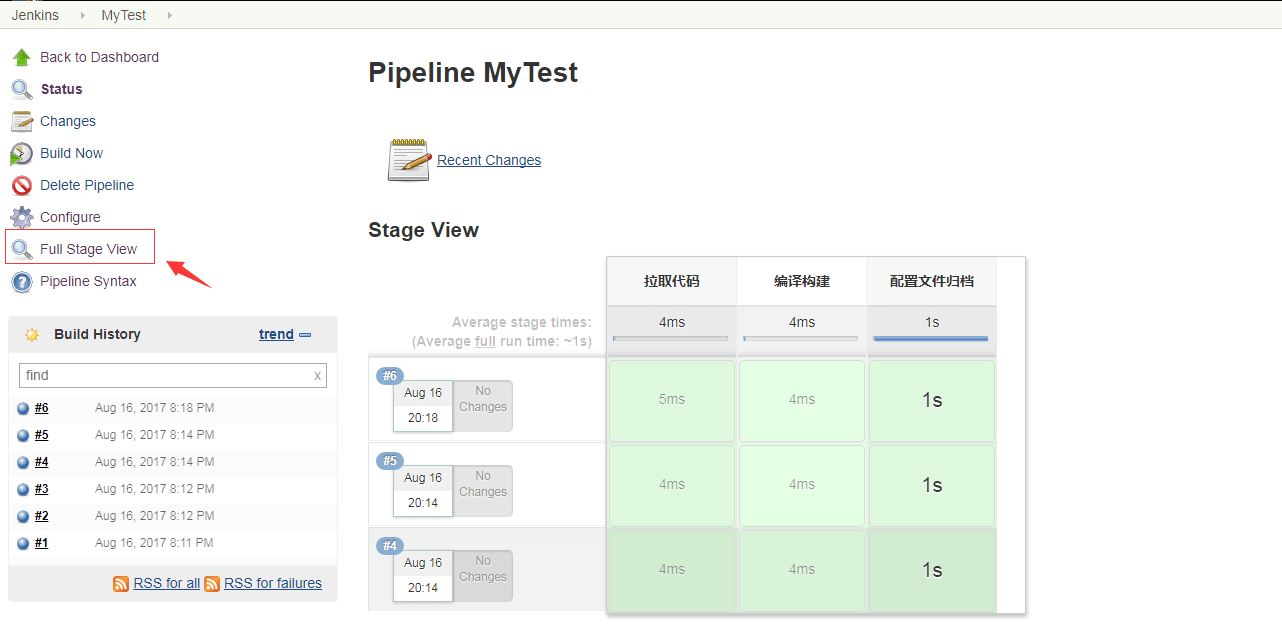
Click [Build Now] to start the pipeline execution. The [Full Stage View] provided by Jenkins lets you view the execution view.
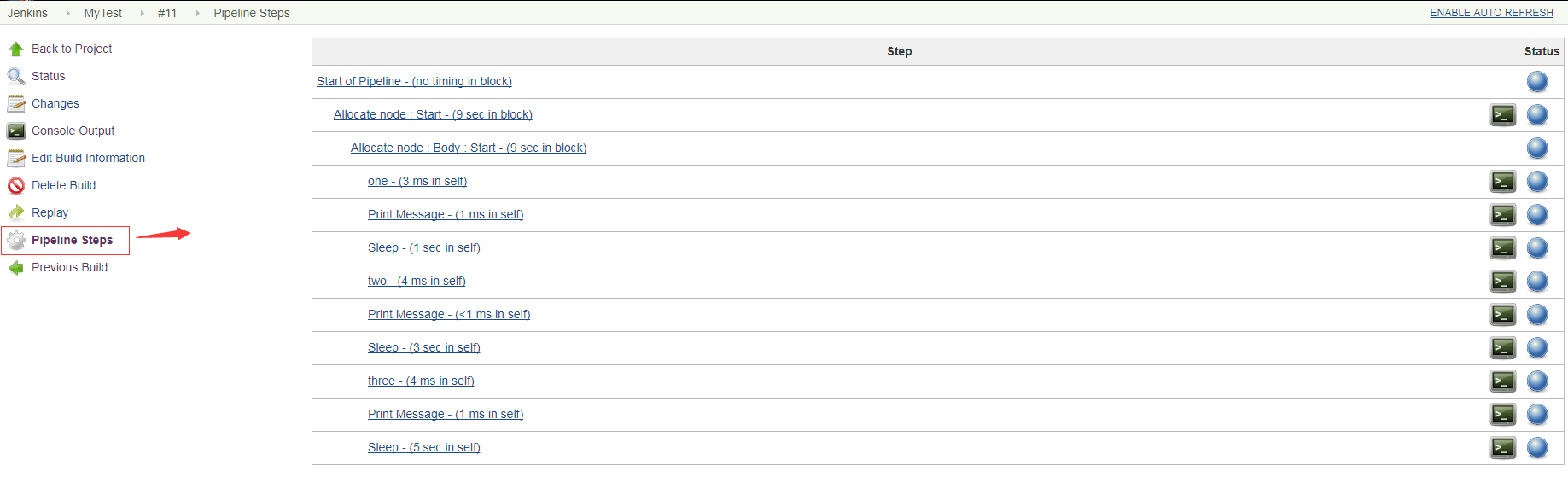
Click a build, such as [#10] here, to see the execution status of each step in the pipeline.
If the [Blue Ocean] plugin is installed, a prompt [Open Blue Ocean] appears at the top of the project. Click to enter:
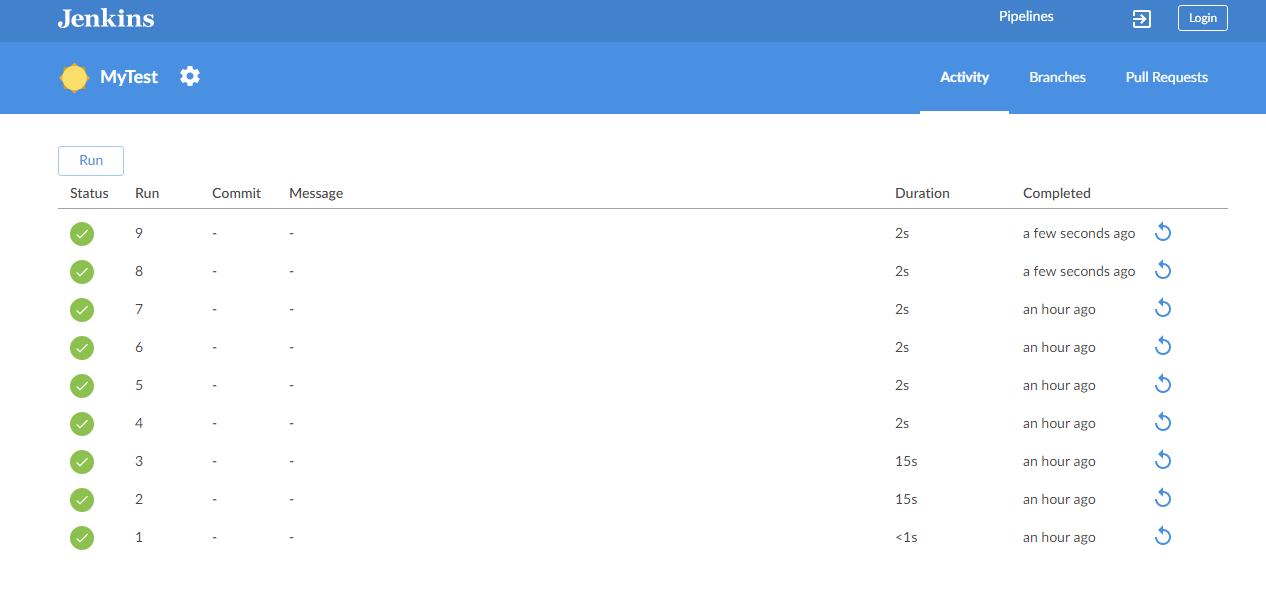
Here you can view the pipeline’s execution status and edit it visually. BlueOcean is a UI tool provided by Jenkins to reduce workflow complexity and improve workflow clarity when executing tasks.
4. Pipeline Syntax
4.1 Keywords
Below are some of the main keywords in use; the keywords that can be used in a pipeline are related to the plugins installed in Jenkins. For example, if a plugin supporting Docker is installed, then keywords such as withDockerContainer can be used in the pipeline.
[archive, bat, build, catchError, checkout, deleteDir, dir, dockerFingerprintFrom, dockerFingerprintRun, echo, envVarsForTool, error, fileExists, getContext, git, githubNotify, input, isUnix, library, libraryResource, load, mail, milestone, node, parallel, properties, pwd, readFile, readTrusted, resolveScm, retry, script, sh, sleep, stage, stash, step, svn, timeout, tool, unarchive, unstash, waitUntil, withContext, withCredentials, withDockerContainer, withDockerRegistry, withDockerServer, withEnv, wrap, writeFile, ws] or symbols [all, allOf, always, any, anyOf, apiToken, architecture, archiveArtifacts, artifactManager, batchFile, booleanParam, branch, buildButton, buildDiscarder, caseInsensitive, caseSensitive, certificate, choice, choiceParam, clock, cloud, command, configFile, credentials, cron, crumb, defaultView, demand, disableConcurrentBuilds, docker, dockerCert, dockerfile, downloadSettings, downstream, dumb, envVars, environment, expression, file, fileParam, filePath, fingerprint, installSource, jdk, jdkInstaller, jgit, jgitapache, jnlp, jobName, junit, lastSuccess, list, local, location, parameters, password, pattern, pipeline-model, pipelineTriggers, plainText, plugin, pollSCM, projectNamingStrategy, proxy, upstream, usernameColonPassword, usernamePassword, viewsTabBar, weather, withAnt, zfs, zip] or globals [currentBuild, docker, env, params, pipeline, scm]
4.2 Structure
- Sequential stage execution
node("master"){
    stage 'one'
    echo "start one"
    sleep 1

    stage 'two'
    echo "start two"
    sleep 3

    stage 'three'
    echo "start three"
    sleep 5
}
Execution result:
| |
- Parallel structure within a stage
| |
Execution result:
| |
5. Practical Recommendations
- Implement pipelines through groovy scripts
For a pipeline implemented through groovy, the corresponding groovy script can be stored in a Jenkinsfile and version-controlled together with the source code. It is best to add #!groovy as the first line of the groovy script Jenkinsfile, so that editing tools can support groovy syntax highlighting
- Implement all tasks in stages as much as possible
Tasks in the pipeline that are not configuration should be placed inside stage blocks as much as possible. The pipeline view plugin makes the pipeline’s StageView and monitor clearer.
- All resource-consuming operations should be executed on a node
Scripts in the Jenkinsfile execute on the Jenkins master by default, which affects the master’s service. Therefore, any resource-consuming operation should be placed in a node so that it is distributed to an agent for execution.
- Use parallel as much as possible to execute tasks in parallel
Try to use parallel tasks, so that the whole job flow completes more quickly. Even better, parallel tasks execute on different nodes.
- Do not use input inside a node
Using input will pause the pipeline’s execution and wait for user action. At the same time, an input inside a node will lock the node itself and the workspace, making them unusable by other jobs. input should be wrapped in timeout.
- Use withEnv to modify environment variables
It is not recommended to use env to modify global environment variables, since subsequent scripts would also be affected. Use withEnv to modify environment variables, so that it only takes effect inside the withEnv block.
- Use stash to share files between stages/nodes, not archive
archive is used for persistent file storage, while stash is used to share code between stages/nodes.
