Prerequisites: (1) Helm is already installed, see Installing Helm; (2) the cluster has default dynamic storage available, see Providing PV Dynamic Storage with StorageClass
1. Installing Ingress with Helm
Ingress consists of two parts: Ingress and the Ingress Controller.
In Kubernetes, the Ingress object describes routing rules; the Ingress Controller interacts with the Apiserver and writes the Ingress rules into the Nginx Pod.
With Helm 2:
1
| helm install --name nginx-ingress --set "rbac.create=true,controller.service.externalIPs[0]=192.168.10.2" stable/nginx-ingress
|
With Helm 3:
1
| helm install nginx-ingress --set "rbac.create=true,controller.service.externalIPs[0]=192.168.10.2" stable/nginx-ingress
|
Check the services:
1
2
3
4
| kubectl get svc
NAME TYPE CLUSTER-IP EXTERNAL-IP PORT(S) AGE
nginx-ingress-controller LoadBalancer 10.109.17.54 192.168.10.2 80:31006/TCP,443:31184/TCP 30m
nginx-ingress-default-backend ClusterIP 10.106.94.214 <none> 80/TCP 30m
|
Here the externalIP approach is used to expose the service externally; nginx-ingress-controller will expose ports 80/443 on the node 192.168.10.2 (multiple nodes can be configured).
2. Installing Harbor with Helm
- Download the harbor-helm package
1
2
| git clone https://github.com/goharbor/harbor-helm.git
git checkout 1.1.0
|
- Create a dedicated namespace
kubectl create namespace harbor
- Modify the necessary parameters
 1
 2
 3
 4
 5
 6
 7
 8
 9
10
11
12
13
14
15
16
17
18
19
20
| git diff
--- a/values.yaml
+++ b/values.yaml
@@ -25,8 +25,8 @@ expose:
commonName: ""
ingress:
hosts:
- core: core.harbor.domain
- notary: notary.harbor.domain
+ core: core.harbor.chenshaowen.com
+ notary: notary.harbor.chenshaowen.com
# set to the type of ingress controller if it has specific requirements.
# leave as `default` for most ingress controllers.
# set to `gce` if using the GCE ingress controller
@@ -95,7 +95,7 @@ expose:
# the IP address of k8s node
#
# If Harbor is deployed behind the proxy, set it as the URL of proxy
-externalURL: https://core.harbor.domain
+externalURL: https://core.harbor.chenshaowen.com
|
You can also leave it unchanged and configure hosts for access.
helm install --name harbor -f values.yaml . --namespace harbor
Run kubectl get pod -n harbor and wait for all Pods to start normally.
1
2
3
| kubectl get ingress -n harbor
NAME HOSTS ADDRESS PORTS AGE
harbor-harbor-ingress core.harbor.domain,notary.harbor.domain 80, 443 7m15s
|
- Configure the domain and access it
The domain’s DNS needs to point to the server address. Open the page https://core.harbor.chenshaowen.com and enter the default username and password admin : Harbor12345, and it is ready to use.
3. Pushing Images
1
2
3
4
| docker login core.harbor.chenshaowen.com
Username: admin
Password:
Error response from daemon: Get https://core.harbor.chenshaowen.com/v2/: x509: certificate signed by unknown authority
|
This indicates a certificate problem, and there are two ways to solve it:
- Add a trusted certificate in Docker
Run the command to obtain the certificate and copy the certificate content into the configuration directory:
1
| kubectl get secrets/harbor-harbor-ingress -n harbor -o jsonpath="{.data.ca\.crt}" | base64 --decode
|
- Add the –insecure-registry registry address
Taking OS X as an example, add the insecure registry core.harbor.chenshaowen.com under [Preferences] - [Daemon].
1
2
3
4
5
6
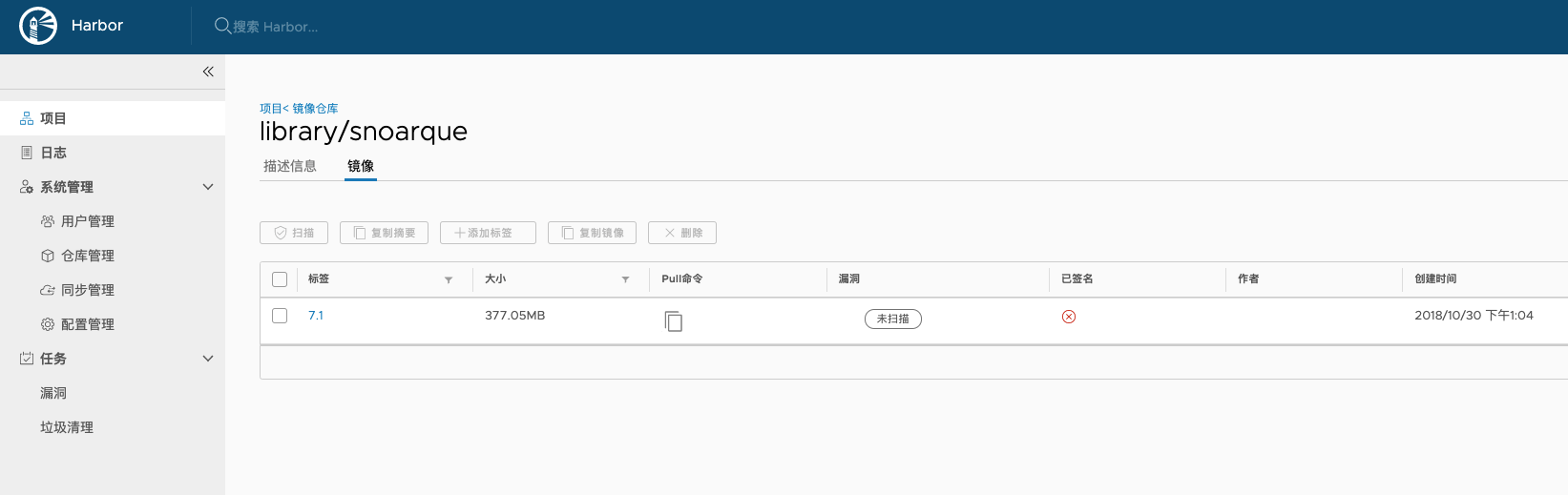
| docker tag sonarqube:7.1 core.harbor.chenshaowen.com/library/snoarque:7.1
docker push core.harbor.chenshaowen.com/library/snoarque:7.1
The push refers to repository [core.harbor.chenshaowen.com/library/snoarque]
195b3d541b37: Pushed
8fb1d730c37c: Pushing [=============> ] 48.57MB/177.1MB
1e09c232b1a9: Pushed
|