1. Typical Use Cases
In CI, there is usually a CI Engine responsible for parsing the pipeline and controlling the whole build process, while the actual build is delegated to an Agent. Jenkins and GitLab both work this way.
As shown below, there are many kinds of Agents that connect to the CI Engine. This is to meet the varying build environment requirements of different projects.
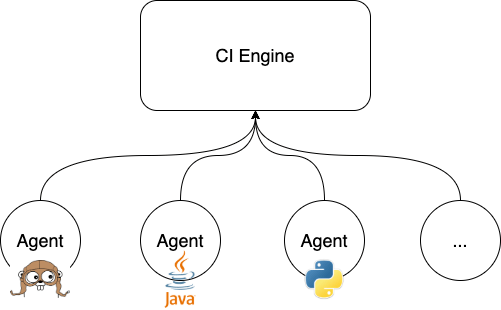
At the same time, Agents are dynamic — needed only during a build, destroyed when the build finishes. CI is an excellent fit for practicing container, Serverless, and similar technologies, so in production the Agent is often containerized.
That raises the question: if the CI Engine is also containerized, how do you use an Agent container to build inside a container? And if the Agent is already containerized, how do you build images on the Agent? This article answers both — how to use Docker in Docker.
2. Two Usage Modes
We need to know that Docker works in C/S mode, mainly split into two parts: the Docker CLI and the Docker Daemon. The Docker CLI, i.e. the client, gives users command-line access to Docker, for example docker create/images/ps. The Docker Daemon, i.e. the daemon process, receives user commands and maintains the container lifecycle.
2.1 Docker in Docker
Docker in Docker, abbreviated DinD below.
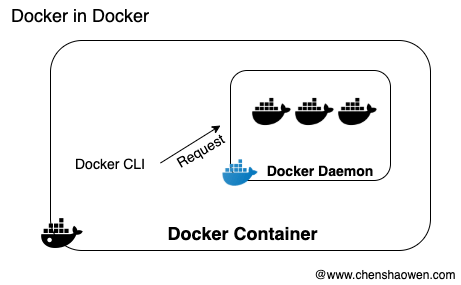
As shown above, you can run a Docker Daemon directly inside a Container, then use the Docker CLI tool inside the Container to manage containers.
In this mode, the Docker Daemon inside the container is fully independent of the outside, with good isolation properties. It looks as though the Container is similar to a VM, but the author of DinD does not particularly recommend it either.
The main reason is still security. DinD has to be started in privileged mode, and this nesting brings potential security risks.
In this mode, the container responding to commands is nested inside the container using the docker command.
2.2 Docker outside of Docker
Docker outside of Docker, abbreviated DooD below.
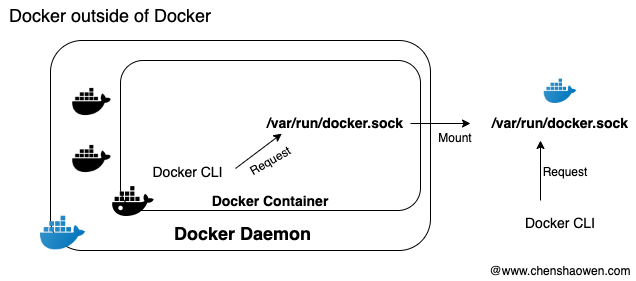
As shown above, Docker works in C/S mode; in use, the user cares about the C side, while lifecycle management sits on the S side.
So you only need to mount the Container’s external Docker Daemon service into the Container. The Container is led to believe a Docker Daemon is running locally, and when you use Docker CLI commands, the external Docker Daemon responds to the request.
In this mode, the container responding to commands is at the same level as the container using the docker command.
3. Demonstration in a Docker Environment
3.1 DinD
- Run the DinD container
| |
- Run a container with the CLI, linked to the DinD container
| |
- Pull an image in the DinD container
Pull an image
| |
View the images
| |
It works just like an independent Docker Daemon environment.
- Check whether the outside is affected
Type exit to leave the container, and go through the Docker Daemon on the host
| |
As expected. DinD uses an independent Docker Daemon and has no direct impact on the external instance.
3.2 DooD
- Run a container
| |
- Install curl
Here, to avoid installing the Docker CLI, we call the Docker Daemon’s API directly with curl.
| |
- Pull an image
| |
- View the pulled image
Type exit to leave the container, and go through the Docker Daemon on the host
| |
As expected. DooD uses the external Docker Daemon directly.
4. Demonstration in a Kubernetes Environment
4.1 DinD
- Create a dind.yaml file with the following content:
| |
- Create the Deployment
| |
- View the created Pod name
| |
- Enter the Pod
| |
- Test whether it uses an independent Docker Daemon
| |
| |
As expected, only the Nginx image just pulled is shown here, completely independent of the host’s Docker Daemon.
4.2 DooD
- Create a dood.yaml file with the following content:
| |
- Create the Deployment
| |
- View the created Pod name
| |
- Enter the Pod
| |
- Test whether it uses the host’s Docker Daemon
| |
As expected. The Docker command here uses the external Docker Daemon.
