1. Basic Features of a CICD Platform
A common CICD engine is not suitable to hand directly to the business side. The main reasons are the high learning cost for users, the lack of necessary authentication, and the difficulty of maintenance and upgrades.
We usually build on top of a process engine, adapting it to the business to improve usability and encapsulating it for specific scenarios to reduce complexity. So what basic features does a CICD platform need?
- Process orchestration. A basic yet core feature, which an open-source orchestration engine can provide.
- Process atoms. Process atoms are assembled into pipelines; the richer the process atoms, the better they can meet the needs of the business side.
- Process control. Mainly includes conditional execution, pause, resume, approval, and so on, allowing control over the pipeline’s behavior.
- Automatic triggering. Automatically triggering pipelines through APIs, Webhooks, and other means brings great convenience to users.
- Access control. As a user-facing platform, access control is indispensable.
Tekton, as a cloud-native CICD engine, is very well suited to building a CICD platform for Kubernetes infrastructure. What I mainly want to share in this article is Tekton’s process control, especially the approval feature.
2. Process Control in Tekton
2.1 runAfter
| |
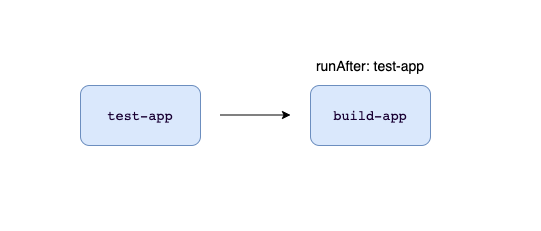
The runAfter keyword controls the order in which tasks execute. In the example above, build-app executes after test-app finishes. Using runAfter lets you orchestrate the process.
2.2 conditions
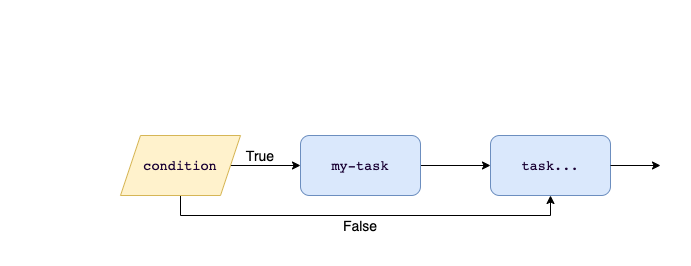
Here we first create a Condition object that checks whether a specified file exists in the code repository.
| |
When creating a Pipeline, you only need to reference this Condition in the Task and provide the necessary parameters. In the example below, the my-task task only executes when the README.md file exists in the code repository.
| |
2.3 PipelineRunCancelled
When the status in the PipelineRun Spec is PipelineRunCancelled, the Reconciler cancels all Tasks in advance and updates the status.
Reference code: https://github.com/tektoncd/pipeline/blob/c8dc797cf5a6f11f90cb742d014470a444fcdc60/pkg/reconciler/pipelinerun/pipelinerun.go#L147
- View the running pipelinerun
| |
- Change the status of the pipelineruns to PipelineRunCancelled
| |
- View the cancelled pipelinerun
| |
2.4 PipelineRunPending
Besides the PipelineRunCancelled status above, a pipelinerun has another status, PipelineRunPending. The effect that PipelineRunPending achieves is that the PipelineRun is created but does not run immediately.
- Create a pipeline in the PipelineRunPending state
| |
- View the pipeline status
| |
This pipeline has no start time because it stays in the waiting state the whole time.
- Remove the PipelineRunPending status
| |
The pipeline starts executing.
- View the pipeline status
| |
- A running pipeline cannot be changed to the PipelineRunPending status
In Tekton v0.24.1, the status cannot be changed to PipelineRunPending; if it could, it would achieve a pause effect.
| |
| |
Validation restricted this modification.
3. How to Implement an Approval Feature
The sections above mentioned several process control methods in Tekton, but the community has not provided an approval feature, nor does it plan to. Therefore, when doing secondary development on Tekton, the CICD platform needs to implement approval and permission control itself. Below are two implementation approaches for reference:
3.1 Approach One: Use a Trigger
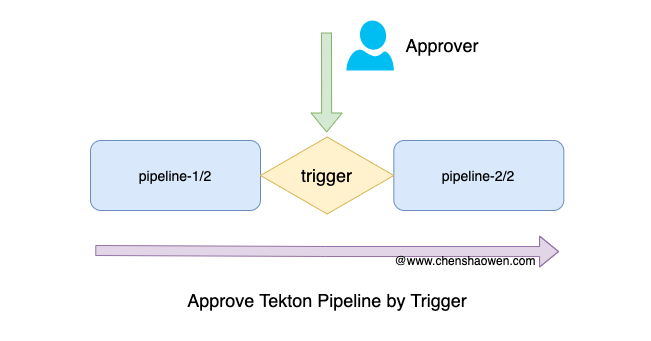
As shown in the figure above, one pipeline from the user can be split into two pipelines, pipeline-1/2 and pipeline-2/2. A trigger is introduced between the two pipelines.
- When the pipeline pipeline-1/2 finishes executing, notify the approver.
- After the approver approves, trigger pipeline-2/2 to execute.
- pipeline-2/2 finishes executing, completing the entire pipeline.
The Tekton community provides a triggers component for automatically triggering pipelines. As shown below:
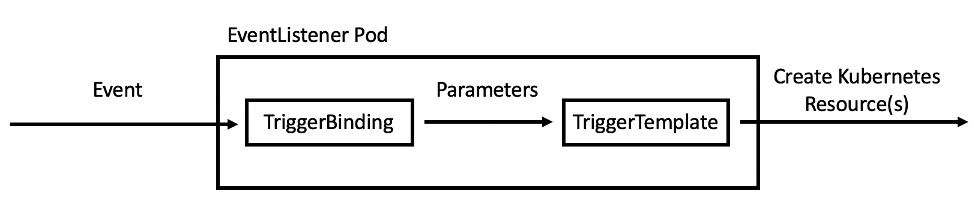
- After approval, push a trigger event, Event.
- After the EventController receives this event, it extracts the parameters, Parameters, from the TriggerBinding.
- The TriggerTemplate uses the Parameters passed in to create the pipeline pipeline-2/2.
3.2 Approach Two: Develop an Approval Task
Developing a Task is the main way to extend Tekton, and developing a Task only requires basic Shell and YAML knowledge. Here is another idea: develop an approval Task.
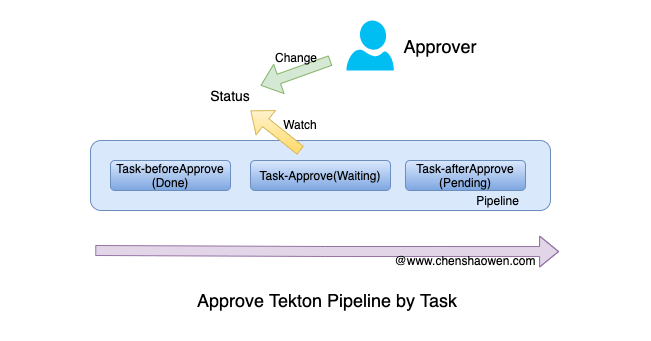
As shown in the figure above, insert a Task-Approve used for approval control into a pipeline.
- When the approval atom is used, a ConfigMap needs to be created in sync to store the approval status Status=init.
- When the pipeline finishes executing the Task-beforeApprove task, it starts the Task-Approve task and changes the status to Status=notifying. The Task-Approve task stays in a waiting state the whole time.
- Send a notification to the Approver and change the status to Status=notified.
- The approver approves the pipeline and allows it to execute, changing the status to Status=success.
- Task-Approve detects Status=success, immediately ends the waiting state, and completes the current Task.
- The pipeline continues executing the post-approval task Task-afterApprove until it ends.
Below is an example:
First, create a ConfigMap to store the approval status.
| |
Write an approval Task that waits 24 hours for approval by default, and times out otherwise. If the status is changed to success, the approval passes; if the status is changed to refused, it means rejection.
| |
Then, create a test case.
| |
- View the pipeline after creation
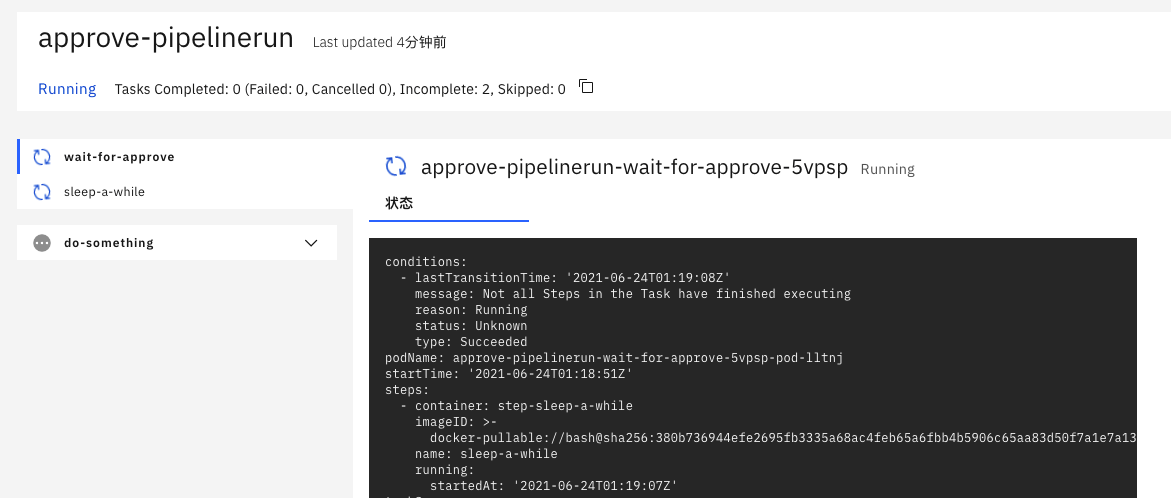
The logs keep printing waiting.
- Approve
| |
- View the pipeline status
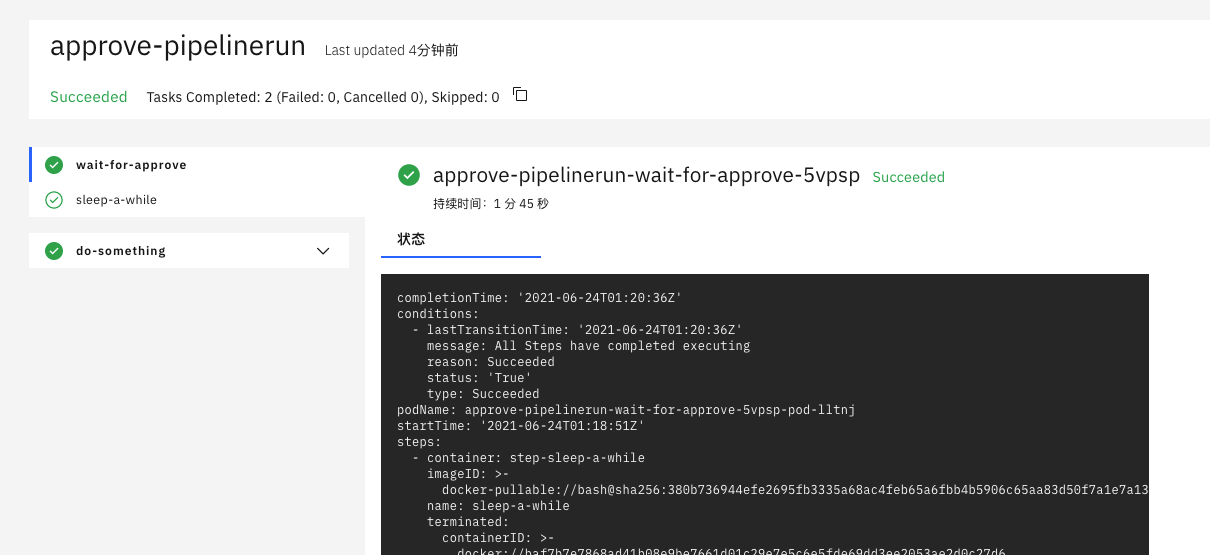
4. Summary
When doing secondary development on Tekton, approval is a hard feature to avoid, but the community does not provide the relevant capability. This article first introduced the process control methods in Tekton, then provided two approaches to implement an approval feature. Below is a brief comparison and summary of the approaches:
4.1 Approval Using a Trigger
Pros
- Flexible. What happens after approval is entirely controlled by the developer, giving greater freedom. A background job can also replace the Trigger, using the Tekton Client to create pipelines.
- Reliable. Even a restart will not affect the approval.
Cons
- After splitting, there may be more than two pipelines.
- Parameters and artifacts need to be passed across pipelines, increasing maintenance cost.
- Architecture complexity increases, introducing new components and background processing logic.
4.2 Develop an Approval Task
Pros
- Simple to use. One Pipeline has only one DAG, which is easy to understand.
- More in line with Tekton’s way of extending.
Cons
- When the approval Task fails because of a node failure, it cannot be recovered.
- It occupies cluster resources, as the approval Task stays resident in the cluster waiting.
- The ConfigMap status update is not timely and has a delay (on the order of minutes by default); the approximate value is kubelet’s sync period plus the TTL of the ConfigMap cache in kubelet. You can modify it by referring to the document How to Change Kubelet Startup Parameters.
