1. Ways to Extend Chrome: Extensions, Plugins, Apps
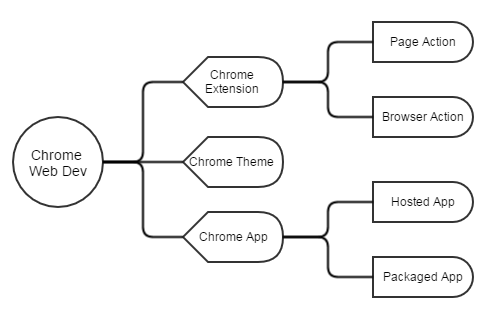
Google Chrome has come a long way. It is no longer just a browser but more like a platform, where you can install the services you need in a personalized way, and through which you can also publish services of your own. Today there are three main ways to extend the browser’s functionality:
2. Extension
Type chrome://extensions/ in the address bar to see the extensions you have installed. Extensions are mainly used to enhance the browser’s functionality; they depend only on the browser and can run across systems. When a security risk arises, the browser is what gets attacked. Extensions can change page content, proxy server settings, and so on. They usually display an icon in the address bar and the toolbar.
3. Plugin
Type chrome://plugins/ in the address bar to see the plugins you have installed. Plugins are generally installed alongside an application’s installer, and they let the browser integrate the API services that the software provides. Common plugins include the Flash plugin, the PDF plugin, and the Java plugin; plugins may differ across operating systems. When a security risk arises, the system is what gets attacked.
4. Application
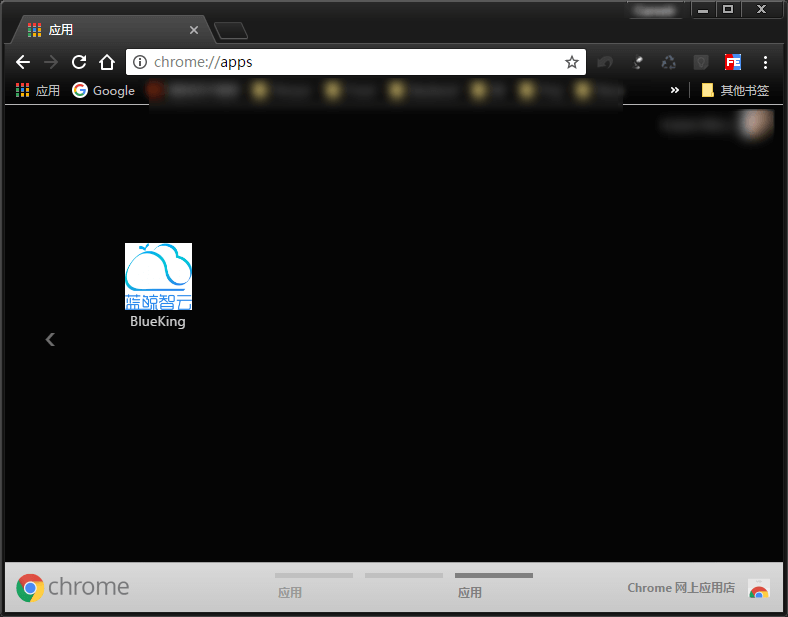
Type chrome://apps in the address bar to see the apps you have installed. Compared with extensions and plugins, apps do not depend on the browser to run; on Windows OS you can even find a Chrome Apps directory in the menu bar. Apps put more emphasis on running independently: they have their own dedicated window while running, and they can call down to low-level system interfaces such as USB and file read/write.
5. Let’s Develop a Small App
This does not cover plugin development; extension and app development are much the same, so the two are not distinguished much below. There is also a theme category, used mainly to make Chrome look nicer.
5.1 Basic Tools
- Google Chrome - the Chrome browser
- Chrome Dev Editor - an IDE; you don’t have to use it. Install it directly from the Chrome Web Store here
5.2 What an Extension Consists Of
Every extension contains the following files:
- A mainfest.json file (required, and it must have exactly the same name);
The mainfest.json file is the entry point through which Chrome runs the extension; it configures the extension’s name, version, description, icon location, and other information. It must contain the name, version, and mainfest_version (set to 2) properties, and of the browser_action, pagea_ction, app, and theme fields, exactly one may be chosen.- app: indicates the Chrome App type, which pops up a standalone page to run
- browser_action: indicates the Browser Action type, which enhances the browser's **general functionality** and is unrelated to any website
- page_action: indicates the Page Action type, which operates according to the URL being visited; optional
- theme: indicates the theme type, for developing Chrome skins
- permissions: grants authorization for the websites that need to be accessed
- background: the background context, which can interact and communicate with the front-end page and send cross-origin requests
- content_scripts: scripts injected into pages; they can modify the page's DOM, and here you can also communicate with the background to fetch data, which requires the chrome.* APIs
- Several HTML files;
The popped-up pages - Several js\css files;
The js\css files used in the extension or app. These are optional, but for security reasons running JS code inside HTML is not allowed - Several image and other files;
The image files used in the extension or app, and possibly even .so and .dll files, although this form of injection functionality is no longer encouraged.
5.3 Let’s Write an App Right Now
The feature it implements is page redirection: after you click the icon, it jumps to a specified page.
The files are organized as follows:
The blueking directory contains two files, icon_128.png and mainfest.json.
| |
You also need to prepare an icon_128.png file to display as the app’s icon.
Run it directly in Chrome Dev Editor, or package and install it through the browser, and you will find it among your apps
During development, put the files above in a single folder, and ideally make every file UTF-8 encoded; during testing, go to the extensions page, check Developer mode, click Pack extension, and select the development directory to produce the corresponding crx package; during publishing, you need not only a working set of project code but also several icons — package everything into a zip file, and once you have opened a developer account, upload it to the Developer Dashboard.
If you develop with Chrome Dev Editor, click the + at the lower left and create a JavaScript Chrome App project, and you will see a complete extension skeleton. All you need to do is fill in your own page presentation and logic. There is no difference from ordinary web app development.
6. References
- http://www.ituring.com.cn/minibook/950
- http://open.chrome.360.cn/extension_dev/overview.html
- https://developer.chrome.com/extensions
7. Addendum
【As of November 21, 2016, all newly packaged or hosted apps are limited to Chrome OS, and users cannot use them on Windows, Mac, or Linux. Existing apps will continue to be available on all major platforms and will continue to receive updates. Free extensions, themes, and apps can now be published to Cuba. If you have a project currently published to “All regions,” it has been automatically opted in to Cuba. You can update your project’s publishing preferences at any time in the “Regions” section of the edit page.】Developers have roughly two years to migrate existing apps; extensions are unaffected.
