1. DockerHub Limits
In the end, there is no getting around this error:
| |
Starting November 2, 2020, DockerHub officially began limiting the pull rate for non-paying users:
Anonymous users: only 100 pulls every 6 hours
Logged-in users: only 200 pulls every 6 hours
Alright, under normal circumstances this would be the end of the friendship — if you won’t let me use it, I just won’t. But take another look at this diagram:
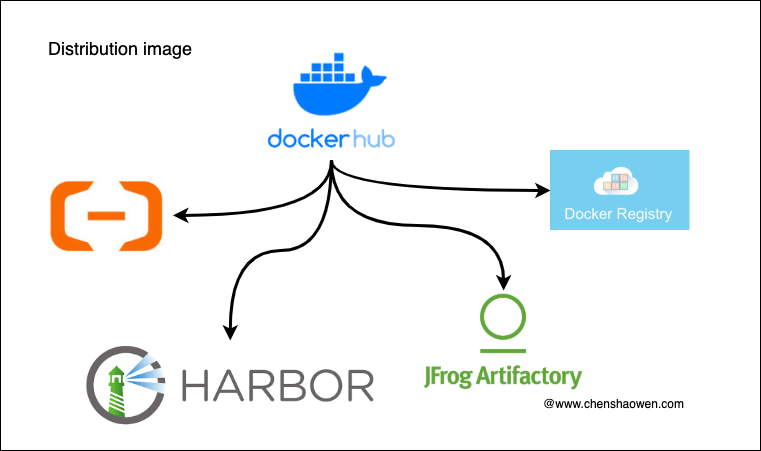
For some teams, DockerHub is more than image storage — more importantly, it serves as a distribution center. Every time an image is built, it is pushed straight to DockerHub, and then other places sync the image from there.
So the DockerHub pull limit had to be dealt with.
2. How to Test
2.1 How Images Are Pulled
Before testing, let’s first understand how an image is pulled. The diagram below shows the structure of an image: one image corresponds to one Manifest, i.e. the JSON structure shown here.
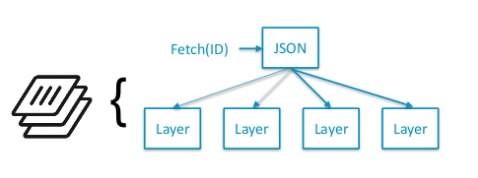
To make this more concrete, let’s enable Docker’s experimental feature and inspect the manifest of the nginx image.
| |
As you can see, the Manifest records a lot of fingerprint data for the Layers; the Layer is the actual image layer data, while the Manifest only records metadata. Pulling an image happens in two steps:
- Pull the Manifest
- Pull the layer data according to the description in the Manifest. If a local cache exists, no request is made.
2.2 Test Script
- Check the current DockerHub pull quota
If you are a logged-in user, you can add the --user 'username:password' argument after curl.
| |
docker-ratelimit-source indicates the restricted IP.
ratelimit-remaining is the remaining pull count within 21600 seconds, i.e. 6 hours.
Only pulling image layer data consumes the quota, so pulling an image you have already pulled does not consume it.
- Exhaust the quota with a script
| |
| |
- After configuring, continue pulling images
There are mainly three categories of images here:
- The first is an image that exists locally
| |
- The second is a public image (not present locally)
| |
- The third is an image you built yourself (not present locally)
| |
3. Configure an Image Mirror to Lift the Pull Limit
3.1 Available Mirrors and Test Results
| Mirror | Effective | Speed | Address | Notes |
|---|---|---|---|---|
| NetEase | Yes | *** | https://hub-mirror.c.163.com | |
| Tencent | Yes | ** | https://mirror.ccs.tencentyun.com | Speed is acceptable |
| USTC | Yes | ** | https://ustc-edu-cn.mirror.aliyuncs.com | Equivalent to Aliyun’s public mirror |
| Alibaba Cloud | Yes | ** | https://<your_code>.mirror.aliyuncs.com | Requires login; each person gets a unique address |
| Baidu | No | - | https://mirror.baidubce.com | Not usable |
| Azure | No | - | https://dockerhub.azk8s.cn | Only allowed for Azure hosts |
| NetEase | No | - | https://hub-mirror.c.163.com | |
| Daocloud | No | - | https://f1361db2.m.daocloud.io | Even images already cached locally cannot be pulled |
| Qiniu | No | - | https://reg-mirror.qiniu.com |
Overall, using the NetEase or Tencent mirror is a good choice.
3.2 Configuration
- Edit Docker’s daemon file
| |
- Add the NetEase mirror
| |
- Restart the Docker service
| |
