1. Pages
GitHub, GitLab, Bitbucket and others all offer a free static page hosting service called Pages. With the Pages service you can publish documentation, blogs, and more.
Taking GitHub as an example, using Pages usually takes just a few simple steps:
- Create a new project:
[username].github.io - Commit static html files
- Visit
[username].github.io, or bind your own domain to access it.
If you want to write documentation in Markdown, you’ll need to use a static site generator such as Jekyll or Hexo.
2. Git hooks
Git hooks are a set of scripts that a Git repository runs automatically when specific events are triggered. By hooking into particular events, you can customize your workflow.
Git stores hook scripts in the repository’s .git/hooks directory.
| |
Hooks fall into client-side and server-side. Client-side hooks are tied to local events, server-side hooks to server events.
The client-side hooks are:
- pre-commit, runs before the commit message. One recommended tool provides a large set of related plugins: pre-commit.
- prepare-commit-msg, runs before the commit message editor is started, after the default message has been created.
- post-commit, runs after the entire commit process is complete.
- applypatch-msg, can be used to make sure the commit message conforms to a format, or to fix formatting errors directly with a script.
- pre-applypatch, invoked during
git am. - post-applypatch, runs after the commit is produced, and is the last hook invoked during
git am. - pre-rebase, runs before rebasing; exiting with a non-zero value aborts the rebase.
- post-rewrite, invoked by commands that replace commit history.
- post-checkout, invoked after
git checkoutruns successfully. - post-merge, invoked after
git mergeruns successfully. - pre-push, invoked during
git push, after the remote refs have been updated but before objects have been transferred. - pre-auto-gc, invoked before garbage collection starts; you can use it to remind yourself that garbage is about to be collected, or to decide whether to abort the collection depending on the situation.
The server-side hooks are:
- pre-receive, invoked when handling a push operation from a client.
- update, runs once for each branch about to be updated.
- post-receive, runs after the whole process finishes; it can be used to update other system services or notify users.
In addition, you can usually register callback URL hooks on a Git repository’s page to trigger certain events, such as a Jenkins pipeline.
3. CI/CD
Besides the Git hooks mentioned above, you can also define CI/CD pipelines more flexibly with yaml. All you need to understand are CI/CD concepts such as stage and job, plus writing simple shell.
For more on this, see Some Common CI Scripts.
3.1 GitHub CI
Travis CI is a cloud-based continuous integration service that now supports most mainstream languages, such as C, PHP, Ruby, Python, Nodejs, Java, Objective-C, and more.
Using it mainly comes down to two steps:
- Log in to TravisCI with your GitHub account
- Add a .travis.yml file to the GitHub repository
| |
3.2 GitLab CI
Gitlab Runner is the CI executor provided by GitLab. GitLab officially provides a free Runner with a time limit, and also lets users self-host servers as a project’s Runner.
To use it, there’s no need for a third party — just add a .gitlab-ci.yml to the repository:
| |
For more on this, see GitLab CI Configuring Runner.
4. GPG-verified commits
Git is a distributed version control system. Everyone has a copy of the repository, everyone develops on their own branch, and then merges into the main branch. This can lead to malicious commits, perhaps because a developer’s account was stolen or a server had a vulnerability.
Trust between people needs to carry over to trust between repositories. That’s why we need GPG, an encryption and verification mechanism.
The main steps for using GPG on GitHub:
- Install GPG
| |
- Generate GPG keys and get the [key ID]
| |
- Export the key
| |
- Upload the public-key to GitHub
On the Settings page, click SSH and GPG keys, then under GPG keys click New GPG key. Paste the contents of public-key.txt into the input box and save.
- Configure Git locally
| |
Once configured, every commit you push afterward will show a green Verified badge.
Note that you need to keep git config --global user.name and git config --global user.email consistent with those used when generating the GPG Key above.
5. Git workflows
Branching a project for development with Git, and the workflow built around it, is called Git Flow. Git has three main workflows:
- Git flow
Two long-lived branches: the main branch master and the development branch develop. Suited to projects with a long release cycle, such as an Apple App Store app.
- GitHub flow
Only one long-lived branch, master. Suited to projects with continuous integration and fast iteration — the typical characteristics of an internet project.
- GitLab flow
A combination of Git flow and GitHub flow. It follows the upstream-first principle: code changed in master (upstream) is synced to other branches (downstream). Chromium development is an example — different vendors develop on different branches, but the service provider periodically merges master code.
For more on this, see The R&D Process of Agile Development.
6. Merge/Pull Request
After adopting a Git workflow, you need to use Merge/Pull Requests for multi-person development.
Usually we do Code Review during the Merge/Pull Request process. The Merge/Pull Request process is key to ensuring modules are coupled correctly and the code is high quality.
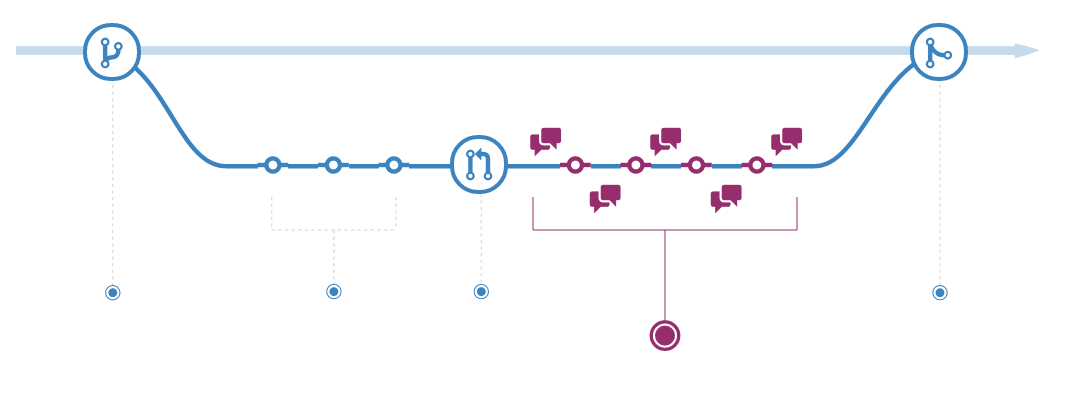
In addition, a Merge/Pull Request can be linked to issues, for example: close #33. When the Merge/Pull Request is merged, the corresponding issues are closed automatically.
For more on this, see Based on Git Development Workflow of Front and Back and How to Do CodeReview Better.
7. Using issues for project management
Beyond managing code repository versions, the issues feature in Git can also be used for project management.
An issue refers to a piece of work to be done, which can be a defect, a feature suggestion, a planned feature, and so on.
Issues merely list a series of work items; Git provides label, milestone, and board for managing issues across multiple dimensions.
label is mainly used to categorize and filter issues.
milestone is mainly used to define plans; an issue can only be bound to one milestone.
board provides a kanban view, letting you see work items and project progress intuitively.
For more on this, see How to Create GitLab Labels Using python-gitlab.
8. Customizing issue or pull request templates
When using issues to manage a project, standardizing the issue template so that submitters describe the problem as accurately as possible is very necessary.
Git provides this template feature.
Taking GitHub as an example, create a directory in the repository: .github. You can add a single template or multiple templates.
- Adding a single template
Add an ISSUE_TEMPLATE.md file under the .github directory as the default issue template.
- Adding multiple templates
Create a directory in the repository: .github/ISSUE_TEMPLATE. Multiple .md files can be added under this directory as issue templates.
The pull request template is similar to the issue template, except the file or folder name is changed to PULL_REQUEST_TEMPLATE.
9. Directory-based management of Git branches
A Git branch is just a file under the .git/refs/heads directory, and the file’s content points to a particular Git record.
In the practice of trunk integration and branch development, a large number of branches are usually produced. Using directories is a good way to manage Git branches. Directory branches are the same as ordinary branches, except the branch name contains the directory separator /.
| |
In some Git tools, branches can be displayed in directory form, for example: SourceTree, BitBucket.
