I had used Cygwin before, and Git Bash too. But neither of them works well with Vim, so I finally settled on MSYS2 as my console.
1. Comparing Cygwin, MinGW, and MSYS2
On Windows, the key to using Vim is finding a suitable console. When installing Vim plugins, a suitable console helps you avoid most of the pitfalls and lets you focus on using Vim.
| Feature | Cygwin | MinGW/MSYS | MSYS2 |
|---|---|---|---|
| Is it GNU | No | Yes | Yes |
| More software support | Supports the vast majority of GNU software | Supports common software; Git, Vim, and others need separate support | Supports most GNU software |
| More Linux-like | Cygwin on Windows is like Wine on Linux | Implements major Linux programs such as Bash | Native 64/32-bit support |
| GCC compilation | Includes MinGW32 cross-compilation, supporting both compilation of programs that depend on cygwin.dll and standalone Windows programs; can compile Linux applications directly | Supports standalone Windows program compilation | Supports standalone Windows program compilation |
| Chinese support | Directly supports Chinese display and input methods | Requires configuration to support Chinese display and input; deleting one Chinese character requires deleting twice | Supports Chinese display and input methods, Chinese help system, and Chinese prompts (for some software) |
| Speed | Slow | Fast | Fast |
The choice here is MSYS2 without hesitation, because there is a pitfall (the msys-python27.dll issue) that cannot be worked around.
MSYS2 bundles pacman. pacman is the package manager of Arch Linux, and its common commands are as follows:
| |
Visit the MSYS2 website to download and install MSYS2.
2. Updating the Mirrors
The mirror configuration files for MSYS2 live in /etc/pacman.d.
| |
Add the USTC mirror to each of the three files beginning with mirrorlist.
Edit /etc/pacman.d/mirrorlist.mingw32 and add the following at the beginning of the file:
| |
Edit /etc/pacman.d/mirrorlist.mingw64 and add the following at the beginning of the file:
| |
Edit /etc/pacman.d/mirrorlist.msys and add the following at the beginning of the file:
| |
Refresh the cache data by running:
| |
3. Installing and Configuring Vim
- Install Git (Vim will be installed along with it)
Run the command:
| |
- Install Python 2
Run the command:
| |
- Configure Vim
| |
After entering Vim, run :PluginInstall to install the relevant Vim plugins.
4. Dealing with Garbled Characters
- MSYS2 displays garbled characters
Create the file /usr/bin/win:
| |
Create the file /etc/profile.d/alias.sh:
| |
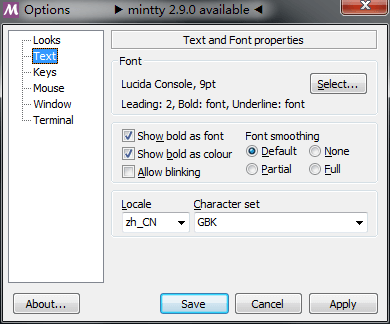
Besides the method above, you can also right-click the window and choose Options to set up Chinese display:
- Vim displays garbled Chinese characters
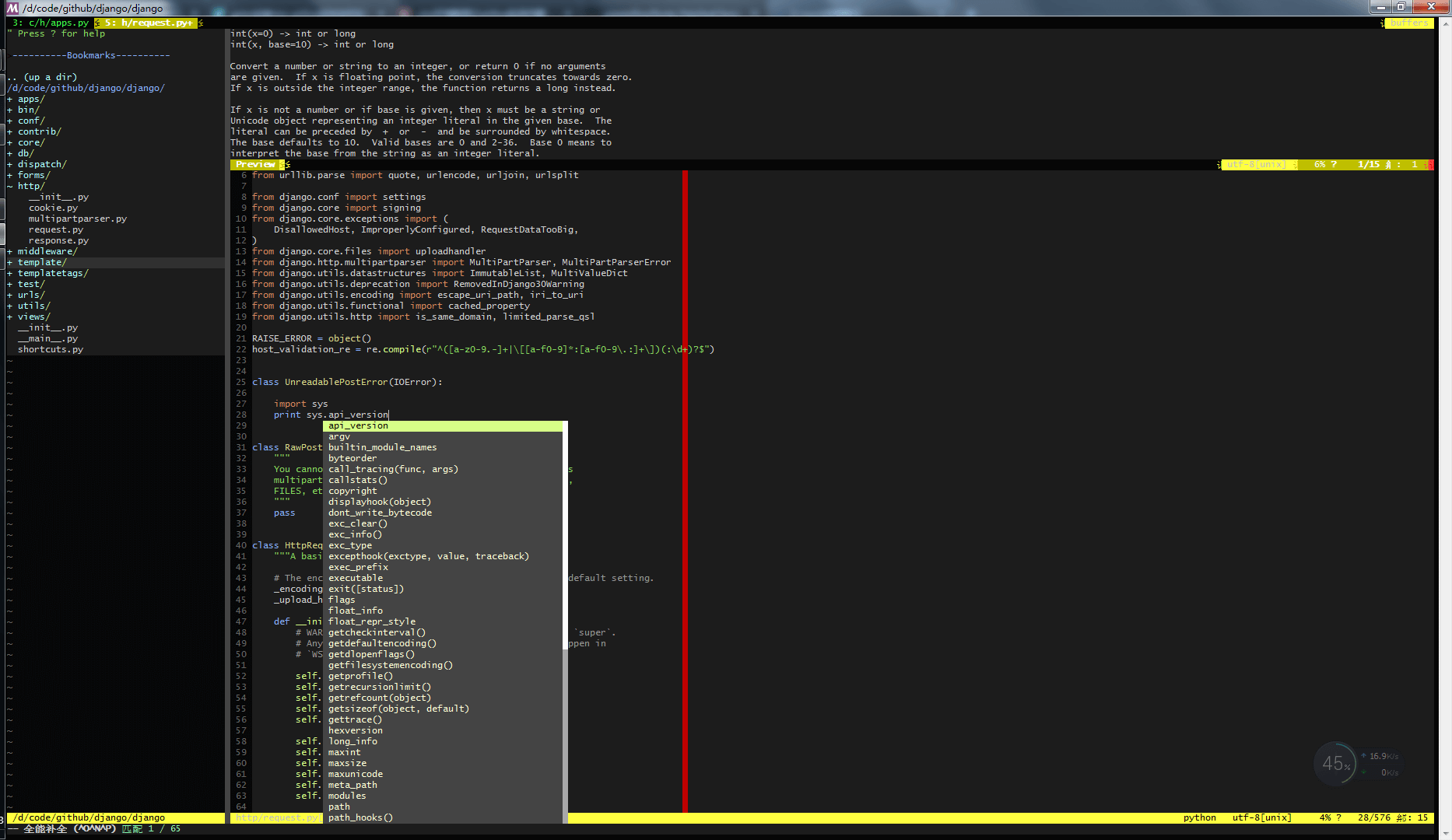
Add the following to the .vimrc file:
| |
5. Configuring ConEmu or Cmder
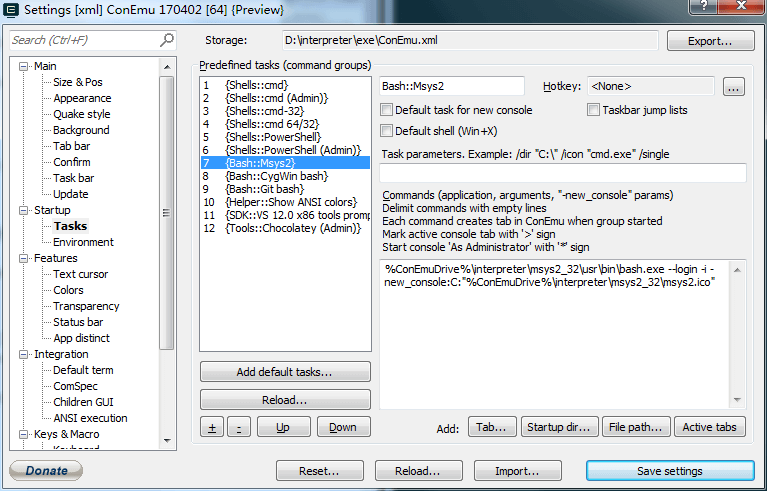
In Settings, add a new entry under Startup -> Tasks.
| |
