1. Introduction to Selenium
Selenium is an integration testing tool from Thoughtworks. At its core, Selenium Core is based on
JSUnit, written entirely in JavaScript, and can run in any browser that supports JavaScript.
1.1 Main Features and Characteristics
- Open source and free.
- Multi-browser support: Firefox, Chrome, IE, Opera — usable for compatibility testing.
- Multi-platform support: Linux, Windows, Mac OS.
- Multi-language support: Java, Python, Ruby, PHP, C#, JavaScript.
- Supports recording test cases: automatically generates test scripts for regression testing.
- Supports distributed execution of test cases.
1.2 Components
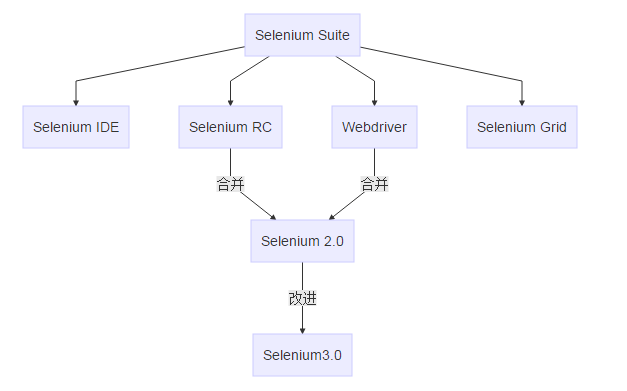
- Selenium IDE
Selenium IDE is a Firefox browser add-on used to record and play back Selenium test scripts.
- WebDriver, RC
WebDriver and RC provide support for various programming language APIs, such as Java, Python, Ruby, PHP, .NET, and so on, and can interact with different browsers, driving them to perform automated testing.
- Grid
Grid provides distributed and parallel testing capabilities, which can greatly reduce test execution time.
Selenium 2.0 integrated RC and Webdriver to provide Web UI-level automated testing capabilities.
Selenium 3.0 added native driver support for Edge and Safari.
2. How It Works
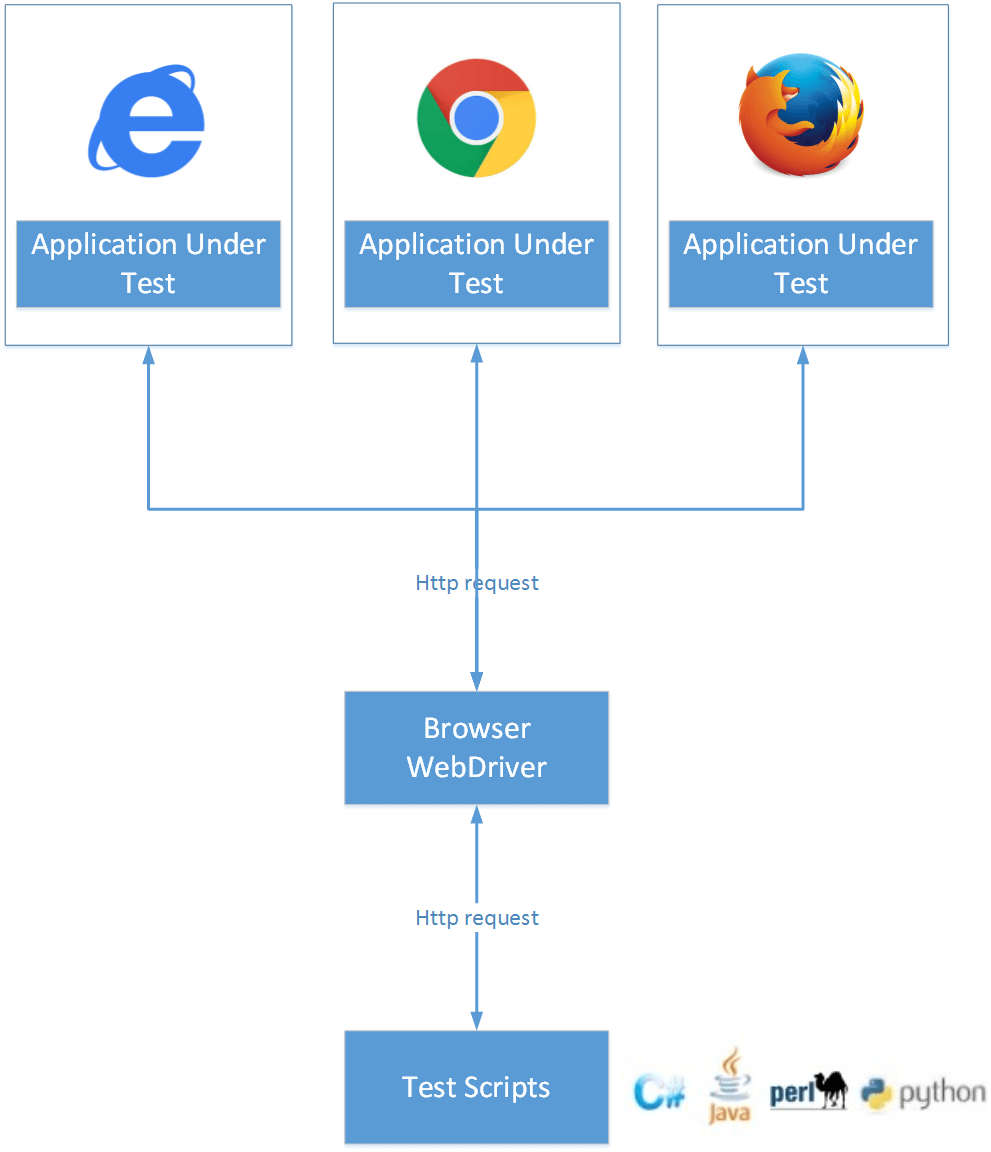
WebDriver is designed according to the Server–Client model.
The Server side is the Remote Server, which can be any browser. After you start a browser with a script, that browser is the Remote Server; its job is to wait for the Client to send requests and respond accordingly.
The Client side is the Test Script test code. In the test code you define some behaviors, such as opening a browser, navigating to a specific URL, and other operations. These operations are sent to the Remote Server (that is, the browser under test) as HTTP requests. The Remote Server receives the requests, performs the corresponding operations, and returns information such as execution status and return values in the Response.
How Webdriver works:
After the browser is started, Selenium-Webdriver binds the target browser to a specific port, and the started browser then acts as Webdriver’s Remote Server.
The Client side (that is, the test script) uses the ComandExecutor to send HTTP requests with JSON data to the Server side, telling Selenium what the Client wants the browser to do. The Server side relies on native browser components to translate Web Service commands into the browser’s native calls and complete the operations.
3. Recording and Exporting Scripts with Selenium IDE
Selenium IDE is a Firefox browser add-on used to record a user’s actions in Firefox and replay them.
3.1 Installing Selenium IDE
Download and install Firefox, open it in the browser, go to https://addons.mozilla.org/en-US/firefox/addon/selenium-ide/, and install selenium-ide.
Note that selenium-ide does not support every version of Firefox. If you open Firefox’s 【Tools】-【Selenium IDE】 toolbar menu and get an error, it is most likely a version incompatibility issue. In that case, find the Firefox version it supports on the selenium-ide installation page and install the compatible Firefox version.
3.2 Basic Structure
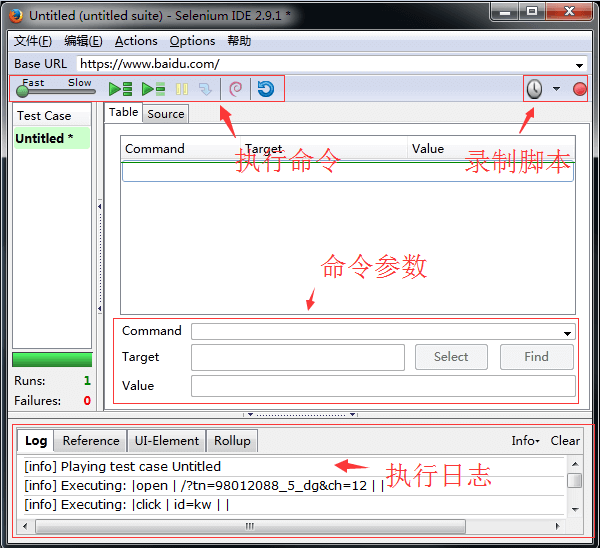
Each script is made up of a number of Actions, and each Action in turn consists of three parts: Command, Target, and Value.
- Command
There are several kinds of commands: Actions such as click, open, type, etc.; Assertions; Element Locators for specifying elements; and Patterns for pattern matching - Target
Some object in the Web page, for example: text, an input box, etc. - Value
Use Xpath to specify a particular object
3.3 Recording a Script
Open Firefox, find 【Tools】-【Selenium IDE】 in the toolbar, click to open it, and recording begins by default.
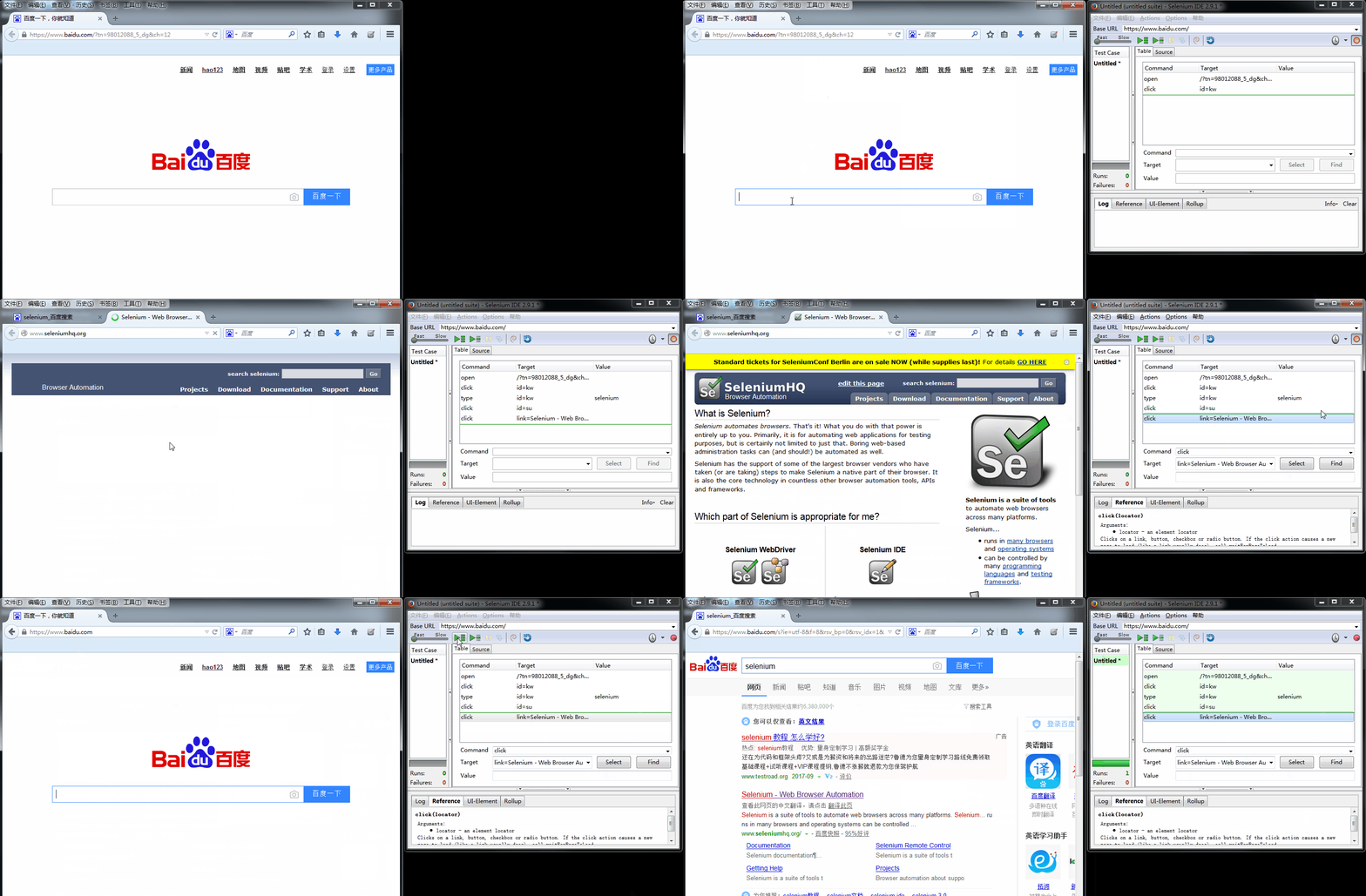
When you have finished recording, click the stop recording button. In the command execution panel on the left, you can choose to run the commands continuously or step by step.
3.4 Exporting a Python Script
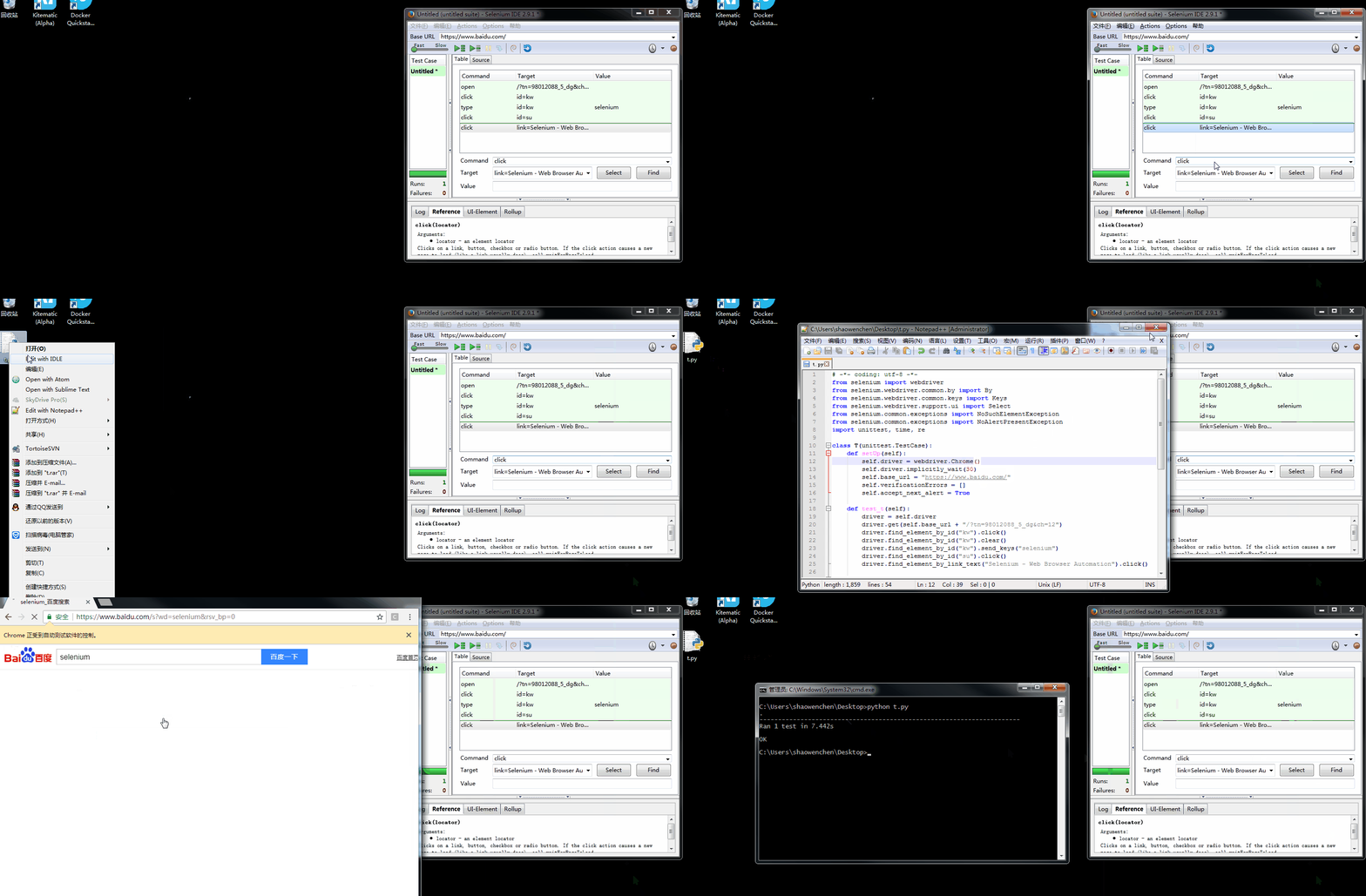
After exporting the Python script, it uses the Firefox() browser for testing by default; here change it to Chrome(). You need to install chromedriver to run the script.
The exported script looks like this:
| |
4. Automated Testing with Selenium + Python
4.1 Installing Selenium
| |
4.2 Writing a Test Script
test.py
| |
4.3 Running the Test
| |
If it reports an error like:
| |
Then you need to download geckodriver and add its location to the system’s PATH environment variable.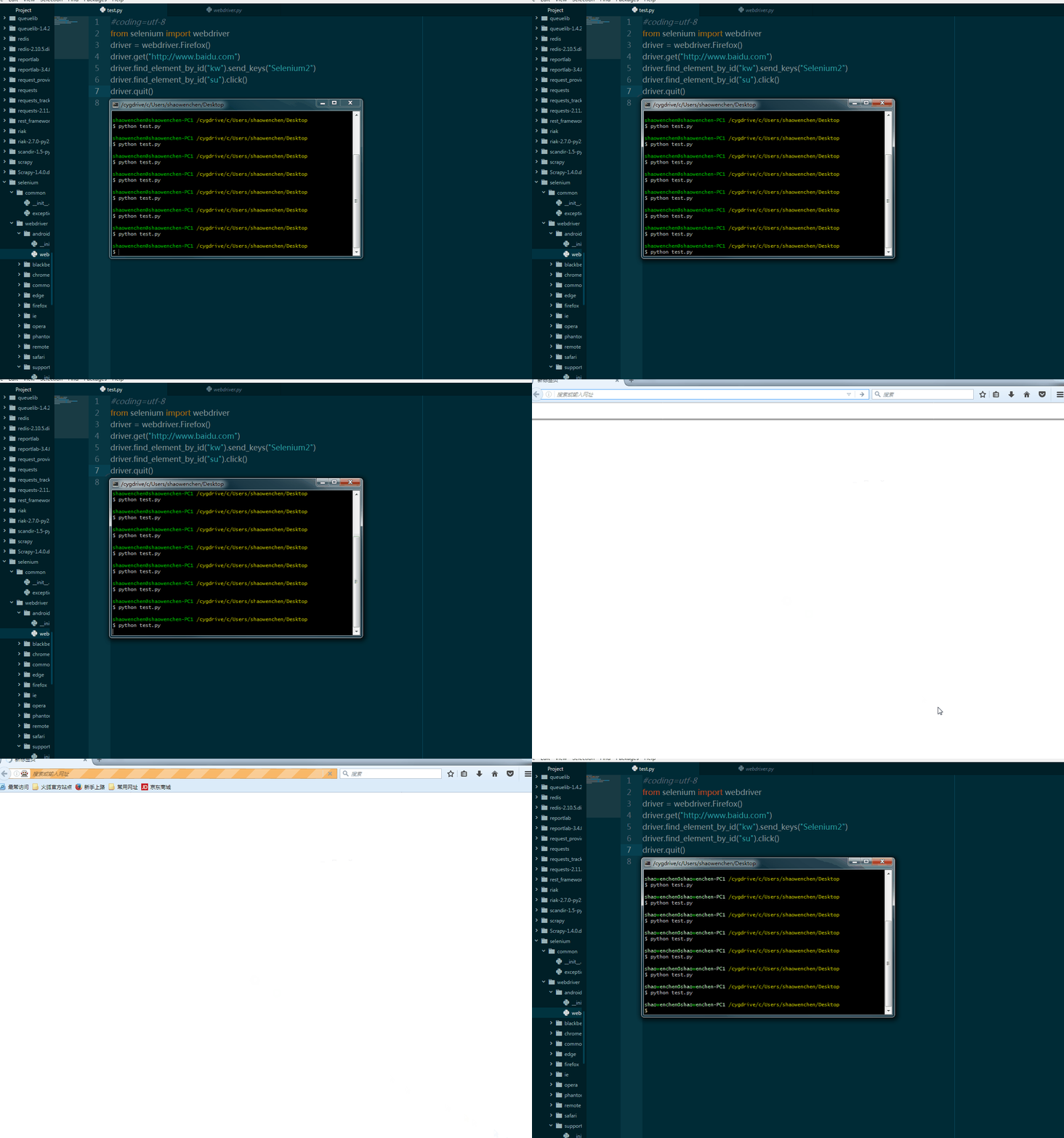
If you want support for IE and Chrome, you need to download the corresponding drivers from http://www.seleniumhq.org/download/ — IEDriverServer and chromedriver — and add their locations to the system’s PATH environment variable.
| |
5. References
- https://www.ibm.com/developerworks/cn/web/1209_caimin_seleniumweb/
- https://www.ibm.com/developerworks/cn/web/1303_luoxs_webdrivertvt/index.html