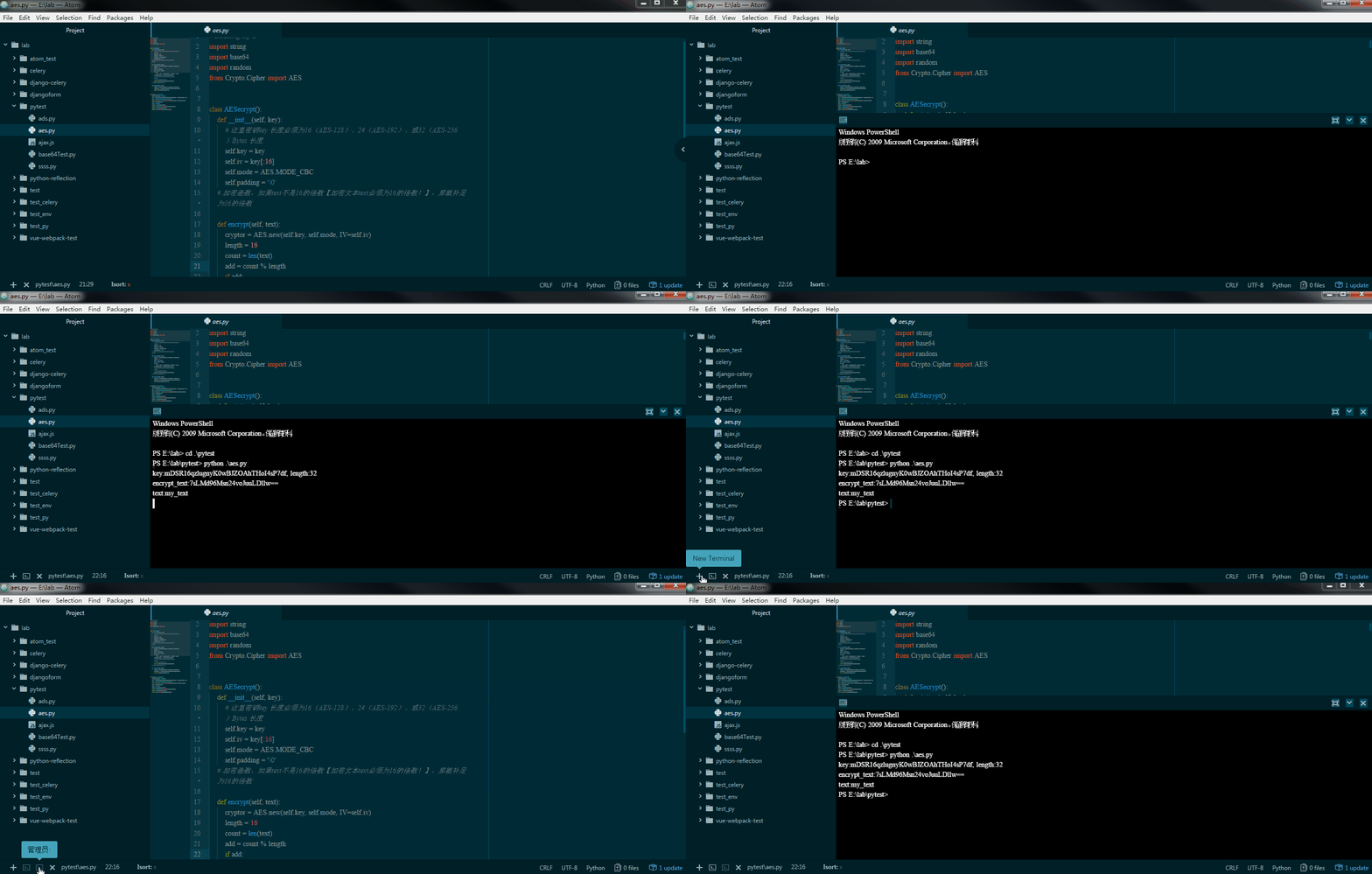
At the moment I use PyCharm as my integrated development tool for both front end and back end. My main stack is JavaScript, CSS, ECMAScript 6, Vue, Python, Django, Mako, and Markdown. Front-end work has been growing steadily lately, and PyCharm seems to be struggling. Atom, Sublime Text, and Visual Studio Code became the candidates; Atom is maintained by GitHub, has better community support, and is more configurable and more fun to play with. This article explains how to turn Atom into a full-stack development environment for Python + Vuejs.
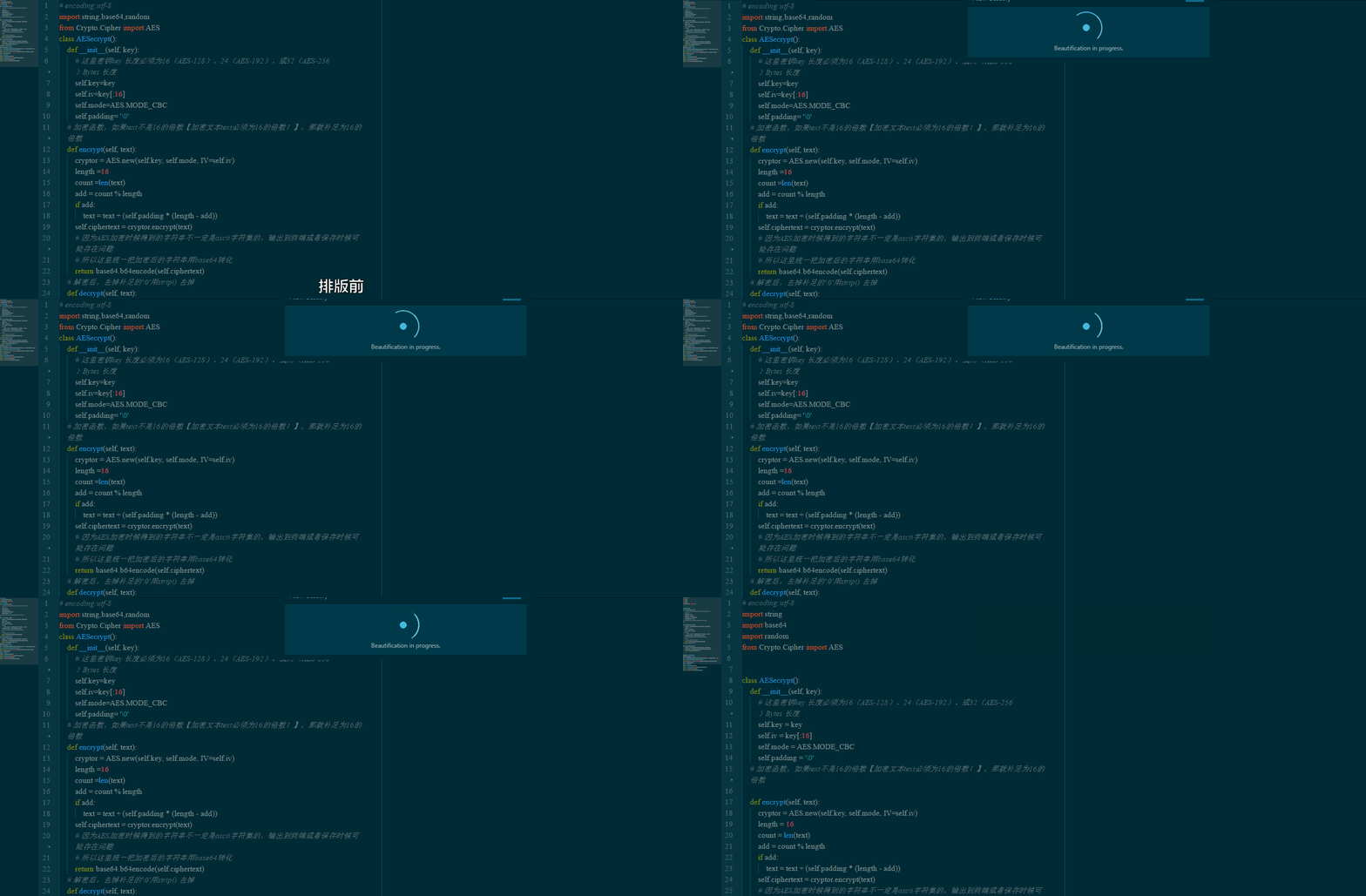
1. atom-beautify Code Formatting Plugin
A code formatting plugin that supports HTML, CSS, JavaScript, PHP, Python, Ruby, Java, C, C++, C#, Objective-C, CoffeeScript, TypeScript, Coldfusion, SQL, and more.
Shortcut: Ctrl + Alt + B
1.Tip:
Please run Atom command ‘Atom-Beautify: Migrate Settings’.
Solution:
1.Ctrl + Shift + P
2.Run: Atom-Beautify: Migrate Settings
2.Tip:
Could not find ‘autopep8’. The program may not be installed.
Solution:
| |
Different languages may prompt you to install different Python packages. For example, Shell asks you to install beautysh.
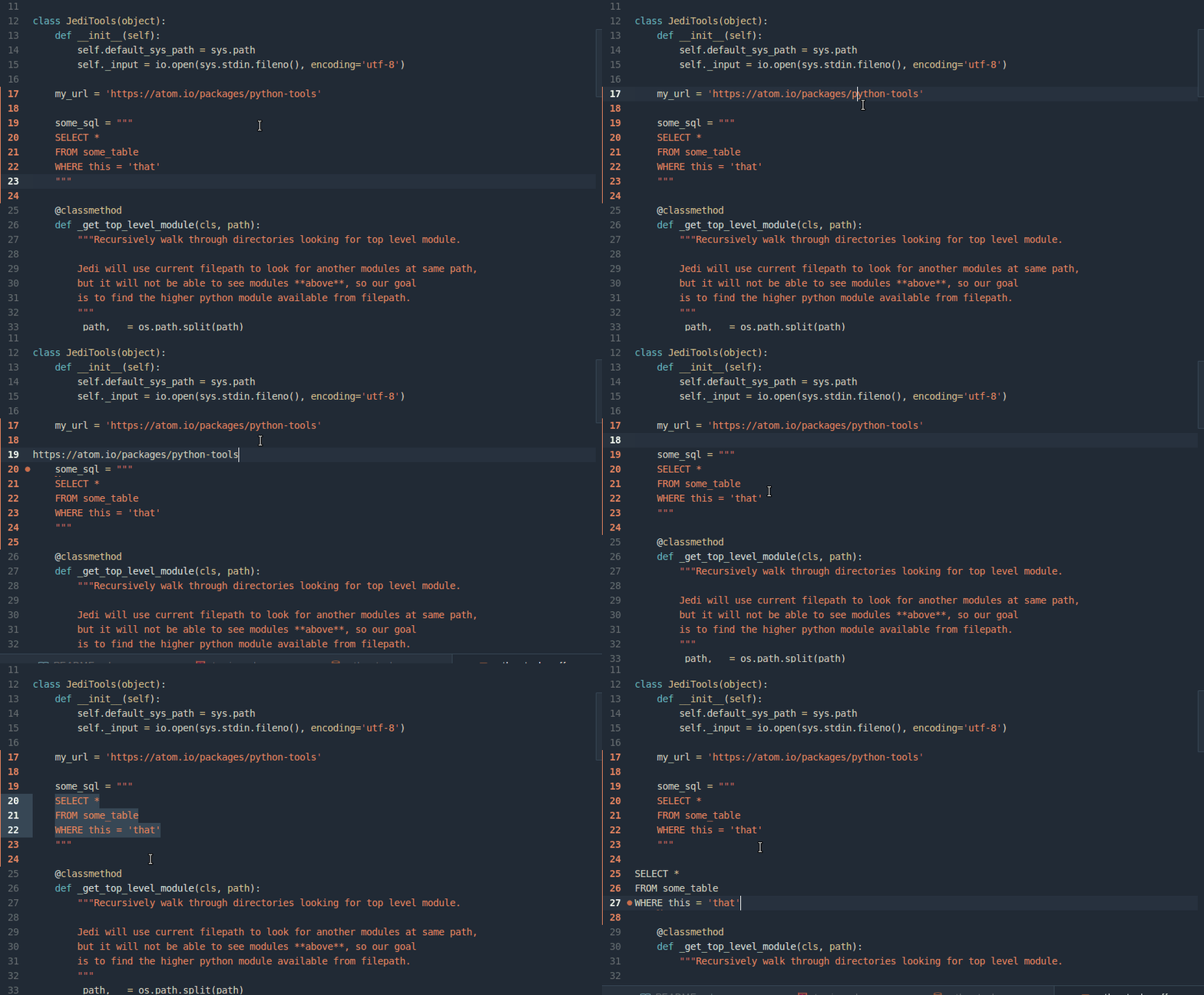
2. python-tools Navigation Plugin
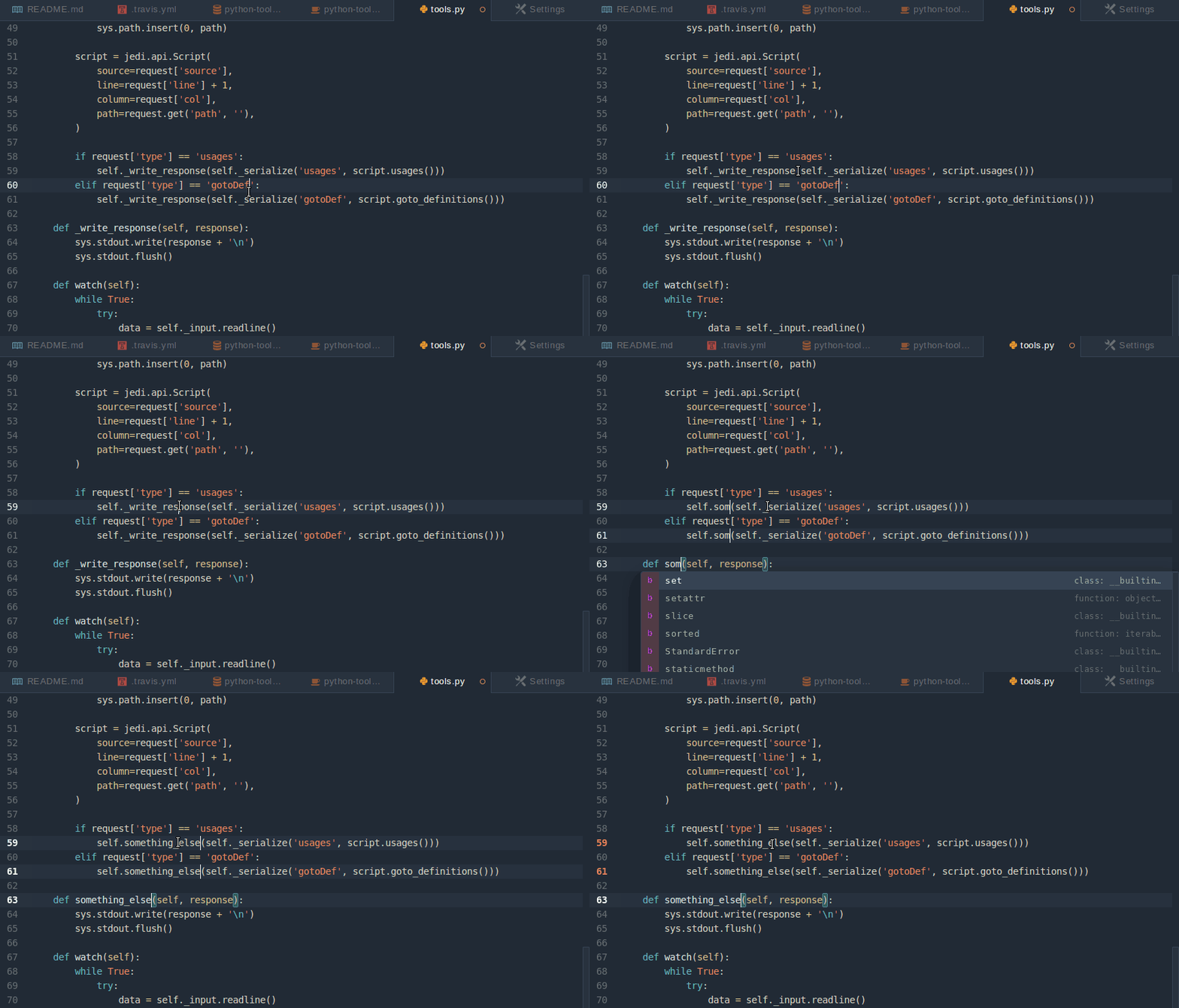
Edit all occurrences of identically named text at the same time. Select the text, then press: Ctrl + Alt + U.
Jump to definition: Ctrl + Alt + G
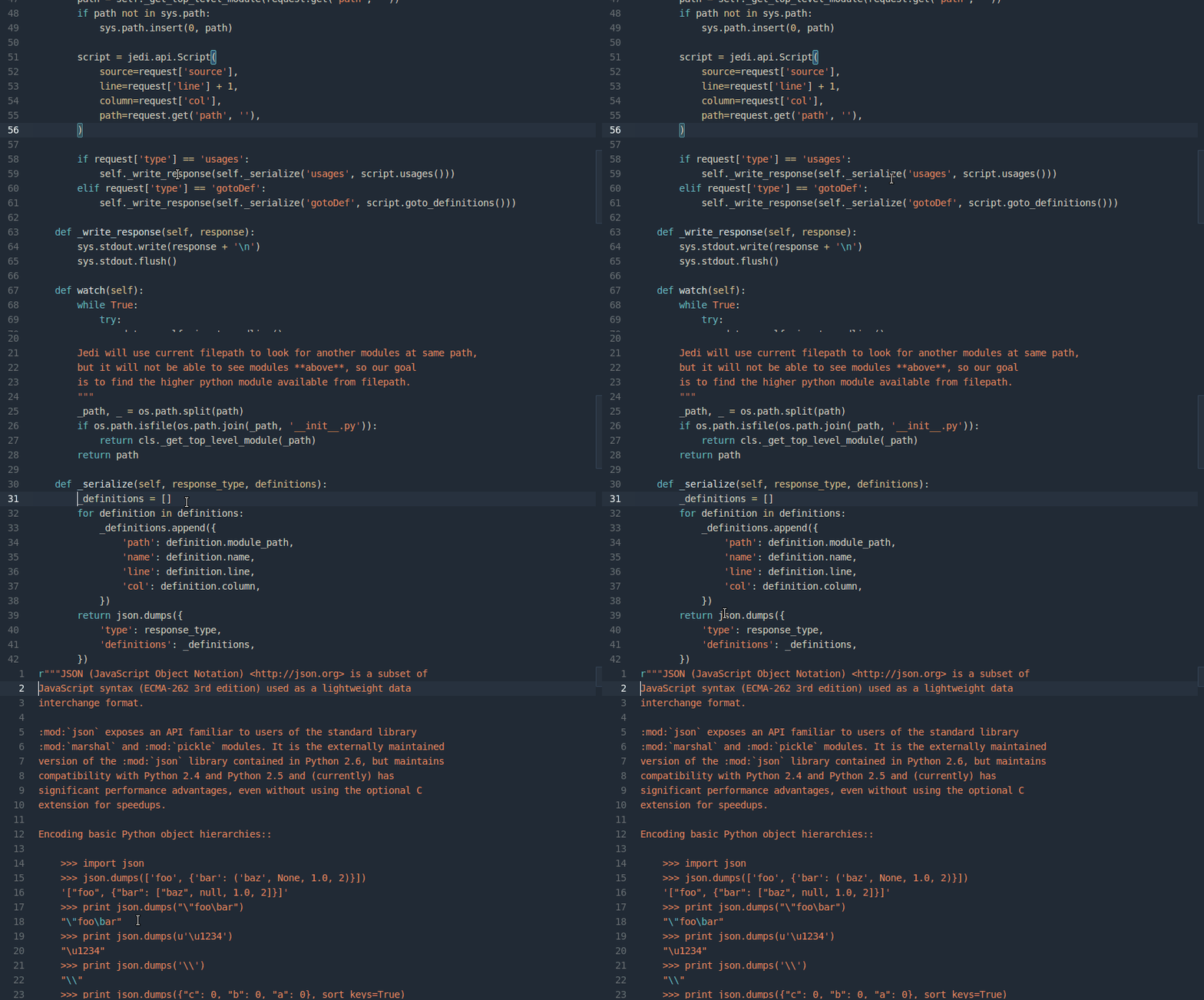
Select all text at the cursor’s position: Ctrl + Alt + E
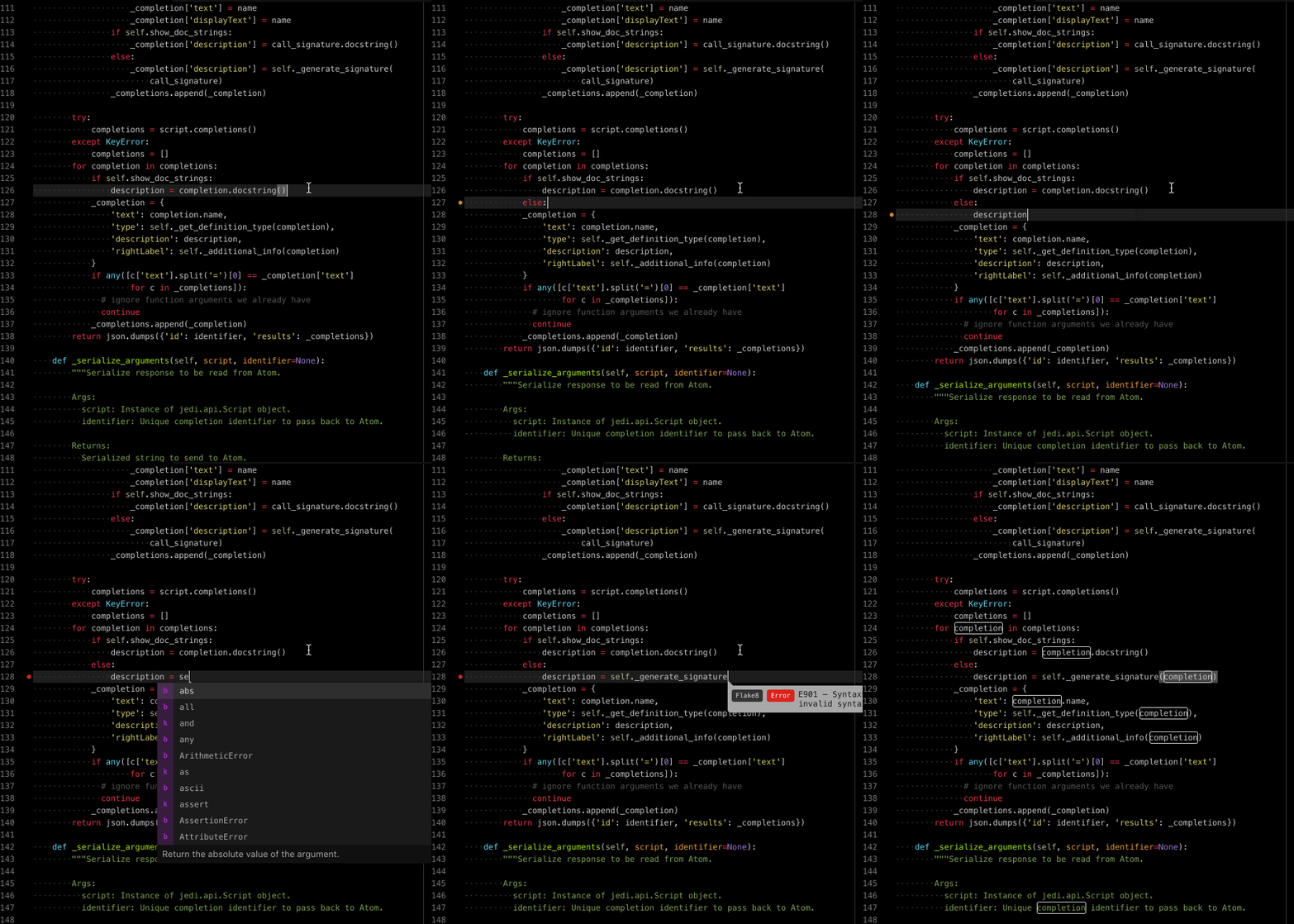
3. autocomplete-python Autocompletion Plugin
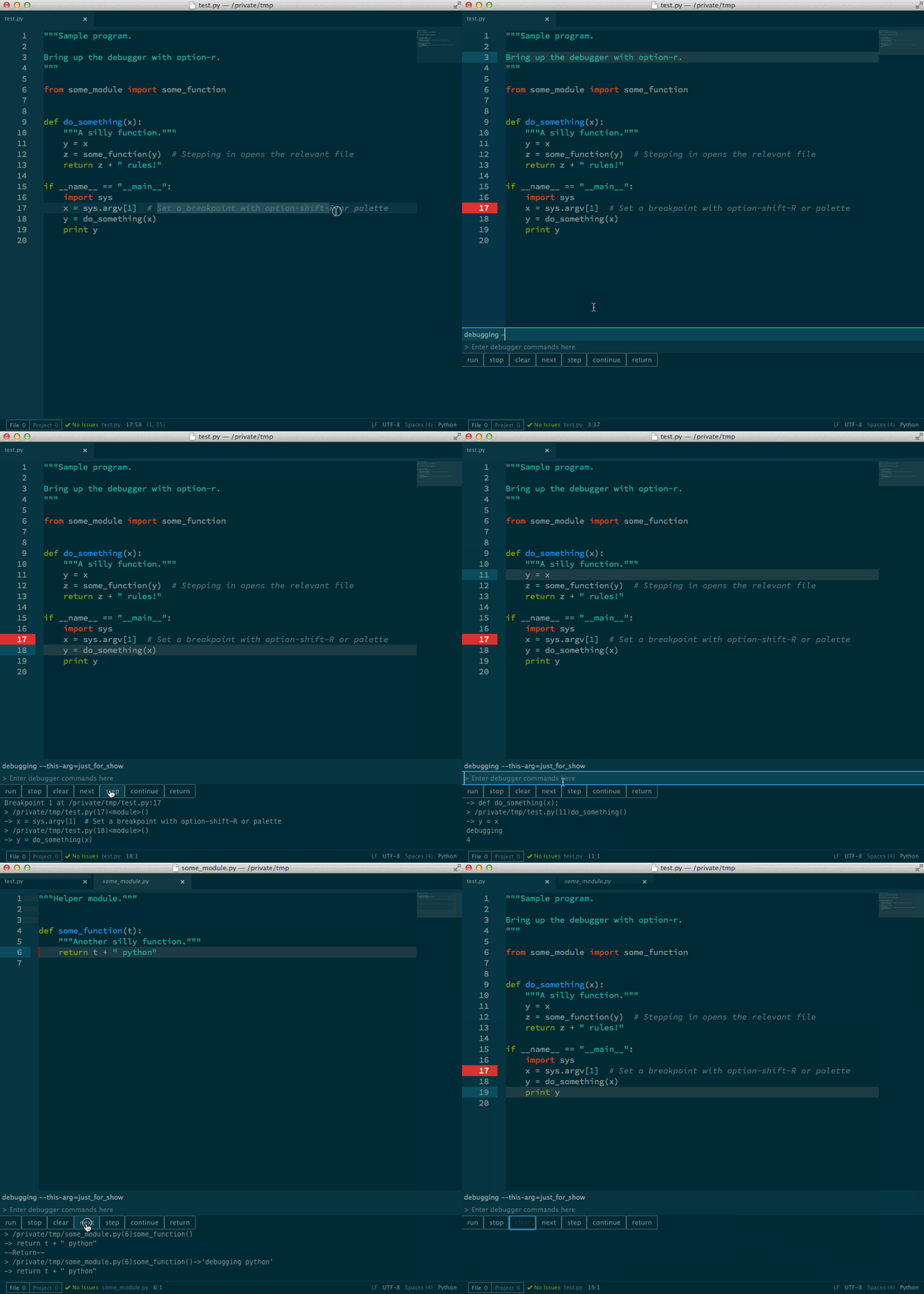
4. python-debugger Debugging Plugin
Open: Alt + R
Set a breakpoint: Alt + Shift + R
5. platformio-ide-terminal Terminal Plugin
Open: Ctrl+
6. script Script Execution Plugin
The Script plugin can execute scripts in most programming languages. Run shortcut: Ctrl + Shift + B.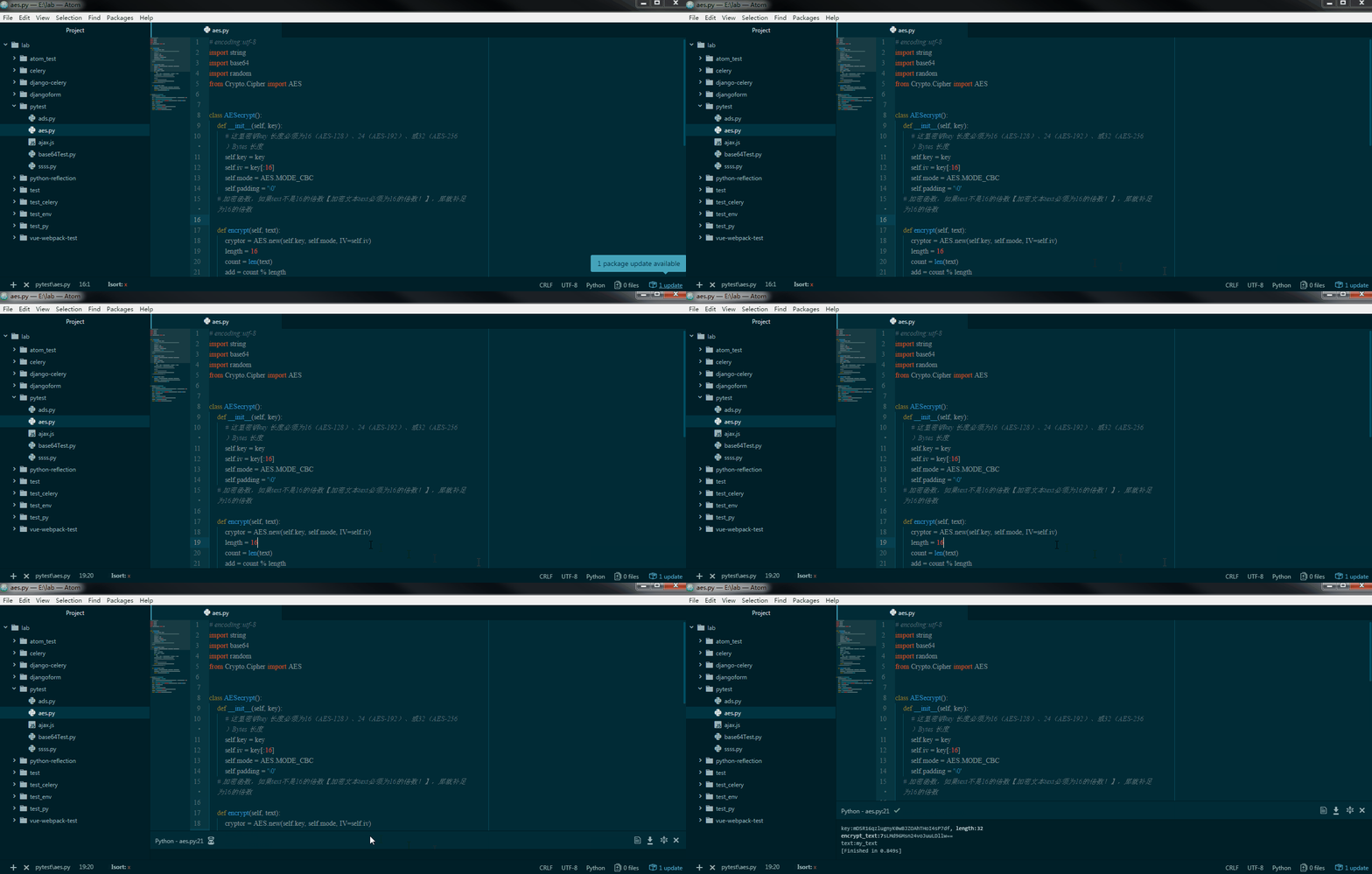
7. emmet HTML Snippet Generator Plugin
Shortcut: Ctrl + E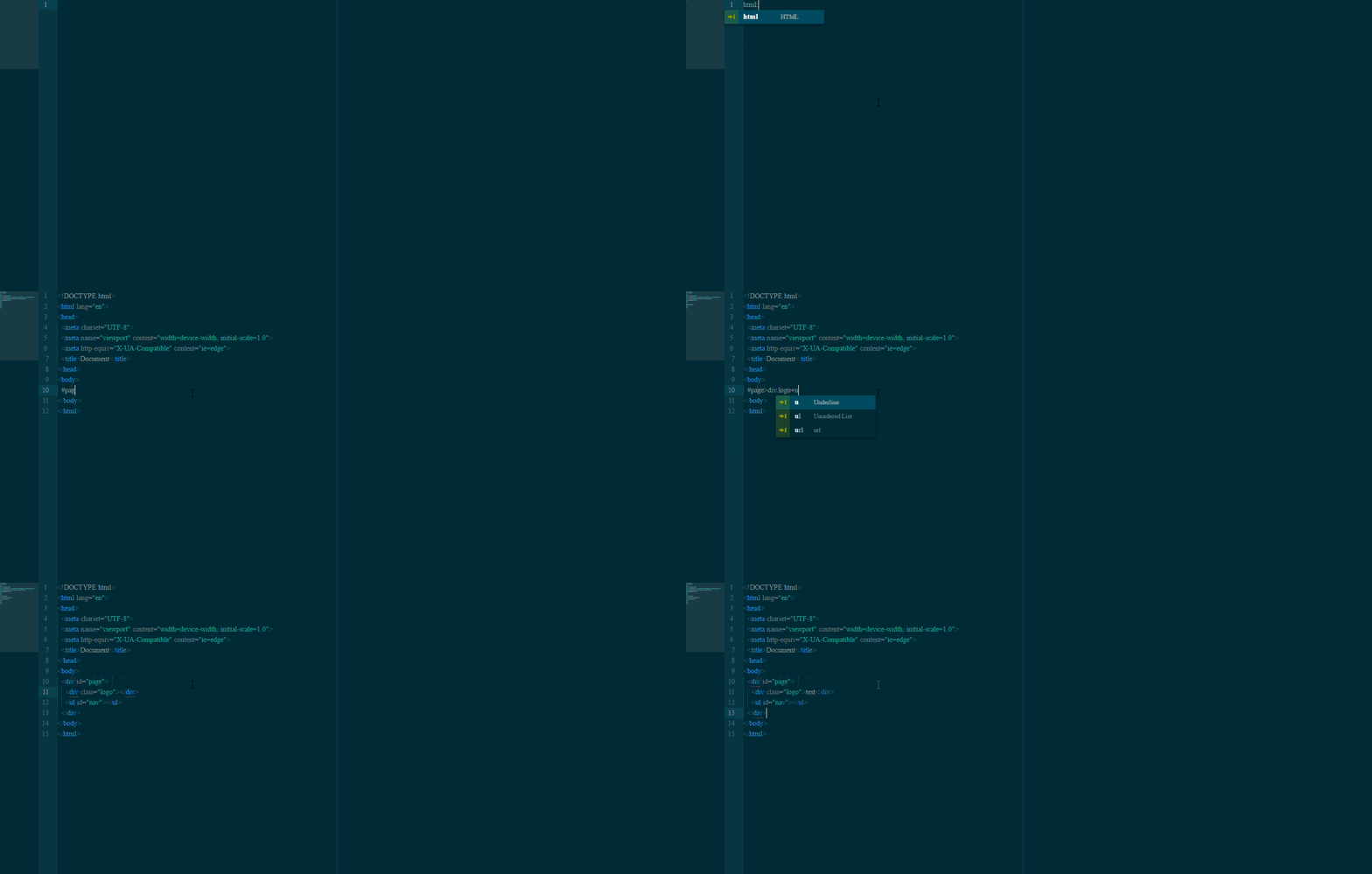
8. Snippets for Declaring the Encoding Quickly
To keep the encoding format consistent, a newly created Python file needs to declare the utf-8 encoding. To add that declaration quickly, we use Atom Snippets here.
Add the following to the C:\Users\Yourname\.atom\snippets.cson file:
| |
Typing: coding inserts the encoding declaration.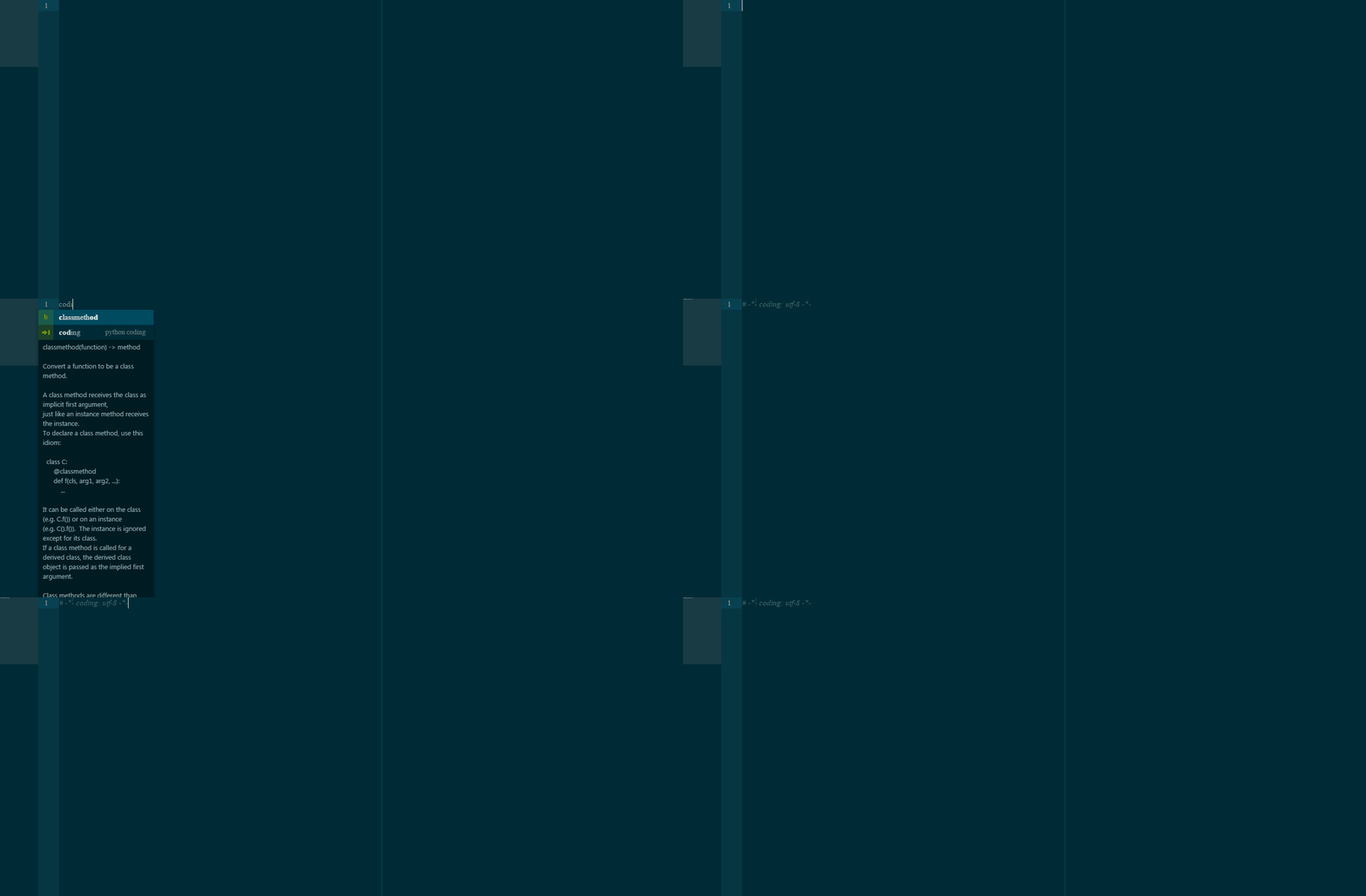
9. Hiding .pyc Files
Two steps in total:
- File -> Settings -> Core, find Ignored Names, and add *.pyc
- File -> Settings -> Packages, search for tree-view and open its Settings, then check Hide Ignored Names.