Here a Windows node is used mainly as a Worker, while the Master control plane stays on Linux.
1. System Configuration
1.1 Kubernetes Control Plane
Since version 1.14, Kubernetes has added production-grade support for Windows nodes. Because Microsoft’s official documentation mainly covers installing the flannel network plugin, it is recommended here that Kubernetes also use the flannel plugin.
- Check the current Kubernetes version of the cluster
1
2
3
4
| kubectl version
Client Version: version.Info{Major:"1", Minor:"17", GitVersion:"v1.17.6", GitCommit:"d32e40e20d167e103faf894261614c5b45c44198", GitTreeState:"clean", BuildDate:"2020-05-20T13:16:24Z", GoVersion:"go1.13.9", Compiler:"gc", Platform:"linux/amd64"}
Server Version: version.Info{Major:"1", Minor:"17", GitVersion:"v1.17.6", GitCommit:"d32e40e20d167e103faf894261614c5b45c44198", GitTreeState:"clean", BuildDate:"2020-05-20T13:08:34Z", GoVersion:"go1.13.9", Compiler:"gc", Platform:"linux/amd64"}
|
Enable bridging of IPv4 traffic to the iptables chain on all nodes
1
| sysctl net.bridge.bridge-nf-call-iptables=1
|
Configure the parameters, adding VNI and Port to net-conf.json
1
| kubectl -n kube-system edit cm kube-flannel-cfg
|
net-conf.json: |
    {
      "Network": "10.244.0.0/16",
      "Backend": {
        "Type": "vxlan",
        "VNI" : 4096,
        "Port": 4789
      }
    }
Restart flannel
1
| kubectl rollout restart ds kube-flannel-ds-amd64 -n kube-system
|
- Install the Windows flannel and kube-proxy Daemonsets
1
2
| curl -L https://github.com/kubernetes-sigs/sig-windows-tools/releases/latest/download/kube-proxy.yml | sed 's/VERSION/v1.17.6/g' | kubectl apply -f -
kubectl apply -f https://github.com/kubernetes-sigs/sig-windows-tools/releases/latest/download/flannel-overlay.yml
|
1
2
3
4
| kubectl get all --all-namespaces |grep windows
kube-system daemonset.apps/kube-flannel-ds-windows-amd64 0 0 0 0 0 <none> 34s
kube-system daemonset.apps/kube-proxy-windows 0 0 0 0 0 kubernetes.io/os=windows 36s
|
Since there is no Windows node, the related Pods cannot be scheduled, so here there are only Daemonsets and no Pods.
- Generate a Join Token for adding nodes
1
2
3
| kubeadm token create --print-join-command
kubeadm join 192.168.13.43:6443 --token b29c63.aqvsg0953edz2ozw --discovery-token-ca-cert-hash sha256:529c64ad705bf356a2efa3c1bdb8181b852e2bc5d46f5d161dee1105e872bae6
|
1.2 Windows Node
Requirements for the Windows OS:
- Windows Server Version 1803+
- Docker Version 17.06+
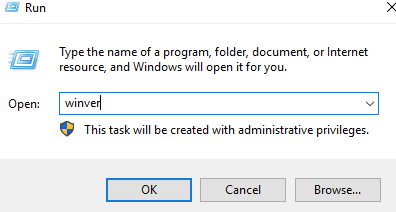
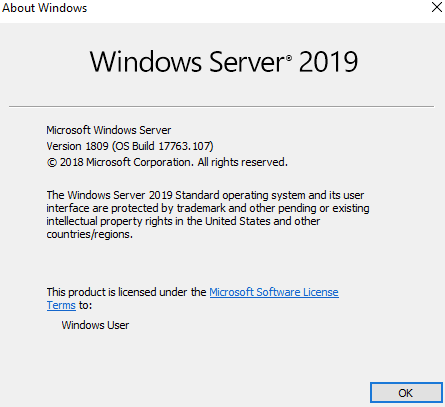
I used the English version of Windows Server 2019; running winver on it shows the system is version 1809.
Some documents describe needing two network cards, because Flannel takes over a network card named Ethernet by default, but I found that this is not necessary.
- Enable Hyper-v, for installing Docker
1
| Enable-WindowsOptionalFeature -Online -FeatureName Microsoft-Hyper-V -All
|
After rebooting, continue with the rest of the steps.
- Enable the RRAS feature, for cross-host Pod communication
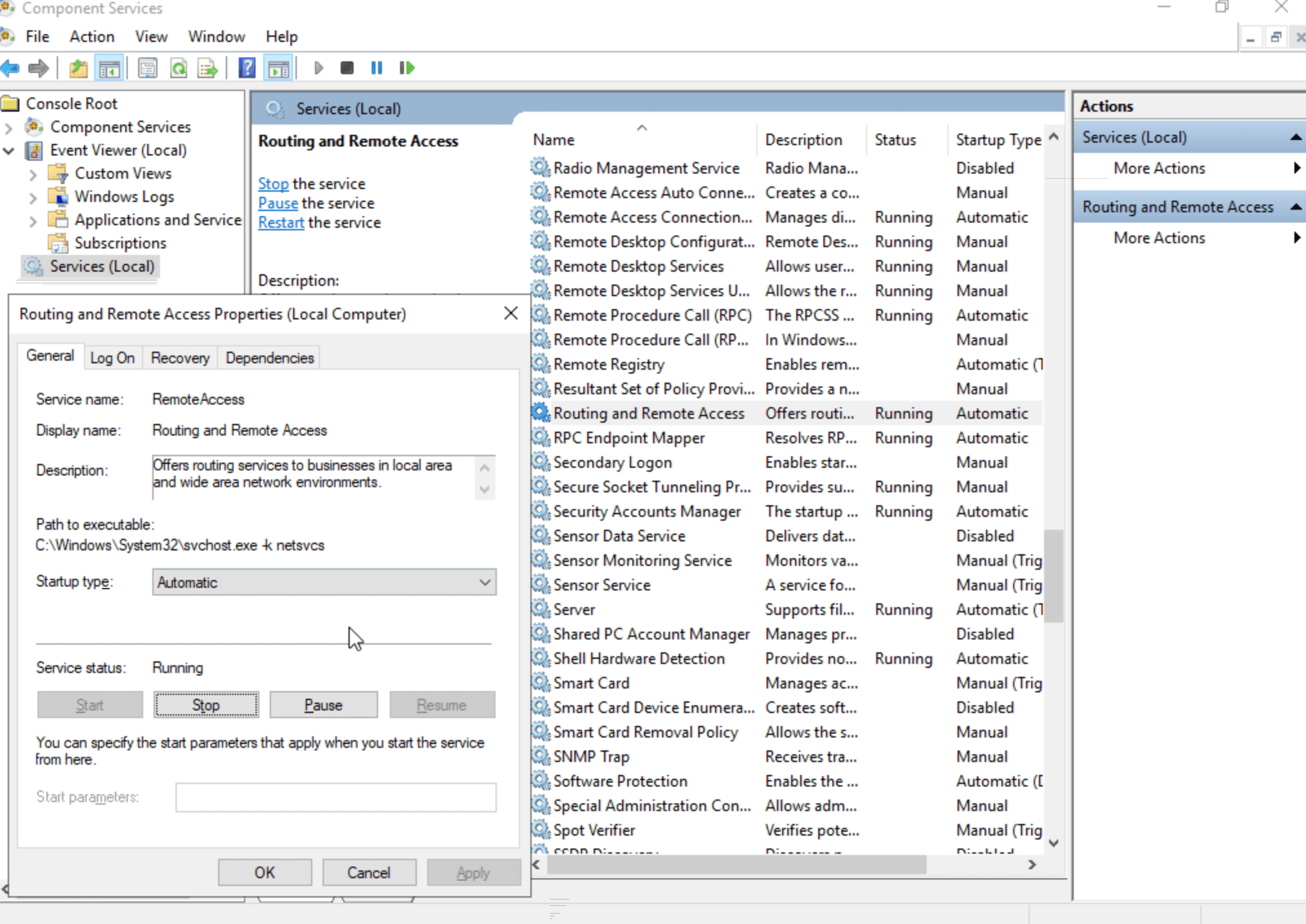
After rebooting, continue with the rest of the steps.
2. Windows Node Configuration
2.1 Installing Docker
Run PowerShell with Administrator privileges.
1
2
3
| Install-Module -Name DockerMsftProvider -Repository PSGallery -Force
Install-Package -Name docker -ProviderName DockerMsftProvider -Force -RequiredVersion 18.09
Restart-Computer -Force
|
1
2
3
| docker -v
Docker version 18.09.11, build 6112046bc9
|
2.2 [Optional] Configuring Kubectl
- Copy the
.kube/config file from the Master node to the C:\node directory on Windows
1
2
| mkdir C:/node
scp -r root@your_master_host_ip:/root/.kube/config C:/node/config
|
- Download the Kubernetes Windows node components of the matching version
The download address for v1.17.6 is: https://github.com/kubernetes/kubernetes/blob/master/CHANGELOG/CHANGELOG-1.17.md#v1176 .
Download the file kubernetes-node-windows-amd64.tar.gz, extract it, find the bin directory, and copy the kubectl file into the C:\node directory
1
2
3
4
| ls C:\node
config
kubectl
|
- Environment variable configuration
Configure the component path into the environment variable
1
| [Environment]::SetEnvironmentVariable("Path", $env:Path + ";C:\node", [EnvironmentVariableTarget]::Machine)
|
Configure the kubeconfig path into the environment variable
1
| [Environment]::SetEnvironmentVariable("KUBECONFIG", "C:\node\config", [EnvironmentVariableTarget]::User)
|
It takes effect only after opening the command line tool again.
2.3 Adding the Windows Node
- Initialize the Windows node
1
2
| [Net.ServicePointManager]::SecurityProtocol = [Net.SecurityProtocolType]::Tls12
wget https://github.com/kubernetes-sigs/sig-windows-tools/releases/download/v0.1.2/PrepareNode.ps1 -o PrepareNode.ps1
|
1
| ./PrepareNode.ps1 -KubernetesVersion v1.17.6
|
If an error occurs during execution, it will be very hard to debug; you need to run the PrepareNode.ps1 script step by step.
 1
 2
 3
 4
 5
 6
 7
 8
 9
10
11
12
13
14
15
16
17
18
19
20
| kubeadm join 192.168.13.43:6443 --token b29c63.aqvsg0953edz2ozw --discovery-token-ca-cert-hash
sha256:529c64ad705bf356a2efa3c1bdb8181b852e2bc5d46f5d161dee1105e872bae6
W0613 12:53:11.738383 1576 join.go:346] [preflight] WARNING: JoinControlPane.controlPlane settings will be ignored when control-plane flag is not set.
[preflight] Running pre-flight checks
[preflight] Reading configuration from the cluster...
[preflight] FYI: You can look at this config file with 'kubectl -n kube-system get cm kubeadm-config -oyaml'
W0613 12:53:13.019694 1576 defaults.go:186] The recommended value for "clusterDNS" in "KubeletConfiguration" is: [10.233.0.10]; the provided value is: [169.254.25.10]
W0613 12:53:13.020730 1576 defaults.go:186] The recommended value for "authentication.x509.clientCAFile" in "KubeletConfiguration" is: \etc\kubernetes\pki\ca.crt; the provided value is: /etc/kubernetes/pki/ca.crt
[kubelet-start] Downloading configuration for the kubelet from the "kubelet-config-1.17" ConfigMap in the kube-system namespace
[kubelet-start] Writing kubelet configuration to file "\\var\\lib\\kubelet\\config.yaml"
[kubelet-start] Writing kubelet environment file with flags to file "\\var\\lib\\kubelet\\kubeadm-flags.env"
[kubelet-start] Starting the kubelet
[kubelet-start] Waiting for the kubelet to perform the TLS Bootstrap...
This node has joined the cluster:
* Certificate signing request was sent to apiserver and a response was received.
* The Kubelet was informed of the new secure connection details.
Run 'kubectl get nodes' on the control-plane to see this node join the cluster.
|
Windows-related images are all very large, so you need to wait a while before it becomes Ready.
1
2
3
4
5
| kubectl get node -o wide --show-labels
NAME STATUS ROLES AGE VERSION INTERNAL-IP EXTERNAL-IP OS-IMAGE KERNEL-VERSION CONTAINER-RUNTIME LABELS
i-fuu1ub1t Ready <none> 9h v1.17.6 192.168.13.55 <none> Windows Server 2019 Standard 10.0.17763.379 docker://18.9.11 beta.kubernetes.io/arch=amd64,beta.kubernetes.io/os=windows,kubernetes.io/arch=amd64,kubernetes.io/hostname=i-fuu1ub1t,kubernetes.io/os=windows,node.kubernetes.io/windows-build=10.0.17763
node1 Ready master,worker 9h v1.17.6 192.168.13.43 <none> CentOS Linux 7 (Core) 3.10.0-957.21.3.el7.x86_64 docker://19.3.8 beta.kubernetes.io/arch=amd64,beta.kubernetes.io/os=linux,kubernetes.io/arch=amd64,kubernetes.io/hostname=node1,kubernetes.io/os=linux,node-role.kubernetes.io/master=,node-role.kubernetes.io/worker=
|
3. Creating and Inspecting a Workload
1
| kubectl run iis --image=microsoft/iis --overrides='{"spec": { "nodeSelector": { "kubernetes.io/os": "windows" } } }'
|
1
| kubectl expose deploy iis --type=NodePort --port=80 --target-port=80
|
 1
 2
 3
 4
 5
 6
 7
 8
 9
10
11
| kubectl get pod,deploy,svc -o wide
NAME READY STATUS RESTARTS AGE IP NODE NOMINATED NODE READINESS GATES
pod/iis-5575988c89-cz66z 1/1 Running 0 42m 10.233.65.4 i-fuu1ub1t <none> <none>
NAME READY UP-TO-DATE AVAILABLE AGE CONTAINERS IMAGES SELECTOR
deployment.apps/iis 1/1 1 1 63m iis microsoft/iis run=iis
NAME TYPE CLUSTER-IP EXTERNAL-IP PORT(S) AGE SELECTOR
service/iis NodePort 10.233.23.109 <none> 80:30552/TCP 11m run=iis
service/kubernetes ClusterIP 10.233.0.1 <none> 443/TCP 8h <none>
|
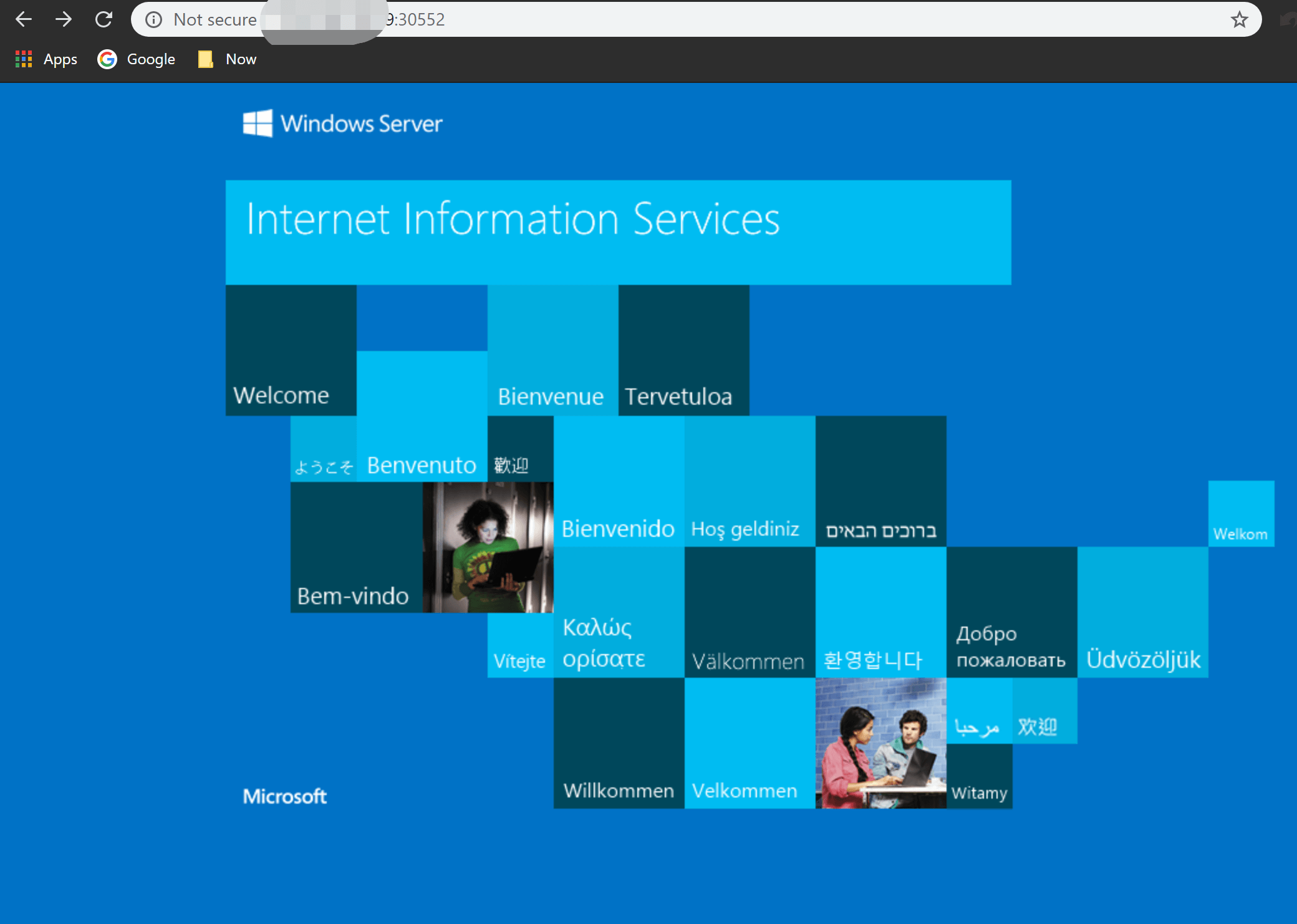
- View the service in the browser
- Check the images and containers on the Windows Server
1
2
3
4
5
6
7
8
9
| docker ps
CONTAINER ID IMAGE COMMAND CREATED STATUS PORTS NAMES
23fa7cbbe450 mcr.microsoft.com/k8s/core/pause:1.2.0 "cmd /S /C 'cmd /c p…" 18 seconds ago Up 18 seconds k8s_POD_iis-776c85bc49-9hrn9_default_20a5eac5-9335-4ce6-b4e5-0e1a0fcadc5c_1293
9a8a58dcd2c4 b5fe926a6fe0 "powershell -file /v…" 19 seconds ago Up 16 seconds k8s_kube-proxy_kube-proxy-windows-rtlvf_kube-system_73093c85-a6fa-4da4-a153-c8cb2e0f3ff4_0
23ef060dd278 mcr.microsoft.com/k8s/core/pause:1.2.0 "cmd /S /C 'cmd /c p…" 20 seconds ago Up 19 seconds k8s_POD_kube-proxy-windows-rtlvf_kube-system_73093c85-a6fa-4da4-a153-c8cb2e0f3ff4_788
09b765ebeb13 mcr.microsoft.com/k8s/core/pause:1.2.0 "cmd /S /C 'cmd /c p…" 20 seconds ago Up 20 seconds k8s_POD_iis-5575988c89-cz66z_default_0181697d-8356-463b-8e55-a0183c9cf3fe_736
105f32355a94 9499a92cb176 "powershell -file /e…" 46 seconds ago Up 43 seconds k8s_kube-flannel_kube-flannel-ds-windows-amd64-fgkv8_kube-system_46d18acf-7ff1-4673-aca8-50eba8aac221_0
e08cc8145660 mcr.microsoft.com/k8s/core/pause:1.2.0 "cmd /S /C 'cmd /c p…" 47 seconds ago Up 46 seconds k8s_POD_kube-flannel-ds-windows-amd64-fgkv8_kube-system_46d18acf-7ff1-4673-aca8-50eba8aac221_117
|
1
2
3
4
5
6
7
| docker images
REPOSITORY TAG IMAGE ID CREATED SIZE
sigwindowstools/kube-proxy v1.17.6 b5fe926a6fe0 12 hours ago 5.07GB
microsoft/iis latest 0916eec6d2f2 3 days ago 5.18GB
sigwindowstools/flannel 0.12.0 9499a92cb176 2 months ago 5.06GB
mcr.microsoft.com/k8s/core/pause 1.2.0 a74290a8271a 11 months ago 253MB
|
Windows images really are huge.
4. Some Problems You May Run Into
The main problem is that most of the documentation available now is not universally applicable. That is, installation only succeeds under a specific Windows, Kubernetes, Docker, and Network environment, and along the way you run into all kinds of error messages that you cannot look up anywhere. Without a fairly deep understanding of how Kubernetes works internally, the whole process will be very difficult.
4.1 Kubelet Won’t Start
In some versions, kubelet just won’t start, and you need to copy the C:\var\lib\kubelet\etc\kubernetes\pki\ca.crt certificate to C:\var\lib\kubelet\etc\kubernetes\ssl\ca.art.
4.2 Network host not found
This is an error message that appears in the Event of kubectl describe.
Check Docker’s networks:
1
2
3
4
5
| docker network ls
NETWORK ID NAME DRIVER SCOPE
efc374609b5e nat nat local
ed0985e480b1 none null local
|
There is no host network. Because Hyper-V is used here, you cannot use a host-type network; instead you use a nat-type network named host.
1
| docker network create -d nat host
|
4.3 /run/flannel/subnet.env Not Found
On the master node, run
1
| cat /run/flannel/subnet.env
|
The subnet configuration obtained is as follows:
1
2
3
4
| FLANNEL_NETWORK=10.233.64.0/18
FLANNEL_SUBNET=10.233.64.1/24
FLANNEL_MTU=1450
FLANNEL_IPMASQ=true
|
On the Windows node, create the file C:\run\flannel\subnet.env and add the content shown above.
4.4 Pod Keeps Initializing and Won’t Start
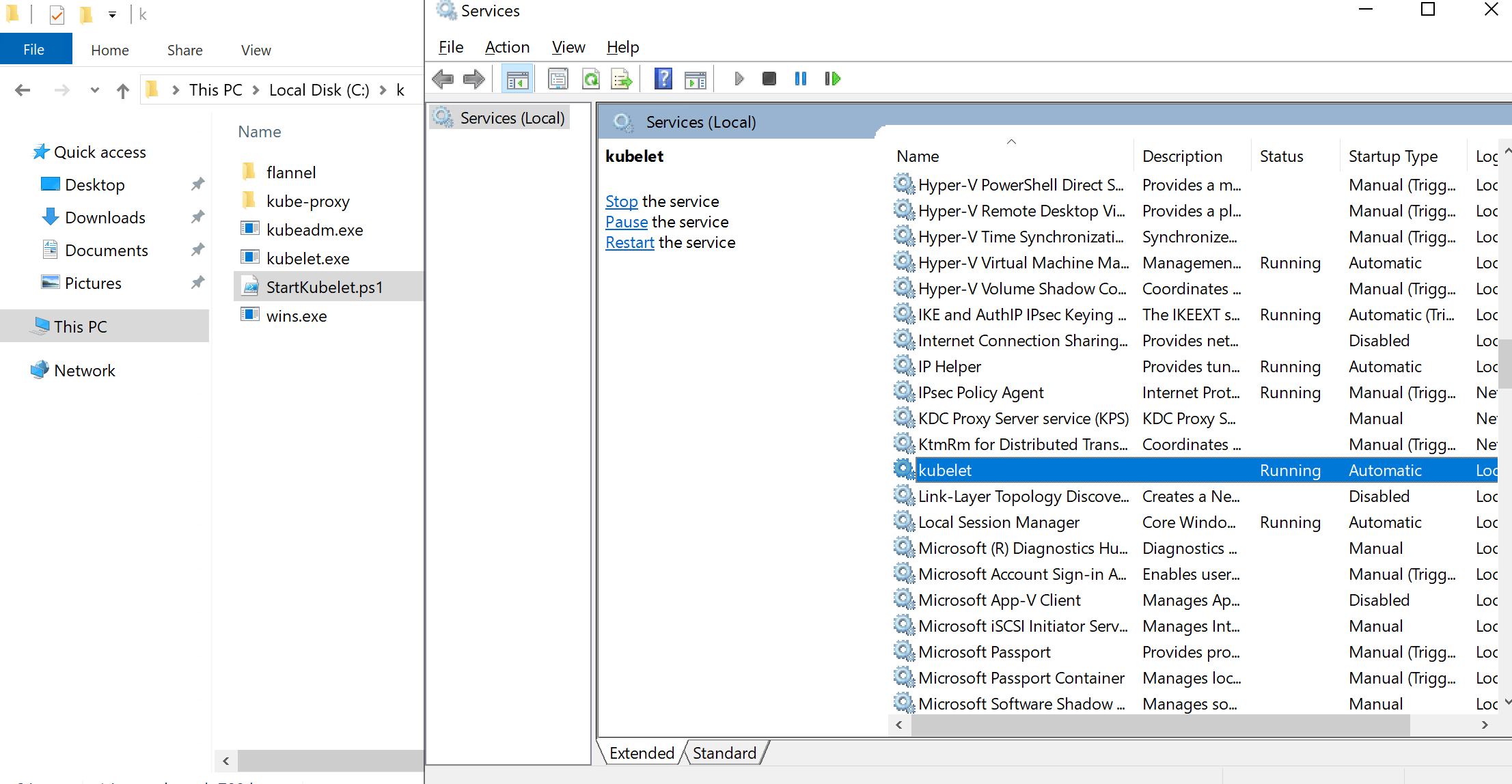
The pause image under Windows is not universal; different OS versions need different pause images. In the Kubelet startup parameters, you can change the image.
Edit the C:\k\StartKubelet.ps1 file, then restart the Kubelet component.
4.5 Install the KB4489899 Patch
Using Flannel in vxlan mode to configure the virtual overlay network requires Windows Server 2019 with KB4489899 installed.
5. References
